CLOUDATA · Documentation
Dova 22.0.5
Product manual
Learn to connect, transform and deliver data with Dova. Explore procedures, reproducible examples and operational reference.
- Product version
- 22.0.5
- Edition
- 2026.10
- Updated
- 2026-10-16
- Language
- EN
Scope of this edition
This edition documents Dova 22.0.5. Examples use synthetic data. Visible features and available actions depend on permissions, subscription and execution context; check the conditions of each procedure.
Dova 22.0.5
How to use this manual
Choose a route for your objective. Chapters provide procedures, operating conditions and criteria for checking results. The contents link to chapters and sections; the PDF includes page numbers and hierarchical bookmarks.
| Objective | Recommended route |
|---|---|
| Start and verify a result | Guides and laboratories |
| Design and organize objects | Workspace |
| Publish, schedule and monitor | Workflows and execution |
| Administer access and platform | Administration |
| Look up configuration and parameters | Reference |
Reading conventions
Component names, keys, functions and commands are distinguished from prose. Code blocks preserve their literal content. An example does not replace verification of permissions, versions, paths or destinations in your own environment.
What each object represents
| Object | Responsibility | What to verify |
|---|---|---|
Mapping | Defines sources, transformations and targets. | Ports, rules, validation and published version. |
Session | Associates a published Mapping with its execution context. | Version, parameters, paths and worker policy. |
Workflow | Coordinates tasks and their dependencies. | Start, Session, End, links and published version. |
Monitor | Shows attempts, tasks and available evidence. | Terminal state, errors, logs and actual destination. |
Dova 22.0.5
Dova in three diagrams
Direct file-based test
Coordinated execution
A direct Mapping run with a file does not require a separate Session or Workflow. The complete route uses these objects to retain execution context and coordinate tasks.
The filter keeps status equal to ACTIVE. Field selection emits only customer_id, name and amount. Acceptance compares schema and values; physical ordering requires an explicit sorting rule.
| customer_id | name | amount |
|---|---|---|
D001 | Demo Alfa | 125.50 |
D003 | Demo Gamma | 80.00 |
D004 | Demo Delta | 0.00 |
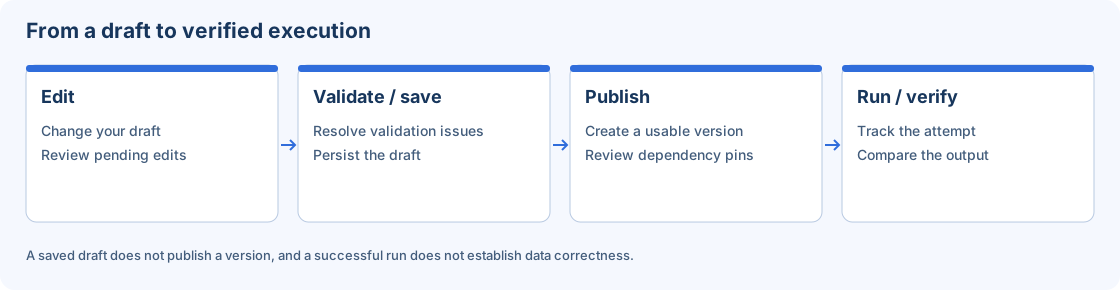
Saving a draft, publishing and running are distinct actions. After a run, inspect the attempt and its destination: a queued state does not establish that output already exists.
Dova 22.0.5 · Part I
Guides and laboratories
Follow a complete journey and check the results with synthetic data.
Chapters in this part
Guides and laboratories
Chapter 1Your first complete flow: from file to verified execution
Choose direct Mapping Run or a published Session and Workflow, prepare a laboratory and verify the actual execution and data.
Choose your first test
To learn the editor with a local file, start with Mapping → Run: publish the Mapping, attach the synthetic CSV and verify its result in Monitor. This route does not require a separate Session or Workflow. The 18-to-10-row demonstration documents every component.
When you need reusable execution paths and parameters or coordinated tasks, follow this guide's full route: Mapping → Session → Workflow → Monitor. The Session supplies execution context; the Workflow coordinates dependencies. These are two execution routes, rather than mandatory stages behind the same Run button.
Files for your first Workflow
For the complete route, use this edition’s small fixture: four synthetic customers, three with status=ACTIVE. Download the input and keep the expected result separately.
Configure Flat File input → Row filter (field=status, operator=equals, value=ACTIVE) → Field selector (fields=customer_id, name, amount) → Flat File output. Publish the Mapping, then continue with this guide’s Session and Workflow. Output must contain only customer_id, name and amount, with D001/Demo Alfa/125.50, D003/Demo Gamma/80.00 and D004/Demo Delta/0.00. Without an explicit Row sort, compare records by identifier rather than treating source order as a universal guarantee. Decimal serialization and line endings may differ: acceptance checks schema and values rather than byte identity. Following this browser route does not require a private source checkout.
This laboratory connects organization, transformation, execution and verification. Its goal is a CSV whose contents you can check, with the executed versions and runtime conditions clearly identified. Use synthetic data and output locations isolated from operational processes.
Prepare your workspace
Sign in with an authorized identity and check the active tenant and role in the account menu. The same person may have several contexts; an object's name alone does not establish its scope. Open Repository and select a laboratory Domain and Folder. If your role cannot create them, have an administrator prepare the location.
Use recognizable names, such as a lab_ prefix, and record how your Mapping, Session and Workflow relate. Do not reuse production object identifiers. Prepare input and output directories accessible to the selected worker. A file on your browser computer is not automatically available on that remote worker. Configure credentials through Connections, rather than sample rows or file names.
Design and validate the Mapping
The Mapping defines data operations. Start with Flat File input, one simple transformation and Flat File output. Review delimiter, encoding, field names and empty values. Use the normalization demonstration when you are ready for a longer chain.
- In
Mappings, chooseNew Mappingand enter the laboratory name,DomainandFolder. - Add components from the palette and configure each selected component in its inspector.
- Connect source, transformation and target ports in business-rule order.
- Choose
Validateand resolve its messages. Arrange and Fit change the view, rather than transformation rules. - Choose
Save draft, thenPublish. Accept the publication confirmation and check the persisted version.
A filter before conversion may behave differently from the same filter after conversion. Saving a draft does not publish it, and publishing does not start execution. If you use Run directly in the Mapping, follow the file-upload route without creating the objects in the next sections.
Bind the Session
The Session associates a published Mapping with its execution context. Create a laboratory Session, select the Mapping and check its version. Set the test environment, execution profile and worker policy. Keep the tenant default unless an authorized override is deliberately needed.
In File paths, bind every source and target node identifier to a path the worker can access. In the simple example, source_csv reads customers and target_csv writes the result. Use a destination exclusive to the laboratory. A valid file bound to the wrong node is still an incorrect binding.
The worker must be enabled, eligible, compatible and have available capacity. Check heartbeat and slots in Workers; a powered-on VM does not prove that its agent can execute the task. Review typed parameters and their resolution preview, then save, validate and publish the Session.
Orchestrate and run manually
Create a Workflow with Start → Session → End. Select your published Session in the task, check its version and connect success dependencies. A Workflow needs exactly one Start, at least one End, and valid reachable paths without cycles. Task names must be unique within the design.
Validate, save the draft and publish. Run manually in the laboratory and record the new attempt identifier. Values overridden for that attempt do not permanently edit the Session or Workflow. Add Decision or Timer only after the basic case matches its expected result; Timer waits a number of seconds rather than creating a recurring schedule.
Leave scheduling disabled until you have verified the manual behavior, actual destination and recorded evidence. After updating a Mapping or Session, review and publish its consumers deliberately; an open draft does not silently replace a version pinned by an execution.
Verify and close the test
Open Monitor and follow the attempt to a terminal state. Accepted or queued does not establish that the output exists. Expand tasks and inspect the first relevant error and available logs. Use Download output when a succeeded attempt has a stored result; for worker files or tables, inspect the authorized destination itself.
Compare header, values, row count and physical order with an independently defined expected result. Record tenant, Domain, Folder, versions, attempt ID, count and destination without secrets. Investigate parsing, bindings and transform order before repeating a write to a shared destination.
Once stable, prepare a schedule in Configuration → Workflow Scheduler with an explicit timezone. Check the next planned execution and an actual resulting attempt separately. Before moving environments, recheck permissions, paths, connections and capacity. A local rule test does not certify destination infrastructure.
Guides and laboratories
Chapter 2Normalize customers: CSV demonstration and reproducible laboratory
Build a twelve-component Mapping that turns 18 synthetic rows into 10 verified records, then study the additional 1,000-row local laboratory.
First, this guide presents an exercise you can build in the Dova 22.0.5 browser interface. It then preserves a local 1,000-row laboratory for readers with an authorized engine checkout. These are different fixtures: keep their files, rules and expected counts separate.
CSV demonstration: from 18 to 10 rows
The public files and screenshots come from a preserved genuine Dova 20.0.4 demonstration. Their bytes and counts were rechecked for this edition, and component fields were reviewed against active 22.0.5 source. This guide does not claim that a new 22.0.5 attempt was executed during its preparation.
Download the synthetic input CSV and keep the reference result separately. Input has 18 records and eight columns; output has 10 records and six columns. Names, zones and identifiers are explicitly marked DEMO.
One record before and after
This excerpt shows DEMO-C002, rather than the complete file. Extra spaces are removed and text becomes uppercase; HABILITADO becomes ACTIVO. The amount is numeric: 2500.0 and 2500.00 represent the same value in this fixture.
customer_id,full_name,city,segment,status,credit_limit,demo_row_ref,internal_note
DEMO-C002, cliente   demo beta ,zona demo sur, empresa demo , habilitado ,2500.00,DEMO-R02,MUESTRA SINTETICA; SIN DATOS REALES
cliente_id,cliente_nombre,ciudad,segmento,estado,limite_credito
DEMO-C002,CLIENTE DEMO BETA,ZONA DEMO SUR,EMPRESA DEMO,ACTIVO,2500.0Configure all twelve components
Create a Mapping in your laboratory Domain and Folder. Add the table components and connect one linear chain in the listed order. Each block shows the technical configuration corresponding to inspector controls. It is not an import document, and you do not paste it into the read-only Advanced view. Your own design generates its node identifiers.
| Step | Component | Configuration |
|---|---|---|
| 1 | Flat File inputsource_csv | |
| 2 | Clean textclean | |
| 3 | Replace valuesreplace | |
| 4 | Row filter · statusfilter | |
| 5 | Row filter · customer_idfilter | |
| 6 | Row filter · full_namefilter | |
| 7 | Row filter · credit_limitfilter | |
| 8 | Convert typeconvert | |
| 9 | Field mapperrename | |
| 10 | Field selectorselect | |
| 11 | Row sortsort | |
| 12 | Flat File outputtarget_csv | |
Ten transformations sit between source and target: cleaning, replacement, four filters, conversion, renaming, selection and sorting. All four filters must precede Convert type: an inactive fixture record contains an invalid amount and must be excluded before conversion. not_empty checks the cleaned value is present; it does not prove that any arbitrary text is numeric.
Publish and run from the browser
- Choose Validate and resolve its messages, then
Save draft. - Choose Publish, confirm publication and check the persisted version. Later edits require saving and publishing again.
- Click Run in the
Mapping. Select customers-demo.csv in the CSV file picker. This direct test does not require an S3Connection,SessionorWorkflow. - Follow the attempt in
Monitorand record its identifier. Wait for terminal success; queued or an accepted request is not completion. - Choose
Download outputwhen the succeeded attempt has a stored result. Save the downloaded CSV separately from the reference file. - Compare the actual download with the expected result, without reordering or editing it to force a match.
Acceptance criteria
Check the exact header, six columns and ten data records, unique identifiers and physical ascending cliente_id order, normalized text and ACTIVO status, and numerically equivalent amounts. Confirm demo_row_ref and internal_note are absent. The target configures UTF-8 BOM and CRLF for a CSV that Excel can open or import. It remains CSV, rather than an XLSX workbook.
For missing rows, inspect the first filter excluding each record. If Convert type fails, check preceding filters and the accepted amount. For incorrect columns, review Field mapper and Field selector. If Download output is unavailable, check terminal state, stored output and permission; publication alone does not produce a file.
View genuine screenshots of the 16 demonstration steps
Additional local laboratory: 1,000 rows → 667
This local package belongs to the 6.0.2 laboratory and preserves its original verification. Its 667-row result is that fixture’s expected acceptance criterion, not a newly executed 22.0.5 run. It requires an authorized checkout; use the demonstration above for browser-only learning.
This laboratory processes 1,000 synthetic CSV rows through eight Transform components and expects 667 normalized output rows. It demonstrates text cleanup, replacement, field splitting, concatenation, calculated fields, conversion, filtering and numeric sorting. Names and values are repeatable fixtures, not records of real people.
Use the existing historical sample package · laboratorios-dova-6.0.2.zipDownload. The fixture format remains applicable to the documented transformation model; the package version is separate from the Dova 7 interface. It contains the sample inputs, expected outputs and coherent Mapping/Session/Workflow definitions. The ZIP is a fixture runner, not the Dova engine, and requires an authorized source checkout with the documented Python dependencies.
The local transformation verification and a server Workflow run are separate exercises.
1. Inspect the data and expected result
After extracting the package, inspect transform_workflows/inputs/customers.csv. Its fields include customer_id, raw_name, location, amount and status. It intentionally contains repeated spaces, accents, a vertical-bar location separator and alternating ACTIVE, ENABLED and INACTIVE states.
Inspect transform_workflows/expected/customer_normalized.csv independently. Do not generate your expected output by simply copying a new engine result. The supplied independent Python oracle establishes the expected values, ordering and byte representation.
2. Review the eight transformations
| Step | Operation | Rule to verify |
|---|---|---|
| 1 | Clean | Trim and collapse spaces and remove accents in name/location. |
| 2 | Replace | Replace exactly ENABLED with ACTIVE. |
| 3 | Split | Split location into city/country and remove the original field. |
| 4 | Concat | Build customer key from the cleaned name, # and identifier. |
| 5 | Derive | Create the segment from country and status. |
| 6 | Convert | Convert amount to a numeric output field and fail on invalid conversion. |
| 7 | Filter | Keep ACTIVE records only. |
| 8 | Sort | Order numeric amount descending. |
Replace precedes Filter, so rows originally marked ENABLED are accepted. Conversion precedes Sort so the order is numeric rather than lexical. Inspect those dependencies before moving components on the canvas.
3. Run the isolated verifier
From the extracted package directory, point the runner to your authorized source checkout:
python .\run_pocs.py --repo C:\path\DovaETL --report .\verification.json
Replace the illustrative path. The runner does not start a server, create tenant objects or access network endpoints. It copies synthetic inputs into a temporary directory, validates definitions and verifies both documented laboratories. The optional report contains safe counts, hashes and comparison results.
If a dependency is missing, follow the project's authorized dependency setup. Do not modify expected CSVs to make a mismatch disappear. Inspect the first error and the fixture integrity result.
4. Check acceptance
Confirm 1,000 source rows, 667 output rows and byte-for-byte equality with both the independent oracle and supplied expected CSV. Inspect the columns and descending amount order as additional human checks. A correct count alone would not reveal an incorrect key, segment or sort order.
5. Reproduce through the UI
Review the definition in Mappings, configure all bindings in Sessions, and publish a laboratory Workflow. Use worker-accessible synthetic files and an exclusive destination. Run manually and inspect Monitor. Record the actual published dependency versions and run identifier, then compare the server output with the same expected result.
Local verification demonstrates transformation behavior for these fixtures. It does not establish remote worker authentication, storage permissions or production capacity. For a mismatch, inspect Replace/Filter ordering, numeric conversion, the split delimiter and output serialization before changing the oracle.
Guides and laboratories
Chapter 3Regional summary: combine TXT and Excel with a verifiable Join
Study TXT and Excel input, typed join keys and regional totals with synthetic laboratory fixtures and independent acceptance criteria.
Regional laboratory scope
This guide is part of the Dova 22.0.5 documentation and explains components present in that version. The downloadable package preserves the original 6.0.2 laboratory fixtures and verification. Four output rows are its expected criterion, rather than a claimed new 22.0.5 execution. Its wrapper requires an authorized engine checkout; for browser-only learning, start with the 18-to-10-row CSV demonstration.
This example combines 1,000 synthetic pipe-delimited transactions with a 1,000-row Excel customer catalog. It filters approved transactions, joins customers to regions and produces a four-row CSV summary. The expected result is calculated by an independent oracle instead of reusing the engine's Join or Aggregate implementations.
Download the existing synthetic fixture package, edition 6.0.2 · laboratorios-dova-6.0.2.zipDownload and extract it. The preserved fixture package is separate from the current product release. Use an authorized DovaETL source checkout and its required Python dependencies. No customer transactions, payment provider or external connection is involved in the isolated exercise.
1. Review both inputs
transform_workflows/inputs/transactions.txt contains customer_id, amount and status. Every fifth transaction is REJECTED; the others are APPROVED. Identifiers and amounts initially arrive as text.
transform_workflows/inputs/customers.xlsx contains a Customers sheet with a header and 1,000 rows in columns A–C: customer_id, customer_name and region. Its identifier is numeric, and text contains deliberate accent and spacing variations. The expected CSV contains exactly sales_region and approved_total.
2. Inspect the component order
| Component | Required behavior |
|---|---|
| TXT Convert | Convert amount to numeric amount_number. |
| Excel Clean | Trim/collapse spaces, remove accents and uppercase customer/region text. |
Join |
Inner join by integer customer_id; TXT is left, Excel is right; hash strategy and nulls unequal. |
| Filter | Keep APPROVED transactions. |
| Aggregate | Group by region and sum amount_number into total_amount. |
| Sort | Order total descending. |
| Rename | Produce sales_region and approved_total. |
| Select | Retain exactly those two fields. |
The two input branches let you diagnose parsing before blaming the join. Numeric key normalization matters because one identifier comes from text and the other from an Excel cell. Duplicate customer keys can multiply joined records and inflate an aggregate.
3. Execute the isolated verification
Run from the extracted fixture directory:
python .\run_pocs.py --repo C:\path\DovaETL --report .\verification.json
The wrapper verifies both laboratories. It checks fixture integrity, validates definitions, resolves the source_txt and source_xlsx bindings, and verifies the reported 1,000 rows for the Customers sheet. Network and persistent application-storage access are forbidden by the runner. The optional JSON report records synthetic evidence only.
4. Accept the result
Confirm four rows and byte-for-byte equality with the independent oracle and expected/regional_approved_totals.csv. The oracle builds a region lookup by integer identifier, skips rejected transactions, sums by normalized region and sorts. Inspect exactly two output fields, UTF-8 encoding, header and LF line endings.
The sample's number representation does not establish a universal accounting or rounding policy. For a real financial process, define precision, scale, currency and rounding separately before implementing the rule.
5. Move into a laboratory Workflow
Publish the Mapping, then configure both source bindings in the Session. A single uploaded file does not replace the two sources. In the CLI, use the multi-source command shape from CLI and API with actual task and node identifiers. Publish the Workflow, run it manually and compare its output in the same way.
For too few regions, inspect unmatched keys and join type. For inflated totals, inspect lookup uniqueness. For regions split by accents or spaces, inspect Excel cleanup. For additional output fields, inspect Rename, Select and the target schema. Remote file access, worker capability and authorization need their own acceptance checks.
Troubleshooting checklist
- Check both source headers, the Customers worksheet and its A:C range before blaming Join.
- Use integer join keys on both sides; nulls do not match in this fixture.
- Duplicate customer keys may multiply transactions and inflate sums.
- Normalize region before aggregation, and keep only
sales_regionandapproved_totalafter renaming. - Compare header, row values, order, numeric representation and LF endings with the independent reference. Do not replace the expected file to conceal an unexplained difference.
Guides and laboratories
Chapter 4Secure operation: execute, diagnose and recover
Prepare observable executions, choose Cancel, Terminate, Re-run or Recover and review references before retiring execution capacity.
Operational decisions require the current identity, tenant, permitted action and actual state. This guide connects observable execution to controlled recovery and worker retirement. It does not authorize access to another tenant or provider account, nor does an operational success message establish output correctness.
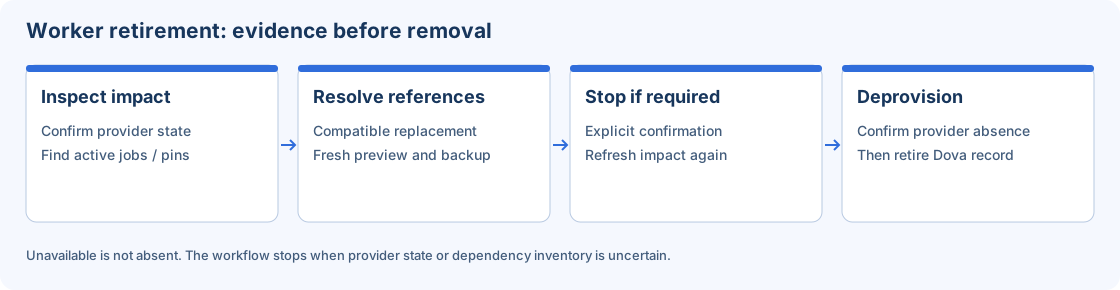
Conceptual retirement path. Provider availability, active jobs and dependency checks can block progression.
1. Establish the authorized context
Open the account menu and confirm user, tenant and active role. Review the target object identifier and location. Separate permission to view from permission to edit, publish, run or administer cloud resources. Keep MFA, normal expiry and logout behavior intact while troubleshooting.
Use a laboratory tenant for demonstrations. Store no credentials in names, parameter text, screenshots or exported incident reports. A safe error message and timestamp are usually enough to begin investigation without attaching raw data.
2. Prepare an observable run
- Record the published
Workflow,SessionandMappingversions. - Check worker eligibility, file bindings and non-sensitive parameters.
- Use a controlled destination and understand whether retries can duplicate writes.
- Launch once and keep the attempt identifier.
- Open
Monitorand review task states and the first relevant safe error. - Inspect and compare the actual result independently after terminal success.
Queued, waiting, running and retry-wait are active states. A timeout in a browser or CLI does not prove that server work stopped. Look up the existing identifier before repeating a launch.
3. Diagnose before choosing recovery
For file errors, inspect Session paths and worker access. For authentication errors, inspect the Connection method, custody and identity permissions. For ineligible capacity, inspect worker state, capability, slots and policy. For an upstream version notice, review pinned dependencies.
Choose cancellation, termination, repeat or checkpoint recovery according to the current state and supported contract. Checkpoint recovery only applies when usable checkpoint state exists. It does not guarantee undoing side effects at an external destination. Preserve the failed attempt while validating a corrected one.
4. Reassign references before worker removal
- Inspect the source worker's current provider state and impact.
- Review default-worker references, active or queued jobs,
Sessions,Workflowsand credential dependencies. - Select an authorized compatible replacement or distribution.
- Generate Preview and inspect every intended change and blocker.
- Regenerate Preview after changing a destination or selection.
- Apply an accepted current plan and inspect the dependency backup/result.
- Refresh the source impact before proceeding toward retirement.
The interface manages plan tokens and request identity. Do not alter those values to bypass a conflict. Dependency backups preserve supported reference projections; they are not complete VM images or database/file backups.
5. Retire with current provider evidence
If the VM is running, Stop and deprovision asks for explicit confirmation, sends stop, refreshes impact and proceeds only when allowed. Stop and delete use separate operation identities. A stop failure must not lead to delete; a newly discovered dependency must be resolved first.
The Dova record is retired only after provider absence and final reference checks. Unavailable is not absent. Clean up Dova record is appropriate for confirmed absence, not for hiding a provider-access failure. Closing a dialog cannot undo a provider effect already accepted.
Acceptance and incident evidence
Keep identifiers, versions, timestamps, safe messages, output comparison and current provider observations. Confirm the supported result after each stage and retain audit history. Do not claim cloud cost savings until the resource is confirmed retired at the provider. Follow worker migration and backups for the detailed administrative procedure.
Choose an attempt action
- Cancel: cancel a queued
Workflow. - Terminate: request termination of an active execution and check its later result.
- Re-run: start a new attempt from the beginning with stored input and the pinned definition.
- Recover: resume failed or cancelled tasks from the available recovery point.
A client timeout does not prove cancellation. Before repeating work, inspect files and committed transactions; recovery does not automatically undo every external effect. Preserve the first relevant error, attempt identity and non-sensitive overrides so the next action has a known scope.
Guides and laboratories
Chapter 5CLI and API: query and automate with explicit context
Verify the Dova CLI distribution, authenticate a personal key, inspect objects and execute published laboratory workflows with explicit inputs.
The CLI client version is independent of Dova 22.0.5; check the installed artifact and its help. Downloadable laboratories preserve historical fixtures and verification, whereas executing against the service creates a new attempt subject to your permissions and destinations.
The CLI can inspect authorized objects and runs and launch permitted actions. This chapter uses command shapes and routes reviewed in the current client; it is not a complete OpenAPI specification or a promise that every internal route is a stable public integration. Check your installed client's help before automating against a different release.
1. Download, verify and identify the client
Open Developer Tools, select the distribution for your platform and inspect version, signature status and SHA-256. Calculate the downloaded artifact hash and compare it exactly. Install using the distribution instructions, then run dova --version to identify the executable on your PATH.
2. Authenticate to an authorized laboratory
Create a personal API key for the exercise, then log in interactively:
dova login --url https://dova-lab.example.invalid
The .invalid host is a nonfunctional placeholder. Replace it with your permitted laboratory environment. Enter the key through the prompt, not a shared command argument. Verify the reported identity and tenant before continuing. Protect the local CLI profile because it stores authentication configuration.
3. Start with read-only operations
dova status --output json
dova repository list --domain Training --output json
dova mapping list --name sample --limit 50 --output json
dova workflow list --status published --name sample --output json
dova run list --status failed,cancelled --sort createdAt --descending --output csv
Compare identifiers with Repository, Workflows and Monitor. An empty filtered collection can be correct; a failed request must not be converted to a valid empty list. JSON is useful for explicit field processing and CSV for an authorized tabular review. Names are not guaranteed to be unique.
4. Understand the reviewed route shapes
| Purpose | Method and route used by the client |
|---|---|
| Current identity | GET /api/session |
Domains/Folders |
GET /api/etl/domains |
Mappings |
GET /api/etl/mappings |
Sessions |
GET /api/etl/session-definitions |
Workflows |
GET /api/etl/orchestrations |
Workflow attempts |
GET /api/etl/workflow-runs |
Launch a Workflow |
POST /api/etl/orchestrations/{id}/run |
The client uses Bearer authentication and JSON responses. Collection keys differ: Workflows use orchestrations, while attempts use runs. For direct API integrations, confirm the actual response schema and retain normal authorization, failure and tenant handling.
5. Run a published synthetic example
The local laboratories require no network. A server run is a second phase and can write outputs, so first prepare published definitions, authorized inputs and a laboratory-only destination.
dova workflow run WORKFLOW_ID --input transform_workflows/inputs/customers.csv --wait --output json
For multiple sources, repeat --source using TASK_ID:SOURCE_NODE_ID=FILE:
dova workflow run WORKFLOW_ID --source TASK_ID:source_txt=transform_workflows/inputs/transactions.txt --source TASK_ID:source_xlsx=transform_workflows/inputs/customers.xlsx --wait --output json
Replace placeholders with the actual identifiers from your published definition. Do not combine --input and --source. The client also supports --var KEY=VALUE and --param KEY=VALUE for permitted values that match the Workflow contract. Keep secrets out of ordinary overrides.
6. Wait, verify and close
--wait polls toward a terminal state; --poll and --wait-timeout bound its behavior. A client timeout does not establish server cancellation. Query the attempt again before repeating, cancelling or recovering it. Compare the generated output with the independent expected data, not just the terminal command status.
Record client version, environment, object/run identifiers, safe parameters, terminal state and result comparison. Use dova logout to remove local authentication state when done, and revoke a temporary key in the UI when it should cease working everywhere. Revocation and local logout are distinct operations.
Dova 22.0.5 · Part II
Workspace
Design and manage connections, objects and execution context.
Chapters in this part
- 6.Overview: orientation and operational status
- 7.Repository: organize Domains, Folders and shared objects
- 8.Mappings: design, validate, publish and run
- 9.Sessions: bind a published Mapping to an execution context
- 10.Workflows: coordinate tasks, versions and executions
- 11.Monitor: investigate attempts and verify outputs
- 12.Connections: reusable access to data systems
- 13.Notification channels: prepare and test reusable destinations
- 14.Workers: execution capacity, eligibility and diagnosis
- 15.Configuration: runtime, profiles, schedules and health
- 16.Plans and subscriptions: understand offers and workspace continuity
- 17.Developer Tools: download the CLI and manage personal API keys
- 18.Account menu and working context
- 19.Profile: preferences, security and privacy
- 20.Open items: navigating between editors
- 21.DovaAI: contextual help and Mapping proposals
Workspace
Chapter 6Overview: orientation and operational status
Interpret object, execution and Worker indicators, then follow them to the underlying records to confirm state.
Purpose and model
Overview combines workspace operational status: defined objects, execution activity, health and links to other areas. It provides orientation rather than business-data reconciliation. A Workflow counter represents definitions; an execution counter represents processing attempts. Neither independently proves how many customers, invoices or transactions reached the target.
The view belongs to the active tenant and role. Before interpreting a number, check both in the account menu. Available information depends on enabled permissions and capabilities. A read user can view a section without creation or run actions.
Recommended walkthrough
- Open Overview in the left panel.
- Review Service health and the synchronization timestamp before comparing metrics.
- Review the
Mappings,Workflows, Executions, Rows processed andWorkersonline cards when available. - Use Open
Monitor,WorkflowsorMappingsto move from the summary to the object or execution that needs investigation. - Select the incident's period in the charts. Keep the same period when comparing activity and results.
- If the view seems stale, use reload and wait for its result; a pending request is not evidence of no activity.
| Element | Useful interpretation | Caution |
|---|---|---|
Workers online |
Capacity reported as connected | Connection does not guarantee compatibility with every Mapping |
| Execution trend | Execution distribution over time | The selected period changes interpretation |
| Execution results | Results of completed attempts | A retry can produce more than one record |
| Rows processed | Engine-reported volume | Does not replace output-file or target-table reconciliation |
You can also check navigation without starting a run: locate a synthetic Workflow from the summary, open its definition and compare its latest attempt identifier with Monitor. Keep the saved definition, its published version and each execution distinct. No new attempt is needed to check that relationship.
Observability use case and proof of concept
Prepare a laboratory workspace with a published Session and a Workflow that uses it. The source must contain three synthetic rows and the target must be exclusive to the laboratory. Note object names and versions before running.
Start a manual run and preserve its identifier. Open Monitor, wait for a terminal state and check the produced file. Return to Overview and select a period that includes the test. Expect activity consistent with the Monitor record; the exact number depends on other executions and when the summary updates.
Repeat the query with an authorized read role. The proof of concept succeeds when accessible metrics remain readable and unauthorized actions stay restricted. No global permission change is necessary: use a laboratory account prepared by the administrator.
Validation, errors and recovery
An empty chart can mean no executions in the period, a filter mismatch or an incomplete query. Review the visible message and compare with Monitor before running a process again. Avoid duplicate executions merely to “make a number appear.”
If Workers are connected but tasks remain pending, review compatibility, profile, exclusions and capacity in Configuration and Workers. If platform health reports issues, record time, module and message; do not copy credentials or sensitive log content.
Relationships and scope
Overview summarizes information; version detail belongs to Mappings, Sessions and Workflows, while per-run diagnosis belongs to Monitor. This proof of concept is a proposed procedure rather than a test executed during the writing of this manual.
Workspace
Chapter 7Repository: organize Domains, Folders and shared objects
Create a laboratory location, understand folder states and share objects within the tenant while preserving ownership and access controls.
Purpose and model
Repository organizes work inside the active tenant using Domains and Folders. A Domain groups related work; each Folder belongs to one Domain. Mappings, Sessions, Workflows and Connections have a location that helps you find them and understand their relationships.
The hierarchy does not create another tenant or replace authorization. Shared within tenant makes an object available within its permitted scope in the same tenant. It does not publish it to another organization, move its owning location or create a duplicate.
Prerequisites and navigation
Confirm the tenant and active role in the account menu. Viewing the repository, creating locations and editing or deleting objects require the relevant permissions. A missing action can reflect authorization rather than an incomplete interface.
Use both category and location: All, Mappings, Sessions, Workflows, Connections and Shared select different views. An object can exist outside the currently selected Folder or filter.
Create a laboratory location
- Open
Repositoryand chooseNew domain. - Enter
ETL Laboratoryand a description explaining that this location contains synthetic test data. - Create a
FoldernamedCustomer Demo, selecting the newDomaininParent domain. - Open the
Folder. Check its breadcrumb and list before creating an object. - In the
Mappingeditor, select the sameDomainandFolder. Save a small draft and find it again from theMappingscategory.
Follow each form's displayed name and description validation. Domain names and executable-object names have separate rules; spaces accepted in a Domain do not establish valid Mapping or Session identifiers. Parent domain establishes the Folder's owner rather than a runtime file directory.
| Field | Visible validation |
|---|---|
| Name | 2–80 letters, numbers, spaces, underscores or hyphens. |
| Description | Optional, up to 1,000 characters. |
Parent domain | Required for a Folder; a Folder belongs to only one Domain. |
Understand Folder states
| State | Effect |
|---|---|
| Active | Editing and execution are available subject to permissions and other prerequisites. |
| Frozen | Artifacts are read-only; published executions remain available. |
| Closed | Artifacts are read-only and execution is blocked. |
Freezing and closing serve different purposes. Opening a Closed object's Shared entry does not bypass its lifecycle state. Ask the authorized owner to review the transition rather than copying an artifact to evade the restriction.
Example: ownership and controlled sharing
Create Source and Consumer Folders in the laboratory Domain. Save a Mapping in Source and check that its editor reports that location. If permitted, enable Shared within tenant, select an authorized scope and save through the object's normal lifecycle.
From an allowed consumer location, find the Mapping under Shared. It should remain owned by Source and become discoverable only within the granted scope. A reader without the required permission must remain restricted. This exercise uses authorized laboratory identities and does not require another real customer's tenant.
Validation and recovery
For an empty list, clear filters and return to the parent location. For an invalid name, correct the indicated field without recreating the hierarchy. If deletion is refused because consumers still reference an object, inspect those dependencies first; do not assume deletion cascades.
Record the object's identifier and location before reorganizing it. Human-readable names help navigation, but object references are not ordinary filesystem paths. A successful save should be followed by checking the persisted location and finding the same object again.
Purge contents and Delete
Purge contents... permanently removes reviewed contents while preserving the selected Domain/Folder and execution history. Its preview can include artifacts, drafts, versions and child Folders. Open tabs for purged artifacts close and their unsaved changes are discarded. Delete is a separate operation that removes an eligible empty location.
- Use a disposable laboratory and the required location-management permission. Open the correct location's menu and choose
Purge contents.... - Inspect the target name, every count and all blockers. Choose Cancel if you are only studying the form.
- For an intentional authorized purge, type the requested name exactly and acknowledge permanent deletion.
- Choose
Purge contentsonce and wait. If the reviewed revision changed, useRefresh previewand confirm the updated scope again. - If the outcome is uncertain, use
Check resultbefore attempting another purge. - Verify that only the reviewed contents were removed and the target location/history remain. Use Delete separately if the empty location must also be removed.
Protected locations and non-Active Folders impose restrictions. Do not edit stored records to bypass a blocker or assume an undo operation exists. A filtered empty list does not prove absence of dependencies.
Related chapters and boundaries
Continue with Mappings, Sessions and Workflows. Repository structure differs from the worker-accessible file paths configured for execution. The example gives an acceptance procedure to perform in your laboratory; it does not claim that your tenant's permissions have been tested.
Workspace
Chapter 8Mappings: design, validate, publish and run
Design and publish a Mapping, run a CSV directly, and verify a reproducible 18-input / 10-output customer-cleaning example.
Purpose and model
A Mapping describes how records are read, transformed and delivered through connected source, transformation and target components. A Session supplies a reusable execution context; a Workflow coordinates Sessions. For a supported file-only trial, Run can execute the Mapping directly with a browser-selected file; a separate Session and Workflow are not mandatory.
Distinguish editing a draft, Save draft, Publish and Run. Saving preserves design changes. Publishing creates a version for authorized consumers. Running processes data. Existing consumers can retain an earlier published reference.
Prerequisites and editor controls
Confirm the tenant, role and laboratory Domain/Folder. Viewing, editing, publishing and running have distinct permissions. A compatible eligible execution worker is required; remote components also require configured Connections and runtime network access. Follow the editor's naming validation and use a technical name such as m_CustomerDemo.
Components searches the catalog; Configuration edits the selected component. Domain, Folder and Shared within tenant define location and permitted sharing. Validate checks the design; Auto arrange mapping, Zoom and Fit only adjust presentation.
Arrange lays out dependencies from left to right. It requires at least two components and an acyclic graph; a wide graph can remain horizontally scrollable. It changes draft positions, not records or the published version. If nothing moves, check for an existing arrangement, cycles or a read-only Mapping.
Example: prepare a customer CSV
Download the public customers-demo.csvOpen file: 18 synthetic records and eight columns. The preserved demonstration produced ten output records and six columns · clientes-demo-excel.csvOpen file. This is CSV readable by Excel, not a native XLSX workbook.
- Choose
Mappings→New Mapping. Enter the name and authorized laboratory location. - Add
Flat File inputfromComponents. InConfiguration, select CSV, comma delimiter, header row 1 and UTF-8. Check all eight input column names. - Add the transformations below and connect compatible ports in the listed order. Select each node to configure its fields.
- Add
Flat File output. Use CSV,clientes-demo-excel.csv, comma delimiter, included header, double-quote qualifier, minimal quoting, CRLF endings and UTF-8 with BOM. - Choose
Validate, fix each reported problem, thenSave draft. ChoosePublish, confirmPublish mapping, and check the published version. - Choose
Runand select the synthetic CSV in the file picker. This supported single-file execution does not require a separateSessionorWorkflow. - In
Monitor, identify the attempt and wait for its terminal state. After success, useDownload outputwhen stored output is available.
| Component | Demonstration configuration |
|---|---|
Clean text | Business fields customer_id, full_name, city, segment, status, credit_limit; ordered operations trim, collapse_whitespace, upper. |
Replace values | In status, replace HABILITADO with ACTIVO; exact match, case-sensitive. |
Row filter × 4 | status equals ACTIVO; customer_id not_empty; full_name not_empty; credit_limit not_empty. Place all four before conversion. |
Convert type | credit_limit to number; empty Output field replaces the source; On conversion error = Fail execution. |
Field mapper | customer_id→cliente_id, full_name→cliente_nombre, city→ciudad, segment→segmento, status→estado, credit_limit→limite_credito. |
Field selector | Keep those six renamed columns in that order; remove demo_row_ref and internal_note. |
Row sort | cliente_id, asc. |
Verify the result
Compare row count, exact header, unique identifiers, values and physical ordering with the reference. Expect ten records, six columns and ascending cliente_id. DEMO-C002 becomes CLIENTE DEMO BETA, ACTIVO and numeric 2500. The inactive record containing NO_NUMERICO is filtered before conversion. Zero is allowed in this example; a positive-amount filter would change the contract.
Compare numbers by value: 2500.0 need not be serialized as 2500.00. The preserved demonstration establishes these sample results, not a performance guarantee. The separate customer-normalization laboratory documents its historical eight-transform chain and 1,000-input / 667-expected-output contract.
Projection and assistance
Field selector preserves rows and selected field values while removing other columns from the output schema as well. fileName names the artifact; it does not select columns. For unexpected extra fields, inspect saved configuration, connected branch, downstream components and the version actually executed.
You can ask DovaAI for a configured design, inspect the proposal and confirm a draft. Creating the draft does not publish, schedule or execute it. Current Mapping names use 2–79 characters, beginning with a letter and containing only letters, digits or underscores.
Validation, failures and recovery
A connected port does not prove that a required column exists. Inspect source schema, upstream renamed fields, nulls and connector compatibility. A conversion failure can indicate incorrect filter order. For file-backed Sessions, inspect bindings and worker access; a browser-local path is not a worker path. Keep credentials in Connections rather than canvas text.
After changing a Mapping consumed by Sessions, review their version notices and update dependencies deliberately. Publishing the Mapping does not republish every consumer. Preserve an earlier output for comparison; a succeeded state alone does not establish business correctness.
Related reference
See transformation reference for the broader catalog, including Unpivot, Run sequence, Field fingerprint and Partition rank. Compatibility depends on the selected engine and worker. Use Monitor for evidence and Open items to navigate without confusing drafts with published definitions.
Workspace
Chapter 9Sessions: bind a published Mapping to an execution context
Configure environment, worker, execution profile, file bindings and typed parameters; publish the Session and compare two controlled execution contexts.
Purpose and model
A Session binds a published Mapping to an executable context: environment, worker selection, execution profile, recovery, parameters and file paths. The Mapping owns transformation logic, formats and schema. The Session resolves the worker-accessible locations used for a reusable run.
References are versioned: the Mapping reference includes its identifier, version and fingerprint. Publishing a new Mapping does not automatically update every Session. A supported direct file-only Mapping Run is a separate path and does not require creating a Session.
Prerequisites and lifecycle
You need access to the location and Mapping plus permissions for each intended action. New session, Save draft, Publish session, disabling and deleting are distinct operations. File paths require a published Mapping. An entry in a worker selector does not prove execution eligibility.
The manager provides search, environment/status/runtime filters, Columns, Export CSV and pagination. Summary cards filter the inventory without changing Session status. Before a bulk action, check the selected count and names.
Fields by tab
| Tab | Configuration |
|---|---|
General | Name, Mapping, Domain, Folder, sharing, Environment and Status. |
Runtime | Worker, Override worker, Execution profile, Recovery and destination timestamp options. |
File paths | Input and output bindings derived from the selected published Mapping. |
Parameters | Typed parameter overrides (JSON) and Parameter preview. |
Environment offers Development, Test, Stage and Production. This classifies context; selecting Production neither publishes the object nor grants permission. Use tenant default inherits worker policy. Override worker chooses an explicit eligible worker when authorized. An execution profile can inherit from the Workflow. Cloud provider and region shown for a worker are read-only context.
Review the offered Recovery policy and timeout/retry settings. Retrying and resuming from a checkpoint are different actions. A checkpoint helps only when compatible persisted state exists, and does not provide an automatic rollback of external writes.
The current Recovery choices are Fail immediately, Retry once, Retry up to 3 times and Resume from checkpoint. Select the intended behavior explicitly and verify it with the destination's retry contract.
Configure and publish a laboratory Session
- Choose
New sessionand enters_CustomerDemo_Test. - In General, select the accepted published
Mappingand authorizedDomain/Folder. Check its identifier and version notice. - Select
Testas Environment. - In Runtime, retain
Use tenant defaultor enable a compatibleOverride worker. Review execution profile and recovery deliberately. - In
File paths, fill every required source and target binding. A path on your browser's computer is not automatically present on the worker. - In Parameters, supply only declared, type-compatible overrides. Inspect
Parameter previewfor name, type and effective value. - Use
Save draft, resolve validation and choosePublish sessionwhen ready. Reopen the record to confirm the persisted reference, bindings and version.
Binding and parameter example
Illustrative worker paths are /srv/dova-lab/input/customers.csv and /srv/dova-lab/output/customers-test.csv. Replace them with authorized locations prepared for the worker identity; the documentation does not create those directories.
If the Mapping declares a string parameter named region, an example typed override is:
{"region":{"type":"string","value":"DEMO"}}This value affects data only when a component uses it, for example a Calculated field template ${param.region}. An arbitrary parameter does not create a column or alter engine batch size. Task-scoped overrides belong to a Workflow task, not Session layers.
Example: one design, two contexts
Create Test and Stage Sessions using the same published Mapping version and equivalent synthetic files accessible to the same worker. Assign separate output destinations. Execute each through a laboratory Workflow and compare results: equivalent inputs and parameters should yield equivalent transformed records in independent files.
As a controlled failure, temporarily use a nonexistent laboratory source path only in Test. Locate that attempt in Monitor, identify the file error, restore the path and inspect a new attempt. The environment label does not move files or deploy code automatically.
Versions, failures and recovery
For an ineligible worker, inspect status, capabilities, profile and exclusion rules in Configuration. For invalid JSON, correct the indicated field without discarding unrelated draft settings. After changing a Mapping reference, review downstream Workflows and publish consumers deliberately.
Destination timestamp behavior can be inherited, enabled or disabled. An optional template resolves %RUN_TIMESTAMP% while retaining the destination directory. Verify the resulting filename with a small run. Before any retry, check whether a previous external write can be duplicated or whether the selected recovery state is usable.
Continue
See Configuration, Workers, Workflows and Monitor. The examples define acceptance checks to carry out in your environment; they do not claim a new execution has already occurred.
Workspace
Chapter 10Workflows: coordinate tasks, versions and executions
Build and publish a Workflow with explicit dependencies, test Session and decision paths, then verify results before enabling a schedule.
Purpose and model
A Workflow coordinates tasks, dependencies and decisions. A Session binds a Mapping to execution context; the Workflow determines how those Sessions are combined. The canvas shows Start, Session, Decision, Timer and End tasks and their connections.
Published dependencies are versioned. A Session task refers to its Session and sessionVersion, which in turn references a Mapping version. Changing an upstream draft does not silently change an already published execution definition.
Prerequisites
Prepare an accepted published Session, compatible eligible capacity, an authorized laboratory location and an exclusive output. Viewing, editing, publishing, running and administering schedules require their respective permissions. Follow executable-name validation and avoid production object names for experiments.
Create and test a minimal Workflow
- Open
Workflows, create a laboratoryWorkflowand set its name,Domain,Folderand authorized sharing scope. - Add a
Sessiontask between Start and End. In its inspector, choose the published definition inReusable sessionand check the referenced version. - Connect Start →
Session→ End by dragging from each output port to the next input port. Adding a task does not connect it automatically. - Review declared task overrides and dependencies. With multiple inputs,
joinPolicy=anyorallcontrols dependency joining; canvas position does not. - Use
Auto arrange workflowandFit workflowto inspect the graph. These controls adjust presentation, not data. - Choose
Validate, resolve problems,Save draftandPublish. Publishing establishes an accepted version without executing it. - Choose
Run. If input configuration is requested, inspect the offered mode for every source and supply the authorized laboratory input. A file attached inDovaAIchat is not an execution input. - Find the returned attempt in
Monitorand compare its tasks and output with your expected result.
Timers and complementary decisions
For a controlled delay, insert Timer before Session and set Delay (seconds) to 5. The field accepts 1–604800 seconds. Timer delays this attempt; it does not create a recurring schedule.
For Decision, configure True branch expression (JSON). Declare the Workflow variable runMode as string, with default full and allowed values full and sample. This expression tests it:
{"ref":"variables.runMode","op":"eq","value":"full"}Connect the True and False output ports to explicit destinations. False represents the complementary alternative; duplicating the True condition is not a meaningful two-path test. Use the documented JSON expression language rather than SQL or arbitrary script.
Verify tasks and data
The minimal example reads synthetic name,amount records and writes the same intended fields. Expect one Session execution on the selected path and independently verified output. Record the attempt ID, Session/Mapping versions and supplied overrides. An override for one attempt is not a persistent edit of the Session.
For Decision, test each input value with separate outputs and confirm the intended branch. A skipped branch is different from a failed task. The separate customer laboratory describes a historical 1,000-input / 667-expected-output example and downloadable study definitions; a private source checkout is not required to follow this page.
Schedule after manual acceptance
Configuration → Workflow Scheduler manages reusable schedules. Create an authorized schedule, review calendar, timezone and enabled state, then assign it to the intended published Workflow. The scheduler timezone differs from Profile's date-display preference.
First verify a manual execution. Then check the next planned time and, separately, the actual resulting attempt. An enabled schedule records future intent, not a successful run. Disable temporary laboratory schedules when finished.
Validation and recovery
The validator accepts 2–100 nodes and 1–300 links, rejects cycles, repeated identifiers and invalid dependencies, and requires reachable valid paths. For waiting tasks, inspect parents, worker eligibility, slots and exclusions. For failures, investigate the first relevant task error in Monitor.
When a Session or Mapping changes, inspect dependency notices before deliberately republishing consumers. Checkpoint recovery depends on compatible persisted state; it is not a transaction covering every external destination. Check duplication risk before retrying or using stored input for another attempt.
Continue
Use Sessions for bindings and recovery, Workers for capacity, Monitor for evidence and the expression reference for supported conditions.
Workspace
Chapter 11Monitor: investigate attempts and verify outputs
Identify an exact execution attempt, inspect tasks and safe errors, verify its output, and distinguish retry, recovery and history maintenance.
Purpose and model
Monitor follows execution attempts and their outcomes. Its main unit is a run, not a saved Workflow definition. Two attempts of the same Workflow may use different inputs, parameters and published dependencies; compare their identifiers and recorded execution context.
A succeeded state is the engine's reported outcome. Functional acceptance also requires row count, schema, expected values and the correct file or table. A notification-delivery failure is not automatically a transformation failure.
Access and views
You need permission to inspect the active tenant's runs. Run, cancel, terminate, recover and history maintenance can require additional authorization. Check the specific action instead of expanding a reader's role to solve a display issue.
List, Gantt and Notifications separate operational records, temporal dependencies and notification deliveries. List and Gantt share upper filters. History can express a window in minutes, hours or days: check its unit before interpreting an empty result.
Notifications has its own delivery table and pagination; a delivery record is not another Workflow run. Wide tables can scroll horizontally inside their container on a small screen.
| Evidence | Question |
|---|---|
| Attempt identifier | Am I inspecting the exact reported attempt? |
Workflow / Session / Mapping version | Which published definitions were used? |
| State and duration | Is it active, waiting or terminal? |
| Task details and messages | Where did the first relevant problem occur? |
| Next scheduled execution | Is this a future plan rather than execution history? |
Investigate an attempt
- Filter by object name, state and approximate time. Confirm attempt ID and timestamp.
- Open its detail or Operational log when available.
- Inspect task dependencies and locate the first relevant failed task. Relate it to the actual
Mapping,Sessionand worker. - Review inputs and parameter context recorded for the attempt. Do not infer them solely from today's open draft.
- For waiting work, inspect eligible workers, available slots and dependencies before requesting another copy.
- Inspect the destination before deciding to cancel, terminate, recover or repeat. Refresh state and read the action's confirmation.
- Retain the ID, time, task and sanitized message for support; exclude secrets and customer records.
Download and uncertain state
A successful Mapping attempt with stored output can offer Download output when access allows. Download the artifact for that exact attempt. An external database/API write does not necessarily create a downloadable file. Compare the actual returned file rather than an older local file with the same name.
A client timeout does not prove cancellation. Query the same attempt before retrying. If its state changes while a confirmation dialog is open, refresh the evidence before acting. History's visible time window is a filter, not a retention policy.
Example: controlled failure and corrected attempt
Use a small synthetic Workflow with an exclusive laboratory output. First supply a nonexistent source path in its test Session. Expect a terminal failure with an identifiable missing-file error and no valid output for that attempt.
Restore the correct binding, perform a new authorized attempt and compare identifiers. Expect a terminal success and output matching the known header, rows, values and ordering. Keep outputs distinct so a residual file cannot masquerade as the corrected result.
For checkpoint recovery, first confirm usable compatible persisted state and destination behavior. An external partial write is not undone merely by choosing recovery. A repeated append can duplicate records.
Operational diagnosis and maintenance
A pending attempt may be waiting for capacity, an eligible worker or upstream dependencies. Check Configuration and Workers; distinguish agent Offline, a powered-off VM and provider Unavailable. Avoid issuing duplicate runs because a table refresh is slow.
History cleanup is separate maintenance with its own scope and confirmation. It does not cancel active work or replace a retention policy. Inspect blockers, preserve necessary incident evidence and do not use deletion to hide an unresolved failure.
Continue
Overview summarizes activity; Monitor provides attempt-level evidence. Persistent corrections belong in Mappings, Sessions or Workflows and follow their publication lifecycle. Use Cloudata support for unresolved issues with sanitized evidence.
Workspace
Chapter 12Connections: reusable access to data systems
Configure a reusable connection, distinguish saved credentials from verified access, and test a small extraction from the execution environment.
Purpose and model
Connections centralizes reusable connection definitions and their status. A definition combines a system type, connection parameters and a compatible authentication method. A catalog entry does not establish network reachability, licensing or dependencies on the selected execution worker.
Stored credentials and the connection definition are related but separate. A configured-credential indicator neither reveals the secret nor proves that it remains valid in the external system.
Prerequisites
You need permission to view Connections and the appropriate management permission for creating, editing, testing or retiring credentials. Prepare an authorized laboratory system, a least-privilege account and connectivity from the worker that will execute the Mapping.
The authentication catalog includes methods such as username/password, certificates, managed identities, OAuth client credentials and API keys. Availability depends on the selected connector; these are not interchangeable choices supported by every connector.
Authentication and credential custody follow the offered connector options. Passwordless uses an execution identity; external custody requires a protected reference resolvable from the authorized context. Inspect consumers before rotating, revoking or deleting a connection. Editing metadata differs from replacing credentials.
Configure and verify a connection
- Open
Connections. Search and check filters before creating a duplicate. - Start a new connection and select the connector for the actual data system.
- Enter its name and repository location. Complete the host, database, endpoint or other fields required by that connector.
- Select a supported authentication method and enter secrets only in the designated credential fields.
- Save and resolve any field validation errors. Read the result rather than assuming that closing the form means success.
- Use the available connection test and inspect its complete result.
- If the connector exposes metadata, inspect the objects accessible to the account. Confirm the intended schema and columns.
- Bind the connection to a laboratory
Mappingand perform a small authorized read or write to an exclusive test destination.
| Evidence | What it establishes | What it does not establish |
|---|---|---|
| Saved definition | The definition passed its validation. | Permanent external-system access. |
| Successful test | The specific check received a successful response. | Every query, object permission or authentication mode. |
| Visible metadata | The account can inspect that catalog. | Write permission on its objects. |
| Successful small run | The tested flow completed. | Production-volume performance or all connector capabilities. |
Example: a bounded extraction
Prepare a synthetic table with three records and a read-only source account. Configure the laboratory connection, run its test and inspect metadata. Build a Mapping that reads only that table and writes a test file using a Session and compatible worker.
The expected output contains three rows with the same synthetic values except for explicitly configured transformations. Write access to the source database is outside this example and should not be granted merely to make the test pass.
To study a failure, use a separate temporary definition with an incorrect laboratory endpoint. Record the error category, then restore the endpoint. Do not break a shared connection or rotate its credentials to induce an error.
Diagnosis and recovery
Separate network, authentication, authorization and schema errors. A valid account can lack access to one table. A hostname reachable from your browser's computer can still be unreachable from the selected worker. Check drivers and connector capabilities in that execution environment.
After rotating credentials, repeat the smallest relevant test and execution. A previous test result does not prove access with the replacement secret. In a support request, provide the connection identifier, connector family and a sanitized error; exclude passwords, tokens, private certificates and internal secret references.
Related chapters and boundaries
See Mappings for format and logic, Sessions for execution context and Workers for runtime connectivity. Connector-specific fields and limitations belong to the connector reference; do not assume identical behavior across families.
Workspace
Chapter 13Notification channels: prepare and test reusable destinations
Configure reusable destinations and verify events, policy, content, transport and receipt as separate outcomes.
Notification channels define reusable delivery destinations for authorized events. A channel is different from the notification policy, the execution email template and the platform SMTP transport. Configuring a destination alone does not establish when an event is generated or whether a recipient received it.
Choose a controlled laboratory destination and a role allowed to manage the channel. An endpoint or recipient can be sensitive even when it is not a password. Keep real customer addresses and webhook URLs out of documentation and screenshots.
Step-by-step procedure
Choose the destination purpose. Open
Notification channelsand inspect existing entries. Decide which event or team needs the channel and whether an existing authorized destination should be reused rather than copied.Create the channel. Use the available creation action and enter a recognizable laboratory label. Choose the offered channel type and complete its required endpoint or recipient settings. Follow the type-specific validation shown by the form.
Review scope and sensitive input. Confirm the active tenant and which authorized audience the channel serves. Use the protected credential flow when the type requires it. Never replace a protected field with a secret embedded in a URL or description.
Savebefore testing. Save the channel and inspect the accepted result. Reopen the persisted record when needed. A test should validate the stored configuration rather than an unsaved draft that was never accepted.Send a controlled test. Use the Test action where available and send only synthetic content to the laboratory destination. Read the reported result and inspect the receiving sandbox system. A local success message may describe handoff rather than final delivery.
Associate the policy. Review the relevant execution or administrative notification settings. Configure which authorized events use the destination and how suppression, severity or recipient rules apply. Do not confuse this with editing the email body.
Check end-to-end delivery. Trigger a synthetic event and review the delivery history. Compare generated, sent, failed or suppressed state with the receiving system. Restore temporary policies when the exercise finishes.
Verify the result
Acceptance requires a persisted channel, an expected test response and an independently observed laboratory delivery or a clearly explained suppression. Preserve a safe identifier and timestamp for troubleshooting. For email, verify transport and template separately; for webhooks, respect the endpoint contract and retry behavior.
Errors and recovery
If a test fails, inspect safe validation and transport messages without exposing the endpoint credential. If an event is suppressed, inspect notification policy before changing the channel. If delivery is delayed, check its current state before sending duplicates. Removing a channel may affect consumers; inspect references and use the confirmation shown.
Continue
Repository · Mappings · Sessions · Workflows · Monitor · Configuration.
Channel type and field reference
| Field | Purpose and validation |
|---|---|
| Name | Reusable label understood by Workflow authors; for example LabOperations. |
| Type | Email, HTTPS Webhook, Slack or Microsoft Teams as offered in the form. |
| Description | Explain the purpose and owner without credentials or private endpoint values. |
| Recipients | For Email, comma-separated recipients; delivery uses platform SMTP. |
| Endpoint | Type-specific protected destination for webhook, Slack or Teams. |
| Enable this channel | Allows applicable Workflow events; does not generate the event by itself. |
A previously configured protected value may not be redisplayed when editing. An empty secret field does not necessarily mean no stored credential exists. Read the configured indicator and field guidance before replacing it. Search notification channels helps avoid duplicates; New notification channel opens the creation flow. Reload, Filters, Clear filters, Columns and Export CSV operate on the manager view, not on event generation.
Example: delivery and disabled state
Create LabOperations with a controlled mailbox, associate a small synthetic Workflow and select the intended event. Confirm the persisted channel, a safe execution identifier, the delivery result and the receiving mailbox. Inspect subject, text and links without exposing input records. Then disable Enable this channel and repeat only the necessary controlled exercise. A disabled channel remains administratively available but does not receive Workflow events; restore the intended final state.
Sent, failed, suppressed and acknowledged are different outcomes in Delivery history. Inspect whether the event was generated or suppressed before changing credentials. Global SMTP changes require the relevant platform authority, and a body preview is not a transport test. See Execution templates, SMTP and policy for the detailed administrator procedure.
Workspace
Chapter 14Workers: execution capacity, eligibility and diagnosis
Check worker heartbeat, capabilities, resources and weighted slots; distinguish shared capacity, agent status and VM power state.
Purpose and model
A worker supplies capacity for compatible execution. The inventory exposes identity, status, resources and capabilities. Agent connectivity, VM power state and eligibility for one particular Session are different observations.
Infrastructure provisioning and provider operations belong in Administrator. Workspace Workers helps you understand the capacity your tenant can use. A public worker may offer authorized shared capacity; assigning it a Session does not publish that Session's definition, data or artifacts to other users or tenants.
Prerequisites
You need viewing permission and specific privileges for registration or changes. Prepare an authorized host and follow its current distribution instructions. Keep enrollment tokens in the protected enrollment flow, not screenshots, tickets or repositories.
Compare the Mapping's requirements with the worker's component types, connector capabilities, resource and isolation requirements, profile and network access. A connector in the designer does not install a driver or open a network route on the worker. Selecting a worker does not copy browser-local input files onto its filesystem.
Read the inventory
| Signal | Interpretation |
|---|---|
| Online | The agent reports sufficiently recent activity under its status contract. |
| Offline | It is not currently considered connected; investigate service and communication. |
| Draining | Do not treat it as ordinary capacity for new work. |
| Disabled | It has been disabled for its intended use. |
| Unhealthy | Review its health and diagnostics. |
| Free slots / capacity | Reported admission capacity, not a completion-time guarantee. |
Details can include host, platform, version, resources, last heartbeat, profiles and connectors. Use them to verify compatibility without copying unnecessary infrastructure details into public reports. The built-in control-plane worker is not execution-eligible for tenant Sessions or Workflows.
Weighted slots and concurrency
Slots represent weighted capacity. For example, four slots can admit four weight-one jobs or two weight-two jobs, subject to other limits and real reported capacity. Multi-job admission requires an explicit capability and compatible live reporting; increasing a configured limit does not make a legacy agent concurrent.
Evaluate capacity for a run
- Open
Workers. The DovaWorkerAgent panel provides packages, Register worker, search, filters, columns and pagination. - Find the intended laboratory worker by identifier and permitted tenant/pool, then inspect its status and recent heartbeat.
- Compare component types, connectors, version and profiles with the actual
Mapping. Check available slots and resource requirements. - Confirm that the worker identity can resolve
Connectionsand access the authorized input/output locations. - Review whether tenant default selection or a
Sessionoverride is appropriate. An explicit selection still must satisfy eligibility and exclusions. - Run a small synthetic case and inspect the actual selected worker and outcome in
Monitor. - Before replacement or retirement, inspect active work, references and default policies; use the supported
Administratorprocedure.
Example: eligibility before capacity
Prepare a published file Mapping, laboratory Session and authorized worker. Make three synthetic records accessible to that worker and use an exclusive output. Expect the intended worker to receive the attempt and produce the known output. Record worker and attempt identifiers together.
As a comparison, inspect a Session requiring a missing capability without forcing execution. Expect a compatibility restriction rather than permissive assignment. This validates selection, not maximum throughput or permanent availability.
Recovery and operational boundaries
For missing heartbeat, inspect the authorized worker service and its control-plane communication. For ineligibility, examine lifecycle, capabilities, resources, exclusions and profile. Avoid changing the entire tenant's default worker to fix one isolated failure without checking consumers.
Provider Unavailable does not prove that a VM is absent. Stopping a VM, removing its registration and deprovisioning provider resources are separate operations with ownership, reference and active-run checks. Deleting inventory records does not replace those procedures.
Related chapters
Configuration controls routing, profiles and exclusions; Sessions can inherit or override worker selection. Use Monitor for execution evidence and the Administrator worker guides for installation or retirement.
Workspace
Chapter 15Configuration: runtime, profiles, schedules and health
Review tenant routing, execution profiles, reusable schedules and runtime health; compare inherited worker selection with a controlled Session override.
Purpose and structure
Configuration groups five areas: Dova Integration Runtime, Execution profiles, Workflow Scheduler, Runtime health and Git / DevOps. Runtime policy selects authorized capacity; a profile sets execution conditions; a scheduler requests future work; health reports current observations.
Saving a policy does not establish that a compatible worker is available or that a job has completed. On narrow screens, use the content area's horizontal scrolling for wide tables rather than assuming off-screen columns are unavailable.
Prerequisites and scope
Confirm tenant and permissions. Viewing settings, registering workers, saving policy, managing profiles and editing schedules can require separate privileges. Record the current settings before a laboratory change and inspect Sessions that inherit tenant-wide values.
| Area | Main question |
|---|---|
Dova Integration Runtime | Which capacity and routing policy can this tenant use? |
Execution profiles | Which execution conditions and limits should runs inherit? |
Workflow Scheduler | Which published Workflows should be requested, and when? |
Runtime health | Which current signals help explain the runtime state? |
Review and configure the correct area
- Open
Configurationand identify the area relevant to the issue before editing. - In
Dova Integration Runtime, review identity, status, mode, default worker and capabilities.Runtimeinventory offers search, refresh and column selection. - In Tenant routing policy, inspect Default worker, Fallback and
Savepolicy. Selection still applies eligibility, compatibility and exclusions; do not assume automatic reassignment to any available worker. - Use the
Workersand Exclusion rules subtabs to inspect capacity and restrictions. An exclusion changes routing; it does not delete a worker. - In
Execution profiles, find an existing suitable profile before creating another. Review units, limits, inheritance and consumers. An execution profile is different from anAdministratorcloud-provisioning profile. - In
Workflow Scheduler, prepare a reusable schedule with an explicit name, frequency, timezone and enabled state. Assign it to the intendedWorkflowonly after a successful manual acceptance test. - Save only the intended change, wait for acceptance, then reopen to verify persistence. Save may remain disabled if nothing changed.
- Read
Runtime healthseparately and continue inWorkersorMonitorfor worker and attempt evidence.
Example: inherited policy and explicit override
Create two laboratory Sessions using the same published Mapping. Keep Use tenant default in the first; enable Override worker in the second only if another eligible worker is available. Leave transformations, inputs and parameters equivalent.
Record the tenant default and inspect the effective worker in each Session. Expect the first to resolve through tenant policy and the second to retain its explicit choice, subject to eligibility. Execute a small synthetic input when authorized and compare actual selected workers in Monitor.
Only in a dedicated laboratory tenant, change the default with Save policy, recheck both Sessions and restore the original value. Do not perform this experiment on shared active workloads.
Schedule and health checks
For a schedule, record timezone, next planned time and the resulting attempt ID as separate facts. Profile's display timezone is not the schedule's timezone. Disable temporary laboratory schedules afterward; closing Configuration does not disable them.
Runtime health describes the environment, not independent data correctness. Correlate health with worker heartbeat/capacity and the actual output of an identified attempt.
Errors and recovery
Without an eligible worker, examine capabilities, lifecycle, resources, exclusions and profile before increasing limits. For schedule discrepancies, compare timezone, enabled state and Monitor. Avoid changing policy, profile and schedule simultaneously, which obscures the cause.
After a save error or concurrent change, reload safely and compare the persisted state before resubmitting. A selected dropdown value is not evidence that server policy changed. Do not repeatedly request execution because a health summary has not refreshed.
Git / DevOps: versioning and promotion
The fifth tab, Git / DevOps, presents the Bitbucket Cloud integration. Git → Dova plans and deploys reviewed artifacts in dependency order. Dova → Git exports published versions and pinned dependencies for review without exporting credentials.
- Open
Git / DevOpswith the relevant permission and read its state.Configurationrequired means setup is needed; a visible tab does not establish a connected repository. - Download the offered integration kit and inspect its instructions and example configuration before adding it to the authorized Bitbucket repository.
- Set target workspace and artifact bindings. Store the Dova API key as a secured pipeline variable, outside JSON files and commits.
- Run the kit's dry plan first. Review artifacts, dependencies, versions and conflicts before enabling deployment or scheduled export.
- After an authorized promotion, inspect the published Dova versions and references. A successful export or commit does not replace execution acceptance.
For a laboratory exercise, prepare a published Mapping and its Session/Workflow, inspect a plan and preserve the expected scope before applying it. Stop at plan review if you are only learning. The current kit defines exact commands and configuration; this page does not invent a deployment command or claim your tenant's integration is enabled.
Continue
See Workers, Sessions, Workflows and Monitor. These laboratory checks establish an acceptance method, not a capacity or availability guarantee.
Workspace
Chapter 16Plans and subscriptions: understand offers and workspace continuity
Review effective offers and capacity, estimate DPU-h and track orders without confusing selection, confirmed payment and activation.
Plans and subscriptions presents the effective commercial choices for the active tenant. Availability depends on tenant type, lifecycle, plan and authorized offers. A displayed price, a checkout order and an active subscription are different stages; one does not automatically prove the next.
Review the tenant identity before entering checkout. A public trial is designed to continue as the same operational tenant after an accepted conversion, preserving object identity. Do not recreate the tenant or move objects to simulate that continuation.
Step-by-step procedure
Confirm the workspace. Open the account menu and record the active tenant. Open
Plans and subscriptionsand inspect the plan and lifecycle information available to your role. Do not use another tenant offer as the baseline for this workspace.Review the effective offer. Read the offered plan version, price, currency, period, quantity and terms shown. Tenant-specific offers reference the global versioned catalog; they do not imply an independently duplicated product catalog.
Inspect checkout fields. If authorized to evaluate a purchase, review customer type, document type/number, legal name, email, country, address and payment method. Check totals and currency before advancing.
Use a controlled sandbox exercise. For learning, use supported fixtures or a separately authorized payment sandbox. Opening checkout is not permission to send a real payment confirmation. Synthetic tokens must never be submitted to a live provider.
Track the order outcome. After an actual authorized purchase, inspect the definitive order/subscription result through the supported flow. A delayed UI update is not evidence that no provider operation occurred. Resolve the existing order before repeating checkout.
Verify continuity. Confirm the active tenant identifier remains the intended one and existing
Repositoryobjects retain their identifiers. Inspect the accepted subscription and permitted capabilities independently of the payment UI message.Review later changes. Before renewal or a new offer, inspect its validity and applicable contractual version. Historical orders retain their terms; a newly published price does not rewrite an earlier order.
Verify the result
A successful conversion is supported by an accepted commercial result, the operational tenant remaining the same and capabilities matching the applicable subscription. This manual provides a sandbox procedure; it does not certify a payment or provide a revenue forecast. Billing administrators investigate invoices, subscriptions and orders in their proper context.
Errors and recovery
If the offer is unavailable, check lifecycle, eligibility, plan and role. If amounts disagree, confirm currency, quantity and terms before submitting. For a pending order, investigate its current state rather than creating another. Do not mark an invoice paid or alter historical terms merely to make access appear correct.
Continue
Repository · Mappings · Sessions · Workflows · Monitor · Configuration.
DPU, DPU-h and purchased terms
For a DPU-enabled plan revision, DPU measures active processing capacity and DPU-h combines capacity with time. The example 4 DPU × 15/60 h = 1 DPU-h expresses consumption, not a currency price. Development and Production have separate allowances and concurrency. Credits follow verified funded periods, which need not be calendar months. Queued work and structural validation are not billable active processing time; a Workflow aggregates its tasks without charging the same work twice.
A legacy subscription retains its purchased terms until an accepted, activated conversion. Opening a calculator or publishing another offer does not change the active contract. Contracted concurrency does not create workers or override capacity requirements. Accepted DovaAI queries have tenant and user quotas separate from DPU; an administrative title does not imply unlimited access.
Subscription and DPU administration · Versioned catalog and offers.
Checkout fields and order states
| Field or control | Check before submission |
|---|---|
| Review your order | Read line items, quantity, total, currency, period, taxes and current terms. |
| Receipt type | Select the fiscal document offered, such as Boleta or Factura, for the intended customer. |
| Document number / Legal name | Use the correct fiscal identity. Never use another person’s details in a laboratory. |
| Billing email / Billing address | Use the authorized billing destination and applicable address. |
| Payment method | Select a method actually enabled for this offer. |
| Transfer or payment reference | An operation reference, not a password or card data. Report payment is not bank confirmation. |
| Orders & payments | Inspect the current recorded result before submitting another order. |
| Remove | Removes a selection from the cart where supported; not a universal cancellation of an existing order. |
For a form-only exercise in the authorized Training sandbox, review the offer and cancel before payment. Verify that merely reviewing the form did not create an unintended subscription. If testing a complete sandbox order, record its safe identifier and provider test result separately from the subscription and tenant continuity checks. A sandbox result does not establish production acceptance.
Workspace
Chapter 17Developer Tools: download the CLI and manage personal API keys
Select the published distribution, verify SHA-256 and use the CLI with authorized credentials and operations.
Developer Tools provides platform-specific CLI distributions, checksum and signature information, quick-start instructions, release notes and personal API key management. A package name or version label alone does not establish integrity; compare the downloaded SHA-256 with the published value.
Use an authorized laboratory environment and a personal key scoped to the required work. Keep keys out of shared commands, screenshots, repository files and incident reports. API authorization remains tied to identity, tenant and permissions.
Step-by-step procedure
Choose the correct distribution. Open
Developer Toolsor the Downloads entry in the account menu. Select your operating system and inspect the published artifact version, signature status and installation instructions. The CLI version can differ from the application version.Verify the download. Download the selected artifact to an authorized local location. Calculate SHA-256 with the platform tool and compare it exactly with the published checksum before installing. Investigate a mismatch rather than bypassing verification.
Install and inspect help. Follow the package instructions. Run dova --version and the relevant command help. Confirm the executable you are using is the intended installation, especially if another version is already on PATH.
Create a purposeful API key. Use API Keys to create a personal laboratory key where permitted. Record its purpose and any validity information actually exposed by the supported flow. Do not assume an expiry or scope editor exists. Handle the displayed value through the protected workflow; it is not documentation evidence.
Log into the laboratory. Run dova login --url with the authorized service URL. Enter the key through the interactive prompt rather than adding it to a shared argument. Check the identity and tenant returned by login.
Start with read-only commands. Use status, repository list and filtered mapping/workflow/run lists. Compare their result with the corresponding UI module. A valid empty list is different from a failed authentication response.
Close and revoke separately. Use dova logout to remove local authentication state when appropriate. Revoke a temporary key in the server UI when it must stop working on every device. Logout and revocation have different scope.
Verify the result
Read-only laboratory examples:
dova --version
dova login --url https://dova-lab.example.invalid
dova status --output json
dova repository list --domain Training --output json
dova mapping list --name sample --limit 50 --output json
The .invalid URL is an intentional placeholder. Replace it with your authorized laboratory host. Confirm the returned identity and compare identifiers with the UI before automating writes.
Errors and recovery
For checksum mismatch, stop using the artifact and verify the distribution. For 401/403, review expiry, active key and permission; do not reinterpret the error as an empty list. A command timeout may leave server work running. Inspect the existing run before retrying. Protect the CLI profile because it can retain authentication state.
Continue
Repository · Mappings · Sessions · Workflows · Monitor · Configuration.
Distribution metadata and integrity example
| Metadata | Required interpretation |
|---|---|
| Available platforms | Choose the published operating system and architecture for the destination machine. |
| Version | The package release can differ from Dova 22.0.5. |
| Signing | Read the actual status; availability does not imply a signature. |
| SHA-256 | Compare the exact downloaded file’s full hash with the corresponding catalog entry. |
| Quick start | Use instructions and command help from that distribution. |
| API key inventory | Identify purpose, prefix and usage without exposing the full credential. |
For example, PowerShell can calculate the downloaded file’s checksum. The filename is illustrative; substitute the actual artifact you obtained:
Get-FileHash -Algorithm SHA256 -LiteralPath .\downloaded-dova-cli.zip
A successful download, a matching checksum, a signature and an authorized read are separate results. Keep each result distinct in the laboratory record. Downloading the CLI does not create tenant membership, grant a role or bypass commercial lifecycle restrictions. If command options differ from this guide, inspect the current package help instead of guessing flags.
CLI read filters
| Option | Use |
|---|---|
| --name | Filter by identifier or name in lists exposing this option. |
| --status | Comma-separated states, such as failed,cancelled for runs. |
| --sort / --descending | Sort field and descending direction. |
| --limit | From 1 to 1,000 records in supported lists; does not expand tenant authorization. |
| --output | table, json or csv as supported by the command. |
| repository list --domain | Limit Repository locations to the named Domain. |
These forms describe published read commands. Check the installed version’s help before adding options. Do not confuse workflow list with workflow run: the latter executes work and needs a separately authorized laboratory exercise.
Filtered Workflow and run reads
After confirming the laboratory identity and tenant, these additional read examples inspect published Workflows and failed or cancelled Workflow runs:
dova workflow list --status published --name customer --limit 50
dova run list --status failed,cancelled --sort createdAt --descending --output csv
Replace synthetic names with the permitted laboratory filters and compare identifiers with the UI. An empty filtered result is valid when no records match.
Workspace
Chapter 19Profile: preferences, security and privacy
Personal preferences, photos, password changes, exports and privacy requests with result verification.
Purpose and structure
Profile combines personal settings, account information and privacy actions. It is not the administrative user editor or a way to switch tenants freely or grant yourself roles.
Open Dova's account menu and select Profile. The dialog shows identity and context, with preference, security and data sections. On small screens, the body scrolls to keep controls and close accessible.
Personal preferences
Review name, email, tenant and role before making changes. Timezone uses a time zone, such as America/Lima, saved through Save preferences. Its visible help states that it is used to present dates and times in the account experience.
Do not confuse this preference with a Workflow schedule's time zone. Changing date presentation does not imply automatic process rescheduling. See Configuration for the scheduler.
Use Change photo to select PNG, JPEG or WebP. The flow accepts an input file up to 10 MB, center-crops it to a 256-pixel square and optimizes it before uploading. Remove photo removes the existing photo. Wait for the result message before closing; processing failure is not a successful save. Test with a laboratory image containing no sensitive information.
Security
| Field | Purpose |
|---|---|
| Current password | Verify authorization for the change |
| New password | Set the new password |
| Confirm new password | Avoid typing errors |
| Change password | Submit the validated request |
The interface requires 12–128 characters for a new password. The server can apply additional checks. Do not use the same password in documentation and a real account.
The dialog warns that changing the password ends all browser sessions and trusted devices. Prepare your access method and authentication factors before changing it. Do not use this as a routine test on a shared operations account.
Data and privacy
Download profile export requests a profile export. Treat the file as personal information and save it only in an authorized location.
Request profile data deletion and Request account deletion are separate requests. The flow asks for confirmation by typing the email and submitting with Submit request. Its notice explains that requests are reviewed before affecting shared tenant ownership or retained audit records.
Confirmation of a request therefore does not prove immediate deletion. Do not promise automatic removal of all workspace-related data.
Reversible preference proof of concept
In a laboratory account, note the current time zone. Change Timezone to America/Lima, save and reopen Profile. Expected result: the persisted value matches the selection and relevant dates display according to the supported preference.
Restore the previous time zone afterward. To check validation in the laboratory, enter a clearly invalid time zone and observe the message without repeated requests.
You can open a deletion request to inspect its confirmation and cancel with Cancel, without submitting. Do not use Submit request as a rehearsal unless you intend to initiate the process.
Errors, recovery and relationships
If saving fails, preserve the message and check the persisted value before repeating. If the session ends after a password change, authenticate again through the authorized flow; this does not indicate lost objects.
Relationships and scope
See Account for context and appearance and Developer Tools for personal keys. This proposed proof of concept was not executed during writing and is not an actual password-change or deletion request.
Workspace
Chapter 20Open items: navigating between editors
Mapping, Session and Workflow tabs, pending changes, pinning, reloading and closing with persisted-state checks.
Purpose and model
Open items switches between Mapping, Session and Workflow editors. Each tab identifies an object's type, name and edit state. The bar organizes browser work; it is neither a new object version nor a copy of the data.
An open object can have pending changes. Keeping it visible in a tab does not guarantee that those changes are saved or published. This distinction matters when alternating between a Mapping, its Session and the consuming Workflow.
Access and controls
The bar appears in supported views when objects are open. At limited widths, More accesses items that do not fit in the row. Names may be abbreviated, while type identifiers distinguish similarly named objects.
| Context-menu action | Effect |
|---|---|
| Reload | Queries the object again from the server |
| Duplicate | Starts duplication when permitted by the object and permissions |
| Pin tab / Unpin tab | Changes whether the tab is pinned |
| Close | Closes the selected item through its confirmation flow |
| Close other tabs | Closes other eligible unpinned tabs |
| Close tabs to the right | Closes eligible tabs to the right |
Availability depends on type, object existence, permissions and state. Pinning a tab changes its treatment in closing operations; it does not protect the object against administrative changes.
When closing a modified editor, interpret Save, Discard and Cancel according to the confirmation shown. Cancel retains the context; discarding local changes does not delete the saved object. Memory optimizations and navigation between editors also do not replace Save.
Recommended procedure
- Open a
Mappingfrom its manager. - Open its consuming
Session, then a relatedWorkflow. - Switch between the three with
Open itemsand confirm name and type before editing. - Deliberately save or discard pending changes.
- Use the context menu only after checking which tabs it will affect.
- On mobile, open More to locate items outside the row.
Before using Reload, check for local changes. Reload queries the server and can require resolving the draft; it does not merely refresh a header number.
Proof of concept: navigate with a pending draft
Prepare three linked synthetic objects: m_ClientesDemo, s_ClientesDemo_Test and a laboratory Workflow. Open their editors. Change a permitted Mapping field without publishing, then use the bar to switch to the Session.
Expected result: the application retains edit state according to the draft flow and identifies the active object. Return to the Mapping and check the edited field before deciding whether to save.
Next, try closing the object with changes. Observe the confirmation and cancel closing to verify that the editor remains available. Finally, explicitly discard or save the laboratory changes and close the tab.
Repeat at a mobile width with enough objects to show More. Check that you can locate and activate the object and reach its close action by keyboard or touch.
Errors and recovery
If Reload reports that the object no longer exists, do not immediately create another with the same name: check its manager for what happened and who can recover it. Investigate a tab-action error without assuming the definition changed successfully.
After saving and closing, reopen from Repository or the manager and check identifier, content and version. Successful reopening does not turn a draft into a published version. Before switching tenants or signing out, resolve each editor's pending changes.
Edit locks and permissions still apply while the object remains open. A role or context change can alter available actions; review the account menu.
Relationships and boundaries
Open items complements Mappings, Sessions and Workflows. It replaces neither publication nor verification in Monitor. This proof of concept checks drafts and navigation; closing a tab does not imply deleting the repository object.
Workspace
Chapter 21DovaAI: contextual help and Mapping proposals
Ask for help in the authorized module, attach a synthetic schema and review a proposed draft before publishing or running.
Purpose and scope
DovaAI uses the authorized tenant, current module and view to explain Dova controls, components and configuration. It can guide you through the 36-component Mapping catalog and propose a reviewable design. Interface context does not grant access to other tenants, hidden data, credentials or operations outside your permissions.
Responses follow the message language: Spanish, English or Portuguese. You can explicitly request “in English” or “em português”. When a message does not clearly identify another language, the available language reference is retained. You do not need to select an assistance mode or language first.
Before you start
Confirm tenant and permissions. Schema attachment requires Mapping access; draft creation requires its corresponding authorization. Service configuration belongs to the authorized administrator and stays outside the conversation. Never paste keys, passwords, private certificates or customer information.
Usage allowances depend on the effective plan and contract. Starting another conversation does not reset consumption or grant more capacity. A configured service can still reject requests due to availability or limits.
Request and review a Mapping
- Describe the goal, fields and expected result. For example: “Keep name and amount; change only the exact name value jorge to Jorge and prepare CSV output.”
- If file context is needed, choose Attach data file and select a synthetic CSV, TSV, JSON, JSONL or XLSX sample. Inspect inferred names and types; inference does not replace your business schema.
- Review components, connection directions, settings and missing fields. For exact replacement,
Replace valuesshould usefield=name,find=jorge,replacement=Jorge,matchMode=exactandcaseSensitive=true. This does not capitalize arbitrary names. - Confirm creation only when the proposal matches the goal and authorized location. A proposal is not an executed
Mapping. If multiple drafts are offered, review each artifact and its required permissions. - Open the created draft and manually complete execution files,
Connections, paths and parameters. Inspect missing settings; attaching a chat sample does not place a file on the worker. - Use the normal
Validate,Save draftandPublishlifecycle. Then perform an authorized synthetic run and accept its output inMonitor. Assistance does not automatically publish, schedule or execute the proposal.
What an attachment provides
The service temporarily inspects the sample to derive its name, format, field names, inferred types and source settings. The AI context contains that structure, without sample rows or original file bytes. File, column and sheet names can also be sensitive: use laboratory data.
The schema is not saved as a run input. Supply the real execution file through Run or the appropriate bindings. A chat attachment does not establish connectivity, destination authorization or worker compatibility.
Verify the result
For the example, inspect Flat File input → Field selector → Replace values → Flat File output. Field selector retains only name and amount in records and output schema; Replace values changes the specified exact value. Check that other capitalization and different names remain unchanged, then compare the actual CSV after execution.
You can move, minimize or open chat in another window where supported. Context adapts when switching modules within the same authorized tenant. Identity, tenant or permission changes invalidate stale actions; continuity after sign-out or browser restart is not guaranteed.
Limits and recovery
Samples must be nonempty and at most 15 MiB; JSON and JSONL are limited to 1 MiB. The schema requires 1–32 unique field names. CSV/TSV requires a valid header and UTF-8 encoding. Attached structure expires after 15 minutes and can be lost when the service restarts; attach it again when expired.
An oversized schema or invalid context can be rejected. Correct the sample rather than increasing permissions. For exhausted allowance, inspect the plan. For an incomplete proposal, clarify the goal and fill missing fields in the editor. If creation outcome is uncertain, find the draft in Repository before repeating confirmation.
Continue with a controlled test
Use name,amount,internal_note with two synthetic rows whose names are jorge and Jorge. Expect only name and amount in output; both names become Jorge, amounts remain unchanged, and internal_note is absent. Continue with Mappings and Monitor. For unresolved issues, use the Cloudata support form without secrets or customer data.
Dova 22.0.5 · Part III
Workflows and execution
Arrange tasks, publish versions and monitor every run.
Chapters in this part
Workflows and execution
Chapter 22Workflow tasks and links
Build a valid Dova 22.0.5 Workflow with task types, conditions, decisions, timers and dependencies.
What the graph represents
A Workflow controls execution order. A Mapping transforms records, while a Session supplies its execution context. Box positions make the canvas readable; links and their conditions establish the actual dependencies. Prepare a published Session and an eligible worker first. Creating and publishing also require the appropriate permissions in your tenant and Repository location.
Dova 22.0.5 requires exactly one Start and at least one End. The graph must be acyclic: no route can return to an earlier task. Every node must be reachable from Start and lead to an End. Adding an unconnected box leaves an incomplete design.
Choose the appropriate task
| Task | Purpose and configuration |
|---|---|
| Start | The single entry point; it cannot have incoming links. |
Session | Runs a published Session. Select the definition under Reusable session and inspect its version. |
| Decision | Evaluates a structured expression and has complementary True and False branches. |
| Timer | Adds a delay. Delay (seconds) accepts an integer from 1 to 604800; its initial value is 60. |
| End | Finishes a route; it cannot have outgoing links. |
A five-second Timer delays that route. It does not create a recurring schedule or guarantee an exact starting time for the following work.
Connect and validate
- Open
Workflowsand create a laboratory design in an authorized location. - Add a
Sessiontask between Start and End. Choose the publishedSessionin its inspector. - Drag from an output port to the next task’s input port. The ordinary link is Success. Adding a task does not connect it automatically.
- If a decision is needed, add Decision and set
True branch expression (JSON). Connect both branches to valid destinations. - Use
Validateand resolve the issues beforeSave draftandPublish. Validation accepts 2–100 nodes and 1–300 links.
A testable decision example
Declare a Workflow variable named runMode, with type string, default value full and allowed values full and sample. This is its configuration fragment, not a complete import document:
{"name":"runMode","type":"string","default":"full","enum":["full","sample"]}Enter the following condition in True branch expression (JSON):
{"ref":"variables.runMode","op":"eq","value":"full"}With full, the condition selects True; with sample, it selects False. The editor constructs the negation for False. Do not supply JavaScript, SQL or a different condition that could activate both branches. This expression reads execution context; it does not count CSV records automatically.
Link conditions and convergence
The definition supports success, failure, always and expression links. Each condition uses the source task’s state or context. A Workflow link is not a column-to-column data connection. The editor displays True/False for decisions and Success for an ordinary connection.
For a task with several parents, joinPolicy distinguishes any from all; the default is any. Decide which links must be satisfied before choosing the policy. Do not require both mutually exclusive branches of a decision as if both would run.
Check the run and diagnose issues
Run a minimal route first and find its attempt in Monitor. Check executed tasks, skipped branches and the Session version. A task skipped because of a condition is different from a failed task. If progress stops, inspect parents, conditions, published dependencies and worker capacity. A cycle, duplicate link or missing endpoint is a design problem; moving boxes does not fix it.
Continue with publication and dependencies or the complete CSV laboratory.
Workflows and execution
Chapter 23Publishing and dependency versions
Prepare the Mapping → Session → Workflow chain while distinguishing drafts, published versions and execution results.
Three objects with separate responsibilities
A Mapping describes the data flow. A Session references a Mapping version and supplies bindings, parameters and execution profile. A Workflow selects Sessions and arranges their tasks. The published chain must be consistent: a published Workflow cannot repair an incomplete Session or grant access to a Connection.
Use a laboratory location and check editing, publishing and execution permissions separately. Prepare synthetic inputs, authorized Connections and worker capacity before accepting the chain.
Save, publish and run
| Action | What to check |
|---|---|
Save draft | Editable changes are saved. This provides no evidence of a new execution. |
Validate | The definition satisfies that object’s checks. It does not test connectivity or final data. |
Publish | The version becomes available to authorized consumers. Inspect its selected dependencies. |
Run | Creates an attempt with execution context. Inspect the subsequent state and actual result. |
Saving a CSV in your browser does not place it on a worker’s filesystem. Likewise, a draft prepared by DovaAI is neither published nor executed by that creation step.
Publish a controlled chain
- Open the
Mappingand inspect its source, transformations, target and schema. Validate and save the draft. - Publish the
Mappingand record the version selected for the laboratory. - Open the
Sessionand check itsMappingreference, version and input/output bindings. Validate and publish theSession. - Open the
Workflow. For eachSessiontask, inspectReusable sessionand the consumed version. Review dependency notices. - Validate links and conditions, save the draft and publish the
Workflow. - Run it manually with an independent laboratory output. Record the attempt and reconcile
Monitorwith the resulting file or target.
Example: change a rule without losing traceability
Suppose m_CustomersActive v1 keeps status=ACTIVE. Session v1 and Workflow v1 were accepted with three output records. You now modify the Mapping to discard amount=0 as well. The laboratory sample’s expected result for this new rule is two records.
Publish the new Mapping version deliberately, inspect the reference retained by the Session and update consumers through the available actions. Repeat that review for the Workflow, then test again. Preserve both outputs so the difference can be explained. Do not infer the executed version from whichever draft remains open in another tab.
Minimum acceptance evidence
- The name and version of each object in the chain, plus the execution attempt ID.
- Effective test parameters and bindings, without copying secrets.
- Task states and the first relevant error, when present.
- Output schema, record count and verified business rules.
Mapping references may include a version and fingerprint; an execution pins its authorized context. These identify what was consumed, but they do not make a mutable external file immutable. Preserve or identify the input data as well. A passing object validator is only one part of acceptance.
Update or return to a known reference
If a dependency is unavailable, check publication, tenant, location, permissions and version. If saving succeeds but Run fails, investigate the worker, paths, Connections and data. Repeated publishing is not a substitute for reading the actual error.
To compare with an accepted version, use the available version and reference mechanisms and a separate output location. Restoring a definition does not reverse previous writes to databases, APIs or storage. Complete the schedule review before enabling recurring execution.
Workflows and execution
Chapter 24Scheduling, time zones and concurrency
Configure recurring Dova execution with an explicit calendar, an IANA time zone and a reviewed concurrency policy.
Before creating a schedule
Schedule a Workflow only after it is published and manually tested. Confirm schedule-management and execution permissions, inputs available without browser interaction, authorized Connections and worker capacity. A file attached during a manual test does not become a permanent source for future scheduled attempts.
Open Configuration → Workflow Scheduler to prepare a reusable schedule and assign it from the Workflow. Inspect recurrence, start time, time zone and enabled state in the form. Keep it disabled while reviewing the settings.
Prepare a daily run
- Publish and manually run the laboratory
Workflow; confirm its output. - Create a recognizable schedule name, such as
daily_customers_lima. - Choose daily recurrence at 02:15 and select
America/Lima. If using cron representation, the equivalent is15 2 * * *. - Inspect the calculated next run. The schedule’s zone is independent of the
Profiletime zone used to display dates. - Assign the schedule to the
Workflowand review concurrency. Enable the schedule only after accepting its settings. - After the expected time, find the attempt in
Monitor. Check tasks and output: a calculated next date does not prove successful execution.
Interpret local time and cron
| Value | Interpretation |
|---|---|
15 2 * * * | Five fields: minute 15, hour 02, every day. |
America/Lima | The example’s IANA zone. 02:15 in Lima corresponds to 07:15 UTC while UTC−05:00 applies. |
UTC | Another valid zone; the same cron numbers would produce a different local time in Lima. |
Do not substitute an ambiguous abbreviation such as CST for the IANA zone. For zones with daylight-saving changes, review expected behavior around the transition. Recheck the calendar after changing its zone; changing only the language or Profile is not evidence that execution has been rescheduled.
Separate simultaneous runs from parallel tasks
concurrencyPolicy governs overlapping executions of the same Workflow: allow, forbid or replace; the default is forbid. Review it before scheduling potentially overlapping loads. Replacing an execution does not guarantee reversal of external operations that have already occurred.
maxParallelTasks limits parallel tasks within one execution: 1–64, with a default of 4. This does not reserve workers, slots, CPU or target capacity. Actual selection still depends on resources, authorization and availability. A simple sequence makes the first laboratory acceptance easier to interpret.
Check and maintain the schedule
- Check the published
Workflowand versions, assigned schedule and enabled state. - Inspect the next run’s time and zone, then compare an actual attempt afterward.
- Confirm which permanent input was read and where its output was written.
- When retiring a schedule, inspect existing attempts: disabling future launches does not cancel an active execution.
When the expected time produces no result
First check whether the schedule is enabled and assigned, the Workflow is available and concurrency policy prevented overlap. Then inspect the queue, worker and task errors. Do not create duplicate schedules as a first remedy: they may launch additional writes after the original cause is resolved.
A Timer delays an existing route; it does not replace the Scheduler. Use Monitor and recovery to choose an action appropriate to the observed state.
Workflows and execution
Chapter 25Monitor, repeat and recover an execution
Distinguish execution state, output acceptance and recovery before repeating tasks with external data effects.
Find the correct attempt
Open Monitor and adjust the period, object type, state and worker where applicable. Find the attempt ID rather than relying only on the Workflow name: an object may have several runs. Period filters change what is displayed; they do not guarantee unlimited evidence retention.
Open details to inspect tasks, times, versions, authorized parameters and available events or logs. A queued acceptance does not mean the worker has started. A succeeded state still needs independent business-result checks.
Choose an action for the observed state
| Action | Availability and required review |
|---|---|
| Open definition | Opens the associated definition. Compare the attempt’s version with any open draft. |
Download output | For a successful Mapping or Session run with an available output and authorized access. Open a Workflow’s Session task when necessary. |
| Re-run | For succeeded, failed, cancelled or terminated attempts. Starts again from the beginning with the pinned definition and corresponding input. |
| Recover | For failed, cancelled or terminated attempts with valid recovery context. Resumes work from the available recovery point. |
| Cancel | For queued work awaiting execution. |
| Terminate | For an active execution. Inspect its final state and any side effects already produced afterward. |
Availability also depends on your authorization and the current context. A missing button is not permission to recreate the operation through another route.
Investigate before retrying
- Open the attempt and identify the first failed or waiting task.
- Read its actual error, definition and version, effective parameters, worker and access to inputs or
Connections. - Check whether the target received data even though the overall attempt failed.
- Correct the cause in the appropriate configuration and determine whether a new publication or input is required.
- Choose Re-run or Recover according to what should execute again and which recovery context exists.
- Identify the resulting attempt and verify tasks, schema, rows and business rules. Preserve its relationship to the earlier attempt.
Example: an output already exists
A Session writes a CSV, then a later task fails. Repeating the whole Workflow using the same output path may overwrite or duplicate results depending on the target. In the laboratory, use an independent output and check its three records before comparing it. For an append database target, inspect keys and repeatability before launching another write.
Recover is not a distributed transaction. The recovery point and earlier commits determine which work remains persisted. Even an execution that has been terminated may have committed batches before receiving that instruction. External files and services may also have changed since the first attempt.
Accept the recovered result
- The new attempt has an ID and an explainable recovery or repetition relationship.
- Executed, skipped and reused tasks match the action chosen.
- The output satisfies its expected columns, count, keys and values, without unintended duplicates.
Worker, task and attempt states are consistent; no unknown operation remains in progress.
Waiting tasks and missing evidence
For a waiting task, inspect parents, conditions, concurrency policies, resources and worker slots. If logs or output are unavailable, check filters, permissions and retained evidence rather than inferring a result from an empty panel. Do not purge history required for investigation. For help, use the Cloudata form with version 22.0.5, the attempt ID and a synthetic example, without credentials or customer data.
Workflows and execution
Chapter 26Laboratory: run a CSV through a Session and Workflow
Create a reusable Mapping, Session and Workflow and verify four input records and three active output records.
Goal and expected result
This exercise follows Mapping → Session → Workflow in Dova 22.0.5. It uses four synthetic customers and keeps the three whose status is ACTIVE. This is an expected result to verify in your environment, not a new measurement of customer data. For direct browser-upload Mapping Run, see the CSV normalization demonstration.
Download the input · active-customers-input.csvDownload, expected output · active-customers-expected.csvDownload and file instructions · README.mdDownload. These contain no credentials and do not automatically import a definition.
Prepare the laboratory
You need authorization to design, publish and execute all three objects, a Repository location and a compatible worker. Put the input on a path authorized for that worker and prepare an independent laboratory output. A path on your laptop is not necessarily visible to a remote worker. If the run dialog requests a file, complete that input for the displayed context; do not assume an earlier attachment remains available.
customer_id,name,status,amount
D001,Demo Alfa,ACTIVE,125.50
D002,Demo Beta,INACTIVE,40.00
D003,Demo Gamma,ACTIVE,80.00
D004,Demo Delta,ACTIVE,0.00
1. Design and publish the Mapping
- Create
m_CustomersActive. AddFlat File inputwith CSV format, comma delimiter, header and the four sample columns. - Connect
Row filter:field=status,operator=equals,value=ACTIVE. It filters the record’s value. - Add
Field selectorwithcustomer_id,nameandamount. It removes status from both schema and output. - Connect
Flat File outputwith CSV format and header. Validate the graph, save and publish theMapping.
This chain contains four components. It does not convert amount to a number; the exercise retains its text values. Add and configure Convert type before any operation that needs numeric comparisons or ordering.
2. Configure the Session
- Create
s_CustomersActiveand select the publishedMappingversion. - Configure laboratory input/output bindings and select an eligible execution profile or worker for your environment.
- Review parameters and failure/retry policy. For initial acceptance, avoid retries that conceal an unresolved cause.
- Validate and publish the
Session. Check that its reference and schema correspond to the selectedMapping.
3. Arrange and execute the Workflow
- Create
wf_CustomersActive. Add aSessiontask and selects_CustomersActiveunderReusable session. - Connect Start →
Session→ End. Validate, save and publish. - Run manually with the test files. Record the attempt ID and open
Monitor. - Wait for a terminal state and open the
Sessiontask to inspect its available output. Do not enable a recurring schedule yet.
4. Compare the output
| Check | Expected value |
|---|---|
| Input records | 4, excluding the header. |
| Output records | 3, excluding the header. |
| Columns | customer_id,name,amount, in that order. |
| Identifiers | D001, D003 and D004; D002 is excluded. |
| Retained amounts | 125.50, 80.00 and 0.00 for the corresponding IDs. |
Compare by customer_id. Without Row sort, do not treat an observed record order as a universal guarantee. CSV quoting or newline differences do not by themselves invalidate the exercise’s values. Do not claim byte identity when only records were compared.
Extend the exercise and diagnose issues
After accepting the minimal Workflow, insert a Timer with Delay (seconds)=5 to observe a wait without changing the data. To explore Decision, use runMode and the expression in Tasks and links. Test both values in separate attempts before scheduling it.
If four records remain, inspect the filter and executed version. For a missing column, inspect Field selector and the target. If execution never starts, check Session publication, paths and worker eligibility. If it fails after writing, review recovery before repeating it.
Dova 22.0.5 · Part IV
Administration
Manage identities, permissions, tenants and platform resources.
Chapters in this part
- 27.Administrator Overview
- 28.Cloud workers: inventory, profiles and provisioning
- 29.Users and account access
- 30.Tenants and workspace capacity
- 31.Roles and permissions
- 32.Subscription, billing, licenses and checkout
- 33.Audit trail and administrative evidence
- 34.Customer registration review
- 35.Developer Tools, Dova CLI and API keys
- 36.Preferences, appearance and limit policies
- 37.External authentication, SSO and MFA
- 38.Global catalog and tenant offers
- 39.Execution email templates, SMTP and notifications
- 40.Install workers on Linux, Windows Server and cloud
- 41.Worker reassignment, dependency backups and removal
- 42.ETL data cleanup and tenant lifecycle
Administration
Chapter 27Administrator Overview
Interpret administrative indicators and worker observations before investigating the underlying record.
Purpose and access
Administrator brings together workspace access, tenant capacity, cloud workers and commercial records. Open Overview to identify where to investigate before changing a setting. Your active workspace and role determine which information and actions are available. The account menu identifies the signed-in user and the current membership. Confirm both before interpreting counts or opening another section.
The examples in this guide use synthetic data. A worker named worker-demo-a and a tenant named documentation-lab are examples, not records to locate or create in a production environment.
Read the dashboard
The summary cards show Tenants, Users, Subscriptions, Invoices, Usage and Security. Read their labels and supporting text together. A count describes the data available to the current view; it does not establish that a payment cleared, a user can sign in, or an execution succeeded.
Worker resource history compares worker CPU, memory and available disk. Select a worker from Worker, or use the worker comparison cards. Search worker..., provider, status and sort controls help locate a worker in a larger inventory. The time controls offer 1h, 6h and 24h. Zoom controls change the visible chart range; Reset restores it and Refresh requests current observations.
Other cards summarize Users by status, Invoices by status and Usage allocation. Quick access opens the corresponding administrative area when your role permits it. The operational footer provides connection and activity information while the main view is open.
Daily review procedure
- Open
Administratorand confirm the account, workspace and active role. - Select Overview and allow the view to finish loading. Distinguish a displayed zero from a loading error or missing measurements.
- Read the summary cards and note which category requires investigation.
- For a resource concern, select the affected worker and choose a comparable time range. Compare several samples, including the recorded coverage, rather than relying on one point.
- Open Users, Subscription & billing or Cloud workers according to the symptom. Use the destination screen to verify the underlying record.
- After any authorized corrective action, refresh the relevant view and confirm its resulting state.
Acceptance and recovery
A successful review identifies the workspace, affected record, observation period and next administrative action without exposing personal or sensitive information. For example, a laboratory memory increase should be checked against a synthetic execution in Dova before changing a worker profile.
If a card fails to load, retain the visible error message and retry after checking session and connectivity. If a shortcut is missing, review the active role; switching tenants does not resolve a permission denial. Old browser tabs may retain an earlier display until refreshed.
For execution outcomes, use Dova Monitor and the execution detail. For cloud infrastructure, continue with Cloud workers. For navigation, appearance and account options, read Preferences.
Administration
Chapter 28Cloud workers: inventory, profiles and provisioning
Configure connections and profiles, provision capacity and distinguish VM state, runtime and job admission.
Purpose and prerequisites
Cloud workers manages execution infrastructure through four tabs: Workers, Provisioning history, Connections and Profiles. A worker record, a cloud VM and an enrolled execution agent are related but distinct states. Confirm the intended tenant, authorized cloud account, management permission and available capacity before provisioning infrastructure.
An approved cloud connection must be available, and its provider permissions and region policy must be satisfied. A worker profile defines requested capacity. Where the interface reports unsupported or unavailable capabilities, resolve that condition before proceeding. The optional price preview is an estimate, not a guaranteed bill.
Prepare a cloud connection
- Open
Connectionsand select New connection. - Enter Name, Provider, Account / project ID and Default region.
- Complete provider-specific identity and networking fields using the approved cloud configuration. Use federation or temporary impersonation; this form does not accept cloud passwords, access keys or private keys.
- Select the allowed Authorized regions and confirm that the default region is included.
- Choose
Saveconnection. Follow the displayed verification instructions, using Copy steps if needed, then select Verify or Re-verify. - Use Capacity to inspect the connection's current capacity and worker headroom. Read unavailable or unknown values as conditions requiring investigation.
Prepare a worker profile
- Open Profiles and select New profile.
- Enter Name, Provider, vCPU, Memory (GB) and Disk (GB).
- Choose SKU compatibility. Exact resources requires a matching provider size; Allow next larger SKU permits the supported larger-size selection.
- Review
Statusand optional pricing information, then selectSaveprofile. - Reopen the profile to verify its saved requirements before using it in provisioning.
Provision and verify a worker
- Open
Workersand choose Provision worker. - Confirm Tenant and
Workeraccess. Review the distinction between Private to this tenant and Public shared before continuing. - Select Cloud connection,
Workerprofile and Maximum concurrent slots. - Set
Workername, Region and Zone when the provider requires them. Resolve placement errors with the supported refresh control. - Use Continue and Back to inspect each step and the final review. Request Get optional quote if a price preview is useful.
- Select Create worker once, then inspect Provisioning history and the inventory until infrastructure and agent state are verified.
Operations and recovery
The worker row menu can expose Edit configuration, Resume scheduling, Pause scheduling, Disable worker scheduling, Start VM or Stop VM according to state and permission. Scheduling and VM power are separate controls. Read any disabled-action explanation before making a related change.
If creation times out, inspect the existing operation before submitting another request. If a worker is online but unavailable for a job, check tenant eligibility, required capabilities and slot capacity. Validate a synthetic execution and its Monitor result before claiming the worker is operational for the intended workload.
Continue with Worker installation, Migration and removal and Overview.
VM state, Runtime and current operations
Status reports the VM state observed in the cloud provider: Running, Stopped or Paused. In GCP, Paused corresponds to SUSPENDED. Transitions can include Starting or Stopping. Unknown or Unavailable means no current verifiable observation; Last known identifies an earlier observation that could not be refreshed. None of these is a recent worker heartbeat or proof of available execution capacity.
Enable the optional Runtime column through Columns. It reports the worker process and admission state: Online, Offline, Draining or Disabled. It is independent from VM Status: Running does not guarantee Online. Use Refresh to update the provider observation and open More actions or the row context menu for permitted operations; the row shortcut opens View details.
Pause scheduling stops new assignments and allows active work to finish. Resume scheduling admits new work again. These actions do not suspend or resume the provider VM. Start VM and Stop VM depend on observed state and authority; Start VM can also resume a suspended VM where supported. A default, busy or public worker can block Stop VM. A public worker shares capacity with authorized tenants and never publishes a Session, its credentials or data.
Reset VM force-restarts a Running GCP VM and requires confirmation. Before sending it, Dova rechecks that no active jobs, executions or reservations exist in any tenant authorized to use that worker. A default or public worker can reset only if the complete check confirms inactivity; its references and sharing policy remain intact. The action appears only for compatible providers and states.
While a Reset result remains unconfirmed, Dova blocks new assignments and another Reset. The primary Status still describes the VM; Reset pending or Check reset separately describes the operation. Use Refresh to inspect its result without resubmitting. A completed native operation and a valid observation are needed to resolve the block; Running alone does not prove completion. Even after confirmation, Runtime needs the next heartbeat before process readiness is established.
Review Tenant, Public, Status, Slots and Last seen together. Configured and available slots can differ because of physical admission limits. An optional quote is neither a guaranteed bill nor a capacity reservation.
GCP worker networking
New GCP workers provision with private IP only; there is no public-IP selector. Configure Cloud NAT in the subnet’s region for outbound HTTPS to Dova and approved package and dependency destinations such as Debian, PyPI and GitHub. Private Google Access helps reach Google APIs, but does not replace Cloud NAT for external destinations. Verify DNS and the egress rules needed by approved connectors.
For maintenance, use IAP SSH with OS Login when its IAM roles and firewall rules are configured. Workers fetch jobs and send heartbeats over outbound connections, without an inbound application port for job delivery. The public_shared capacity policy is independent from public IP addresses. Keep job isolation and tenant credential and data scope intact.
Reset verification and recovery
- In a controlled laboratory, inspect VM Status, Runtime, current work and the complete impact before considering Reset.
- If a Reset is already pending, use Refresh and read the existing operation rather than submitting another.
- When the provider confirms completion, verify the updated VM observation, then wait for a recent Runtime heartbeat.
- For a provider failure, read the safe message and current state before deciding on another action. Preserve the distinction between completed infrastructure operation and process readiness.
Administration
Chapter 29Users and account access
Inspect identities, memberships and first access; assign minimum capabilities and verify activation, SSO and MFA separately.
Purpose and prerequisites
Use Users to inspect identities, tenant memberships, roles and access status. Viewing accounts and managing them are separate permissions. An administrator who can open the table may still be unable to create users, change roles or generate an activation link. Confirm the current workspace and active role before editing an account.
The Status and Access columns answer different questions. Status describes the identity, while Access describes its sign-in readiness. Last login records an observed login or displays Never. A presence indicator is supporting information; it does not grant access or prove an execution completed.
Find and inspect a user
- Open Users from the sidebar.
- Use Search users, column filters or the mobile Filters control to narrow the table.
- Select Columns to adjust the visible fields, or Clear filters to restore the unfiltered view.
- Open View details for the required identity and confirm its tenant, email, roles, status and access state.
- Use Export CSV only when an export is needed and you can handle its account information appropriately.
Create or edit an account
- Select New user, or Edit user on an existing row.
- Enter the user's Name and Email, then select the intended Tenant.
- Choose Active, Inactive, Suspended or Disabled according to the account's intended availability.
- Use Select roles to assign only the roles required for that tenant. Search the available roles when the list is long.
- If membership management is available, use Add tenant to add a permitted membership. Select its membership before using Set default or Remove.
- For a new account, choose the displayed first-access delivery option. Copy activation link reveals a one-time link after creation; Send reset email sends first-access instructions to the registered address.
- Submit the form once and wait for completion. Reopen the record to verify the saved tenant, roles and status.
Manage first access
For an eligible existing account, open Manage access and review the identity and current access state. Select the intended option under Available actions. Local activation labels vary by state: Reset access, Resend activation, Send new activation or Create activation. Eligible accounts can also offer Convert to local access, Restore SSO access or Revoke activation. Read the displayed impact before proceeding.
Delivery method appears when creating a local activation or converting to local access. Choose Copy activation link or Send activation email for those actions. Restoration or revocation does not require a delivery selection. The submit button uses the selected action's name; confirm that action once and verify the resulting Access state. A displayed link should be shared through an approved private channel. Do not place it in a screenshot, support note or shared document. Close the result with Done after completing the permitted delivery step.
Where available, View as user (read only) provides an inspection context. Confirm the read-only indication and exit that context before returning to normal administration.
Acceptance and error recovery
In a synthetic exercise, create Documentation operator using a controlled laboratory email address, assign a limited role and verify the final row. Successful account creation does not establish that the user completed first access; verify Access separately.
If Manage access is unavailable, check account status and whether you are inspecting your own identity. If saving fails, keep the form's message, correct the identified field and retry after checking the latest record. Review selected identities carefully before Delete selected and its confirmation.
Continue with Roles and permissions, Tenants and Authentication.
Identity and membership safeguards
Identity status, membership status and access readiness are different concepts. Membership changes require platform administration; permission to inspect or edit account fields does not allow arbitrary changes to its tenants. An administrator cannot delegate capabilities they do not possess. These actions do not permit disabling or downgrading your own account, or deleting the last active platform administrator.
An Active identity can still require activation or MFA. Before reporting access as ready, verify identity status, active membership, selected role and completed first access. An existing administrator session does not establish that another identity can sign in.
Account review checklist
| Item | Expected check |
|---|---|
| Name / Email | The intended person and a controlled destination; no passwords or sensitive notes. |
| Tenant / Roles | The correct authorized membership and minimum effective responsibilities. |
Status / Access | Identity availability and first-access readiness checked independently. |
| Last login | Observed login or Never; does not indicate execution success. |
| Activation delivery | Supported delivery completed privately, followed by separate access-state verification. |
Session and inspection-context checks
When the session expires or the active role changes, reconfirm permissions, tenant and current values before saving. View as user (read only) does not grant execution or mutation authority; exit the inspection context before normal administration. Keep cookies, tokens and activation material out of support requests.
Administration
Chapter 30Tenants and workspace capacity
Identify workspaces, interpret consumption and capacity and maintain tenant state, hierarchy and continuity.
Purpose and access
A tenant is the operational workspace associated with users, data assets and commercial settings. Tenants provides a directory of workspaces and their capacity. Confirm that your role permits tenant viewing or management, as appropriate. Creating a tenant and creating a user are separate operations; one should not be assumed to complete the other.
The inventory includes Tenant, Type, Parent, Plan, Usage / limits, Capacity and Status. A displayed plan name is a commercial or administrative attribute. Check the applicable subscription and entitlement details before concluding what a tenant can use.
Inspect a tenant
- Open Tenants and search for the workspace by its displayed name or identifier.
- Use column filters to separate organization, individual or reseller tenants, or to inspect a status or capacity state.
- Read Usage / limits with its units. Seats, monthly jobs and storage measure different resources and should not be added together.
- Open View details to confirm the tenant's identity, parent relationship, plan, status and configured limits.
- Use Columns, Rows, Previous and Next as needed. Wide data remains inside the table's scrolling area.
Create or maintain a tenant
- Select New tenant, or Edit tenant for an existing row.
- Set Name and the appropriate Type: Organization, Individual or Reseller.
- Select Parent reseller when a supported reseller relationship applies. Direct customer indicates that no parent reseller is selected.
- Choose
Status, Plan, Seats, Monthly jobs and Storage MB using the values authorized for this workspace. - Review the complete form, submit once and wait for the result.
- Refresh or reopen the tenant and confirm the resulting status, relationship and capacity values.
Use Suspend tenant and Reactivate tenant only after reviewing the affected workspace and expected availability. These are administrative status changes, not a migration of the tenant's objects. Inspect linked users and operational obligations before using bulk deletion.
Trials and lifecycle
A Trial status should be interpreted with the subscription's dates and lifecycle information. To inspect or extend an eligible trial, open Subscription & billing, select the same tenant and use the supported Extend trial flow. Do not recreate a workspace to change its commercial status.
When reviewing a trial-to-paid transition, verify that the expected workspace remains selected and that subscription and entitlement information reflect the intended outcome. Commercial activity and infrastructure readiness are separate checks.
Acceptance and recovery
For a laboratory tenant named documentation-lab, verify the visible usage, limit units, plan and status after saving. A successful exercise preserves the intended workspace identity and confirms that unrelated memberships remain unchanged.
If a save or capacity read fails, inspect the visible message and reload the latest record before retrying. A warning or critical capacity indicator calls for investigation of the individual resource and applicable policy. It does not automatically justify increasing every limit.
Read Subscription and billing for commercial lifecycle, Preferences for limit policies and Cleanup and tenant lifecycle before destructive maintenance.
Continuity and commercial restrictions
Switching tenants revalidates active membership. Commercial expiry preserves objects and the permitted safe reading, but does not enable new mutations or executions. Commercial reactivation does not override an administrative or security suspension.
The Plan name alone does not describe all entitlements. Check the current subscription and purchased contract, and read the Plans & billing notice in a restricted commercial state before attempting creation, editing or execution.
Tenant capacity field reference
| Field | Interpretation |
|---|---|
| Name / Type | Workspace identity and one of the supported tenant types. |
| Parent reseller | Authorized hierarchy; Direct customer means no parent reseller selected. |
Status / Plan | Administrative state and current plan attribute, checked with purchased subscription rights. |
| Seats | Seat capacity, considered separately from observed membership usage. |
| Monthly jobs | Job-count limit with its corresponding period. |
| Storage MB | Storage capacity in megabytes, not an object count. |
Do not interpret an empty required number as unlimited. After a laboratory capacity change, reopen the same tenant and compare identity, units and persisted values. Reducing a limit without reviewing current use can prevent later operations.
Administration
Chapter 31Roles and permissions
Design scoped roles and verify permitted and denied operations using a laboratory identity.
Understand the access model
Roles & permissions separates assignable roles from the permission catalog. A permission describes an authorized operation; a role groups permissions for an intended responsibility. The role's scope and tenant determine where that responsibility applies. Access to the screen does not itself authorize editing every role or assigning a role to every user.
Before changing a role, identify its intended users, the tenant concerned and the operations those users actually need. Review a current account in Users to understand its existing assignments. Use a laboratory role and identity to validate a proposed access arrangement before applying it more widely.
Inspect existing roles and permissions
- Open Roles & permissions and select the Roles tab.
- Search for a role, use table filters and open View details.
- Review the role's key, label, scope, description and assignment information.
- Select Permissions to inspect the permission catalog. Search for the relevant capability and open its details.
- Use Columns and Export CSV where available to support a permitted review. Keep exported account and access information in an approved location.
The permission catalog is an inspection reference. Do not infer that a displayed permission is currently granted to the signed-in user or to the user being reviewed. Check the role assignment and its actual scope.
Create or edit a tenant role
- Select New role, or Edit role on an editable role.
- Enter a stable Key and a readable Label. Choose names that describe the responsibility without implying broader access.
- Confirm Scope and Tenant before selecting permissions.
- Enter a Description explaining when the role should be used.
- Review the available permission choices and select the smallest set needed for the intended workflow.
- Submit the form and verify the saved role in the table.
- Open Users, assign the role to a synthetic laboratory account and verify both a permitted action and a relevant denied action.
System or immutable roles may be viewable without exposing edit or delete actions. Do not attempt to duplicate an immutable role merely to bypass that restriction. If a new responsibility is needed, create an appropriate editable tenant role through the supported form.
Remove a role safely
Delete role is available only for an eligible editable role. A role with assignments cannot be deleted through that action. First inspect the affected identities and decide which supported reassignment is appropriate. Reopen the role after those changes and verify its current assignment count before confirming deletion.
Acceptance and recovery
Successful access validation demonstrates the expected capability within the selected tenant and a denial outside its authorized scope. A button appearing in a menu is not sufficient evidence of authorization.
If a save is denied, verify the active role and workspace rather than changing tenants to evade the denial. If deletion is disabled, inspect assignments and immutability. After a change, refresh the relevant accounts and review Audit where appropriate.
Related guides: Users, Tenants and Authentication.
Built-in responsibilities and effective access
| Role | Responsibility |
|---|---|
Platform Administrator | Platform-wide administrative responsibility, subject to current identity and session checks. |
Tenant Owner / Tenant Administrator | Tenant administration within the granted scope. Ownership, billing and platform responsibilities remain distinct. |
Billing Administrator | Billing viewing and management in the authorized context. |
Security Administrator | Identity, audit, connectivity and runtime inspection, with notification policy management; does not edit ETL designs. |
| ETL Developer | Design and configuration of ETL resources; does not imply tenant administration. |
| ETL Operator | Workflow operation and monitoring with the permitted run and termination capabilities. |
| ETL Viewer | Read-only ETL capabilities; no business mutations, workflow execution or termination. |
| Public Trial / Public | Onboarding-specific roles with different rights and lifecycle restrictions. Do not use them as synonyms for administrator. |
Check the current catalog and effective session role; role names describe responsibilities and do not replace permission, tenant and contract checks. Custom roles remain tied to their tenant. The unique master administrator’s DovaAI quota exemption does not extend to every administrator: it requires an active persisted identity, active platform tenant and valid membership and selected role. Provider availability is still required.
Tenant role field reference
| Field | Documented form rule |
|---|---|
| Key | Required; lowercase letter first, then lowercase letters, numbers or underscore; 3–64 characters. |
| Label | Required readable name, up to 80 characters. |
| Scope / Tenant | Select the supported scope and authorized workspace before selecting capabilities. |
| Description | Optional explanation of the responsibility, up to 500 characters. |
| Permissions | Use the available catalog and select the required minimum. |
Administration
Chapter 32Subscription, billing, licenses and checkout
Review contracts, DPU, payments, licenses and catalog terms, verifying commercial and operational outcomes separately.
Purpose and prerequisites
Subscription & billing contains Subscription, DPU & calculator, Payments & invoicing, Licenses, Commerce, Global catalog and Tenant offers. Select the intended Tenant before inspecting or changing its commercial information. Viewing, operating billing and managing the global catalog require their respective permissions; global catalog changes require the authorized platform role.
A subscription, invoice, license and commerce order are separate records. A manual invoice status update does not independently establish payment settlement. Issuing a license does not prove an installation activated it. Use each record's supported detail and lifecycle to verify the intended result.
Maintain subscription and billing profile
- Select the tenant and open Subscription.
- Read the subscription summary and choose Manage when an authorized update is required.
- Select Plan and the appropriate
Status, then chooseSavesubscription. - Use Edit profile to review legal name, billing email, tax identification, country and address.
- Save the profile and reload the tenant's subscription information to confirm persistence.
For an eligible trial, Extend trial opens a separate review. Inspect the current end, choose the displayed extension option and enter the required reason. Verify the new end and preserved tenant identity after acceptance. Detailed eligibility and recovery are explained in Tenant lifecycle.
Create or maintain an invoice
- Select New invoice in the invoice inventory.
- Enter Number, Amount, Currency, Due date,
Statusand Description as required. - Review amount and currency together, then choose Create invoice.
- Reopen the invoice's details and verify the saved record.
- When a lifecycle update is authorized, use its status dialog and Update status. Select a status reflecting the verified administrative process.
The invoice editor offers USD, PEN and EUR. The set of invoice currencies should not be assumed to extend the separate Commerce catalog's supported currencies. Use search, filters and Export CSV only for the required billing review.
Issue, activate and revoke licenses
In Licenses, choose Issue license and review Reference, Paid invoice, Maximum activations and Expires on. Verify the invoice association and validity before issuing. Protect a displayed key using approved private storage.
Activate opens the supported license activation flow with License key and Runtime / installation ID. Verify the resulting activation separately. Revoke license requires its confirmation and does not imply a financial refund.
Commerce and acceptance
In Commerce, inspect Plans available and Order summary. Continue to checkout or New checkout opens the order form. Review price, quantity, payment method, customer type, fiscal document, legal details and billing address. Use the supported browser payment flow; never enter card data into a documentation example.
A synthetic exercise should use fixtures or an authorized sandbox and stop before any real charge. Confirm the tenant, order terms, subscription and invoice independently. If a checkout response is delayed, inspect recent activity before submitting another order because the provider may already have accepted an operation.
Read Global catalog and offers for versioned terms and Audit for administrative evidence.
DPU, calculator and funded periods
The seven current tabs are Subscription, DPU & calculator, Payments & invoicing, Licenses, Commerce, Global catalog and Tenant offers. Confirm Tenant and authority before using each area.
| Concept | Interpretation |
|---|---|
| DPU | Active processing capacity; not a Workflow count or a dataset-size measure. |
| DPU-h | Capacity multiplied by active time: four DPU for fifteen minutes consumes one DPU-h. |
| Development / Production | Separate allowances and concurrency. Check the contracted environment before estimating or running. |
| Queue and structural validation | Do not constitute billable active processing time. |
Workflow | Aggregates its tasks’ consumption without charging for the same work twice. |
| Contracted concurrency | Does not create workers or override capacity eligibility and physical limits. |
- Open DPU & calculator for the intended tenant and use Refresh usage as needed.
- Compare included, consumed, available and reserved capacity in each environment. Check the funded period, which need not be a calendar month.
- In the authorized calculator, review proposed allowances, concurrency, currency and commercial terms. An estimate does not change an active subscription.
- If publishing an eligible offer, confirm its frozen price and terms for the intended tenant. Verified purchase and activation determine when it takes effect.
The DPU model applies only to a DPU-enabled plan revision. A legacy subscription keeps its purchased terms; opening the calculator or publishing a different offer does not convert it. Actual allowances and limits come from the current contract. A monthly display label does not replace checking the funded period’s dates.
Accepted DovaAI queries have tenant and user quotas separate from DPU consumption. A payment or fiscal-document sandbox does not establish production acceptance. A browser return, invoice creation or manual status edit does not prove confirmed payment.
In a laboratory, estimate 4 DPU × 15/60 h = 1 DPU-h and compare Development with Production without transferring funds or charging a card. Check estimate, published offer, active contract and observed consumption separately.
Administration
Chapter 33Audit trail and administrative evidence
Correlate administrative events with current state and retain minimal evidence within the authorized tenant.
Purpose and access
Audit provides a read-oriented record of administrative activity available to the current workspace and role. Use it to inspect an event's action, actor, timing and associated record, then correlate those details with the relevant administrative screen. The visible audit trail is one source of evidence; it does not independently prove payment settlement, provider completion or execution success.
Before investigating, define the question you want to answer. For example: which permitted administrator changed a laboratory user's role, when was a trial extension recorded, or what happened around a worker configuration attempt? Keep the investigation within the workspace and information your role authorizes.
Locate and inspect events
- Confirm the active account, workspace and role in the account menu.
- Open Audit and wait for the inventory to load.
- Use Search audit events to narrow the records by the displayed information relevant to your question.
- Apply available column filters, checking the selected period and status where applicable.
- Open View details for the event and inspect its visible action, actor, timestamp and subject.
- Open the associated screen, such as Users, Tenants or Cloud workers, and confirm the current record state.
- Refresh the audit view if you need to inspect a recent authorized action.
Columns changes presentation. Clear filters restores the broader visible inventory. Rows, Previous and Next control pagination. On mobile, use Filters and the existing table viewport rather than assuming hidden columns are absent from the record.
Build a useful evidence note
Record the administrative question, workspace scope, displayed event time, action, subject and observed result. Distinguish the recorded event from a conclusion that you infer after checking another screen. Preserve the relevant time context when comparing timestamps from different systems.
Use Export CSV only when the investigation requires an authorized export. Store the result in an approved location and share the minimum needed information. Exports may contain identifiers or account details even when the application avoids showing secrets.
Synthetic acceptance exercise
In an authorized laboratory, edit the description of an editable tenant role. Confirm the saved role in Roles & permissions, refresh Audit and locate the corresponding activity if recorded and visible to your role. The exercise succeeds when the role state and audit observation describe the same intended action within the same tenant.
If the event is absent, inspect filters, paging, workspace selection and the delay between the action and refresh. Do not invent an audit event or conclude that an action failed solely because the currently displayed page does not contain it.
Errors and recovery
A loading failure should be reported using the visible message and a bounded description of the scope and time. Retry after checking connectivity and session validity. A permission denial requires an authorized access review; switching tenants is not an evidence-preserving workaround.
For the action itself, return to Users, Roles and permissions, Subscription and billing or Cloud workers. The current record and its supported detail view remain necessary parts of the investigation.
Administration
Chapter 34Customer registration review
Review an eligible pending request and record a traceable decision without confusing approval with access provisioning.
Purpose and access
Registrations presents self-service customer requests for administrative review. The screen supports inspection and a decision on an eligible pending request. Viewing a registration and deciding it are separate capabilities. Confirm the current workspace and your review permission before acting on an applicant.
An approval records the review decision. Tenant and user provisioning remain separate. Do not tell an applicant that a workspace or account is ready solely because the registration changed to approved. Review the actual tenant and user records through their supported administrative screens.
Inspect an application
- Open Registrations from the sidebar.
- Use Search registrations or the column filters to locate the relevant request. On a narrow screen, open Filters as needed.
- Open View details and confirm the applicant's name, email, organization, type and current status.
- Check the received date and any existing reviewed date, reviewer and review reason.
- If the row is stale or another administrator may have acted, select Refresh before deciding.
Export only the permitted information required for the review. Use Columns, Rows, Previous and Next to manage a large list without changing its underlying records. Search and filtering do not themselves approve or reject an application.
Approve a pending request
- Open Approve registration for the eligible pending row.
- Check the applicant shown in the confirmation dialog.
- Enter Reason (optional) when your review process benefits from a short explanation.
- Select the confirmation acknowledging the applicant and decision displayed above it.
- Choose Approve registration once and wait for the response.
- Confirm the saved status and review information in the refreshed list or details.
Reject a pending request
- Open Reject registration for the intended pending row.
- Check the applicant and enter Reason (required).
- Keep the reason between 1 and 1,000 characters and avoid personal information beyond what the review needs.
- Select the confirmation and choose Reject registration once.
- Verify the resulting status, reviewer and explanation after completion.
Acceptance and recovery
Use a synthetic request from documentation-lab to practice inspection without contacting a real applicant. A successful review produces one recorded decision for the intended request and preserves a traceable reason where required. It does not create a tenant, assign a role or generate first-access instructions.
If a decision fails because the record changed, close the stale review and refresh the list. Inspect the current status before reopening an action. If the response cannot be verified, use the same decision's supported retry rather than changing the decision or repeatedly submitting new requests.
Review controls disappear when the request is no longer pending or your role lacks management access. Treat that as a state or permission condition. Do not attempt to bypass it through another tenant or a handcrafted request.
Continue with Tenants, Users and Audit to verify the separate provisioning and access steps.
Decision review fields
| Field | Rule |
|---|---|
| Applicant | Verify complete identity and a pending current state before confirming. |
| Approval reason | Optional; up to 1,000 characters. |
| Rejection reason | Required; between 1 and 1,000 characters. |
| Confirmation | Explicit acknowledgment of the applicant and selected decision. |
| In-flight save | Wait for completion and inspect current state before another attempt. |
A laboratory acceptance check should reject an empty required reason and an unchecked confirmation without recording a decision. After one authorized test decision, verify the intended row and review information. The exercise must not contact or decide a real customer application.
Administration
Chapter 35Developer Tools, Dova CLI and API keys
Select a published distribution, verify integrity and use CLI credentials within the permitted scope.
Purpose and prerequisites
Developer Tools provides the published Dova CLI catalog, platform guidance and API key tools. It shares its presentation with the Dova workspace. Opening this view or downloading a distribution does not grant access to a tenant or authorize an administrative command.
Choose the operating system of the destination machine, which may differ from the computer running your browser. Before using a downloaded tool, identify the intended laboratory workspace, the permitted operation and the credential scope required for it. Keep operational credentials outside repositories, screenshots and documentation.
Download a published distribution
- Open
Developer Toolsand allow its release catalog to load. - Inspect the available platform entries and select the destination platform.
- Confirm that the main download and the Quick start guidance correspond to that selected distribution.
- Read the release information, availability, checksum and signing information exposed for the artifact.
- Download through the published link and verify the file against the checksum for that exact artifact.
- Follow the distribution's current Quick start steps in an authorized environment.
Availability, integrity and signing are different properties. A successful download proves neither that the file's integrity matches nor that it is signed. Describe each property according to the published metadata, and do not present an unsigned artifact as signed.
Configure permitted access
Use the supported API key flow only when your role permits it. Check the intended tenant and the available scope before creating or selecting a key. If a one-time credential is displayed, transfer it to approved secure storage without including it in shared notes or screen captures.
Copy commands from the current distribution's Quick start or its linked CLI reference. This guide intentionally does not invent subcommands, package names or flags. Document the version and required configuration for an automation, but substitute descriptive placeholders for credential values.
Acceptance exercise
In a synthetic catalog, select a Linux entry and confirm that its download, metadata and instructions agree. Switch to a Windows entry and repeat. This checks navigation and catalog consistency without installing a binary or creating a real key.
For a functional laboratory exercise, download the verified distribution and perform one explicitly permitted read operation against a synthetic resource. Record three separate outcomes: the distribution was available, its integrity matched, and the authenticated operation was authorized. Passing one outcome does not establish the others.
Errors and recovery
If no distribution is available, inspect the release catalog's message rather than guessing a URL or filename. If the checksum differs, stop using that download and obtain the correct artifact through the supported process.
For an authentication or authorization error, inspect the selected workspace, credential validity and allowed scope. Creating a stronger credential is not the first diagnostic step. Revoke or retire keys through their supported lifecycle when they are no longer needed.
Keep commands complete and copyable in downloaded documentation. Long platform tables can scroll within their own viewport. Continue with Worker installation for execution capacity and Preferences for the account and appearance controls.
Administration
Chapter 36Preferences, appearance and limit policies
Choose the correct scope for policy, authentication, limits, communications and cleanup; verify each change separately.
Find the correct scope
Preferences groups administrative settings while preserving the distinction between tenant settings and platform settings. The visible sections depend on your active role. Opening Preferences does not imply permission to edit authentication, email transport or every tenant's limits. Read the scope badge, selected tenant and enabled actions before changing a value.
The Dova 22.0.5 application uses compact spacing, readable labels and consistent controls in day and night themes. On mobile, section navigation and toolbars remain available through wrapping or their local scrolling areas. Use the account menu for appearance and account options; use Preferences for the administrative policy concerned.
Account and appearance procedure
- Open the account trigger in the top bar and confirm the identity and workspace membership shown.
- Select another permitted membership or role only when it is the intended context for your work.
- Adjust theme and palette using the appearance controls. Check the resulting selected values and status feedback.
- Use Back to workspace, Downloads, API Keys or Documentation for the related destination when available.
- Close the menu with Escape to return focus to its trigger. Use Sign out to end the account session when your work is complete.
Review tenant limit defaults
- Open Preferences and select Limits.
- Choose
Configurationscope. Platform defaults establishes inherited defaults; a tenant selection addresses that tenant's permitted overrides. - Read the scope summary before editing. Distinguish inherited values from explicit overrides.
- Select
Workersand capacity, Executions and objects, Retention, API and budget or Security and access. - Read each limit's label, description, current value and unit.
Workers, slots, memory, executions and retention periods are different resources. - Edit only the authorized values, remaining within the displayed validation range. Where available, use the inheritance control to restore a tenant's inherited value.
- Select
Savechanges after the form records a real change. Reload the same scope and verify the saved policy.
The save control remains disabled when nothing changed. Reverting an edit to the loaded value should leave no pending update. If you change scope with unsaved edits, review Keep editing and Discard changes instead of assuming the previous values were saved.
Acceptance and recovery
For a synthetic tenant, change one permitted capacity value, save it and reload that tenant's policy. Verify the value, unit and inheritance state while confirming that platform defaults and another tenant's policy remain unchanged.
If a field is unavailable, inspect scope and permission before changing roles. If a save fails, retain the visible message and pending edit, refresh the relevant baseline when instructed, then retry the reviewed value. A limit change does not install infrastructure or guarantee that a workload is eligible to run.
Read Notifications and email, Authentication and Cleanup for those specific preference sections.
Select the administrative preference section
| Section | Purpose and verification |
|---|---|
| Notifications | Configure events, channels, severity and routing. Preview, Test channels and Save preferences have separate effects. Inspect Delivery history. |
| Authentication | Configure authorized external providers, save and test the persisted settings, then verify a new sign-in and MFA where required. |
| Limits | Review platform defaults and permitted tenant overrides, including unit, current value and inheritance. |
| Email delivery | Manage platform SMTP only with the required platform role. Separate connection testing from receipt at a controlled mailbox. |
| Data Cleanup | Inspect the current tenant inventory and blockers before the destructive confirmation. It is not a visual troubleshooting action. |
The five sections have different authorities. Appearance, palette and authorized membership changes in the account menu do not modify permissions or commercial terms. Do not raise limits to evade a commercial or security restriction. Review the relevant current scope after a session or role change.
Administration
Chapter 37External authentication, SSO and MFA
Configure external providers, test saved settings and complete MFA without confusing identity with authorization.
Purpose and authority
Preferences → Authentication configures supported external sign-in providers. Management of this global configuration requires the authorized Platform Administrator role. A role that can inspect ordinary Preferences does not automatically have authority to save provider settings, replace secrets or test global authentication.
SSO establishes identity, role assignments control authorization, and MFA completes the account's required verification. Enabling an external provider does not grant administrative access or remove MFA. Prepare an authorized recovery route and a laboratory identity before changing an integration.
Configure an external provider
- Open Preferences → Authentication and select the intended provider's card.
- Prepare an approved application in the provider's administration system.
- Copy Dova's read-only Authorized callback URL and register that exact address with the provider.
- Enter Client ID and the provider-specific configuration. Microsoft uses Tenant ID; Okta and Auth0 use Issuer URL; GitLab can use its supported issuer for the intended service.
- Use Replace client secret only when replacing the stored secret is necessary. Leaving it blank preserves the current value according to the form's guidance.
- Set the provider's enabled state and choose its corresponding save action, such as
SaveGoogle orSaveMicrosoft. - Confirm persistence, then use
Testdiscovery orTestprovider as displayed. The test uses the saved configuration, not unsaved fields. - Perform a fresh sign-in with the authorized laboratory identity and verify the final workspace and role.
The supported cards are Google, Microsoft, Okta, Auth0, GitHub and GitLab. The GitHub card states that a verified primary email must match an active Dova user. Follow each provider's own identity rules rather than applying one provider's onboarding behavior to all six.
Registration policy
Allow self-registration has a separate Save registration policy action. Review the current onboarding policy and the resulting workspace identity when testing it. Enabling this switch does not convert existing accounts, renew trials or assign platform roles. An access refusal caused by account lifecycle should be investigated through the tenant and subscription information.
Complete MFA
At sign-in, follow the Verification or recovery code flow. For first-time factor setup, register the displayed QR or setup key privately in the intended authenticator and submit its current code. Store one-use recovery codes securely. Do not capture the setup key, QR, recovery codes or verification codes for documentation.
Trust this device is an explicit account choice. It does not disable MFA globally. If you selected the wrong identity, use Use another account. If the factor is unavailable, follow the authorized recovery process.
Acceptance and error recovery
Test an authorized identity, an unauthorized identity and an incorrect verification code in a controlled environment. Successful configuration admits only the authorized account into the expected workspace. A provider discovery result alone does not prove complete login success or role authorization.
For failures, inspect callback accuracy, issuer or tenant, enabled state and account correspondence. Separate provider connectivity, MFA failure and permission denial. Avoid repeated secret replacement without identifying the failed stage.
Related guides: Users, Roles and permissions and Tenant lifecycle.
Pending MFA and current session
When sign-in reports mfaRequired, authenticated=false is expected until the second factor is completed. Accepting a password or external identity alone does not establish a fully authenticated session. An expired verification requires a new sign-in and the current challenge. Do not reuse a challenge from an old tab or share codes so another person can complete the login.
Administration
Chapter 38Global catalog and tenant offers
Publish commercial revisions and tenant offers while preserving historical order and subscription terms.
Understand the commercial model
Subscription & billing contains Global catalog and Tenant offers. The catalog is shared across tenants, while an offer applies to its selected tenant. Products, plans, published plan versions and prices have different responsibilities. Confirm catalog-management authority and the selected tenant before changing commercial records.
Published plan terms remain associated with their version. A new set of terms begins as a draft, and an existing used price may require New price rather than editing its historical value. Review the record's status and available row actions before deciding how to make a change.
Create or revise the catalog
- Open Subscription & billing → Global catalog.
- Use search, filters, Columns and View to inspect the existing products, plans, versions and prices.
- Create a product or plan using New product or New plan where permitted. Enter the form's identity and description fields.
- On an eligible plan or version, choose New draft to prepare revised terms.
- Review the draft's limits and entitlements. The editor's JSON fields require the indicated object format and supported value types.
- Save and inspect the draft. Use
PublishandPublishversion only after reviewing the resulting terms. - Use New price to create a price for the intended Published plan version.
- Set Amount (minor units), Currency, Billing interval, Tax behavior and Tax rate (basis points), then verify the saved price.
One hundred minor units equals one currency unit. One hundred basis points equals one percent. These units should be checked before saving an amount, discount or tax value. Review the final order summary rather than interpreting an amount alone as a tax-inclusive customer total.
Configure a tenant offer
- Select the intended Tenant and open Tenant offers.
- Read the scope description and choose Reload offers if another administrator may have made a change.
- Choose New offer, or edit an eligible existing offer.
- Select Published price and confirm its read-only currency.
- Choose Offer type: a discount in basis points or a negotiated amount in minor units.
- Set Valid from (UTC), optional Valid until (UTC) and
Status. - Save and reload the same tenant's offers. Verify that its eligible price is reflected in the applicable commerce view.
When no eligible offer exists, public prices apply. Creating an offer does not duplicate the global catalog or rewrite the terms of an earlier order.
Acceptance and recovery
In a laboratory catalog, create a draft change and a synthetic offer for one tenant. Verify that another tenant continues to receive the applicable public price and that published historical terms remain inspectable.
If an editor reports that a record changed, preserve the entries, close it, reload the catalog or offers and reopen the latest record for review. If access or tenant changed, reopen in the correct authorized scope. Use Retire only after inspecting the record and its lifecycle implications.
Continue with Subscription and billing, Tenants and Audit.
Administration
Chapter 39Execution email templates, SMTP and notifications
Edit content, SMTP transport and policy separately, checking persistence, substitution and delivery in a laboratory.
Separate content, transport and policy
Execution email content, SMTP delivery and notification policy are three configurations. Execution email template defines the message, Email delivery defines the platform transport, and Notifications chooses events, channels and routing. A valid preview does not prove message delivery, and a successful SMTP connection does not prove an event qualifies for a notification.
Check the selected tenant and the relevant view or management authority. Platform SMTP management requires the authorized Platform Administrator role. Use a controlled test recipient and synthetic execution data for validation.
Edit an execution email template
- Open Preferences → Notifications → Execution email template.
- Confirm the template's displayed scope and inheritance before editing.
- Select the supported execution outcomes: succeeded, failed or cancelled. At least one outcome must be selected.
- Enter a meaningful subject and optional preheader. Keep each on one line.
- Compose both HTML and plain-text content. The text version is required and should communicate the same operational result as the HTML version.
- Insert variables from the editor's supported catalog, using its documented percent-delimited syntax.
- Preview the message at narrow width and inspect headings, contrast and links.
- Save, reload and verify the content before testing actual delivery.
For a synthetic example, %WORKFLOW_NAME%, %STATUS%, %RUN_ID%, %OUTPUT_ROWS% and %EXECUTION_URL% can describe an execution and link to its authorized detail. Unknown variables are rejected. Use the available catalog instead of inventing placeholder syntax. Keep logs, credentials and sensitive data out of message bodies.
Configure SMTP delivery
- Open Preferences → Email delivery.
- Review SMTP host, Port, Encryption, Username, From name, From email and Reply-to email.
- Enter Replace password only when replacing the stored credential. Blank preserves the current password according to the form.
- Set
Testrecipient email to a mailbox you are authorized to use. - Save the reviewed configuration through
Saveemail, then useTestSMTP as the supported form permits. - Choose Send test email and verify actual receipt, subject, text and link readability.
Configure notification policy
In Notifications, review Show action notifications, Position, Duration (seconds) and Maximum visible. Select the intended Delivery channels, endpoints, Events and severity, recipient roles, thresholds, deduplication, escalation and digest settings. For quiet hours, verify the selected timezone and both time boundaries.
Use Preview, Test channels and Save preferences for their distinct purposes. Inspect Delivery history after a controlled test. Sent, failed, suppressed and acknowledged outcomes should be interpreted separately; suppression by policy is not automatically an SMTP failure.
Acceptance and error recovery
A complete laboratory check verifies template persistence, correct substitution, the configured policy and actual receipt at the controlled mailbox. Record each outcome separately. Never include secret endpoint values or SMTP credentials in screenshots.
If testing fails, retain the safe displayed message and inspect one layer at a time: content, connection and credentials, then policy. Review event selection, quiet hours and deduplication before repeating a send.
Related guides: Preferences, Users and Audit.
Template field limits and variable catalog
| Field | Documented validation |
|---|---|
| Subject | Required, up to 160 characters, without line breaks. |
| Preheader | Up to 180 characters, without line breaks. |
| Text body | Required, up to 20,000 characters. |
| HTML | Sanitized and limited to 1,500,000 bytes. |
| Images | Up to five total. Embedded data: images are limited to 256 KiB each and 1 MiB total. Remote images require HTTPS; this validation is not a measured remote-download size guarantee. |
| Group | Variable names |
|---|---|
| Identity | TENANT_NAME, TENANT_ID, WORKFLOW_NAME, WORKFLOW_ID, RUN_ID |
Status and time | STATUS, STARTED_AT, COMPLETED_AT, DURATION |
| Metrics | INPUT_ROWS, OUTPUT_ROWS, FILTERED_ROWS, REJECTED_ROWS, SESSION_COUNT |
| Execution context | WORKER_NAMES, FILE_NAMES, LOCATIONS, FAILURE_REASON, EXECUTION_CONTEXT, TRIGGER, ENVIRONMENT |
| Presentation and links | DOVA_LOGO_URL, CLOUDATA_LOGO_URL, EXECUTION_URL |
Subject: %STATUS% result for %WORKFLOW_NAME%
Run: %RUN_ID%
Output rows: %OUTPUT_ROWS%
Authorized detail: %EXECUTION_URL%
Place each variable between percent signs. The limits are ceilings, not design targets. Keep the message short and link to the authorized detail. Unknown variables are rejected; the template is not executable code. A safe preview can restrict remote image rendering, and actual mail-client rendering needs its own controlled validation.
Administration
Chapter 40Install workers on Linux, Windows Server and cloud
Prepare the published package and server, complete enrollment and verify service, heartbeat and eligibility.
Choose the installation path
There are two supported paths: install Dova Worker Agent on an existing authorized server, or provision a cloud VM through Administrator → Cloud workers. Neither path automatically assigns every existing Session to the worker. Before starting, confirm tenant, operating system, approved capacity, outbound connectivity and responsibility for the infrastructure.
Download the currently published package through the supported catalog and verify its integrity. Package versions can differ from the Dova application version. Use the instructions bundled with the selected package and perform the initial exercise on an authorized laboratory server.
Linux prerequisites and installation
The documented prerequisites include Python 3.10 or later, a virtual environment, systemd, util-linux with flock, administrator access and outbound HTTPS to Dova and the approved package registry or mirror. The installer checks requirements; do not assume it installs a different Python or changes the operating system.
- Extract the verified package on the laboratory server.
- Run the prerequisite check from the package directory.
- Complete installation only after resolving the reported requirements.
sudo sh execution-worker/install.sh --check
sudo sh execution-worker/install.sh
In Dova, use Register worker, select the intended system, enter the worker name and permitted concurrency, and generate the enrollment instructions. Run the generated command on the correct server. Supply the enrollment token through the supported hidden prompt, never through documentation, shell history or a shared screenshot.
After enrollment succeeds, enable and inspect the service:
sudo systemctl enable --now dovaetl-execution-worker
sudo systemctl status dovaetl-execution-worker
Windows Server prerequisites and installation
Use supported 64-bit Windows Server, PowerShell 5.1 or later and a machine-wide 64-bit Python 3.10+ installation accessible to the service account. A Windows Store alias or a Python installed only for the interactive user is unsuitable.
- Extract the verified Windows package.
- Open an elevated PowerShell in its directory.
- Follow the bundled installer instructions and identify the actual machine-wide Python executable.
- Generate enrollment for Windows Server and complete its hidden-prompt flow.
- Start and inspect the installed service after successful enrollment.
Set-Service -Name DovaWorkerAgent -StartupType Automatic
Start-Service -Name DovaWorkerAgent
Get-Service -Name DovaWorkerAgent
The service uses a dedicated virtual account. Windows process limits do not make arbitrary untrusted code safe, and Windows workers remain private-only under the supported sharing contract.
Cloud installation and acceptance
Prepare Connections and Profiles, then use Provision worker as described in Cloud workers. Observe Provisioning history until you distinguish VM creation from completed agent enrollment.
Verify service state, recent heartbeat, displayed resources and tenant eligibility. Assign a synthetic Session to the worker, execute a small controlled file transformation and inspect its Monitor result. Concurrency represents slot units: a job can reserve more than one unit, so capacity is not simply a count of jobs.
If the worker is offline, inspect service, outbound connectivity and safe logs. If it is online but ineligible, inspect tenant, capabilities, policy and capacity. Enrollment does not configure database credentials or transfer input files.
Continue with Worker migration and removal before replacing or retiring infrastructure.
Private workers and isolated public capacity
Private workers support their Linux and Windows paths. Isolated public capacity is Linux, requires explicit enablement and a verified approved runtime. The isolated process transforms CSV and Excel files without network access or ambient cloud identity; the bounded public JSON acquisition is described below. It exposes neither host files nor persistent checkpoints; an unsupported task fails explicitly rather than falling back to an unisolated process. These shared-capacity boundaries do not describe every connector on a private worker.
Windows installer example
From the verified package directory, use the installer included with that distribution and substitute the real machine-wide Python path. The following documented path is illustrative, not a requirement to install Python in that exact directory:
.\execution-worker\install-windows.ps1 -Python 'C:\Program Files\Python312\python.exe'
Follow the organization’s script policy rather than disabling it globally. The installed service account is NT SERVICE\DovaWorkerAgent; configuration, rotated logs and scratch data are separated from immutable runtime releases. An upgrade preserves the registered identity and keeps the prior release for rollback. Do not enroll an already registered installation again.
Public JSON input and isolation boundaries
The approved package also supports one public HTTPS JSON GET acquisition without authentication or pagination, followed by supported transformations and CSV output. The trusted agent validates the public destination and acquires at most 8 MiB. The isolated child receives a read-only input descriptor and a bounded output descriptor; it does not gain network access. CSV output is capped at 15 MiB and is not transported as inline Base64. Direct network connectors and checkpoints remain rejected on this shared capacity.
A heartbeat or local probe alone does not enable public-pool readiness. The platform must verify the approved installation and runtime on the managed host. A manually enrolled private worker is not automatically upgraded or certified for public sharing. These checks are not a claim of cryptographic kernel attestation.
Administration
Chapter 41Worker reassignment, dependency backups and removal
Reassign references to compatible capacity and verify dependencies and provider outcomes before removing a worker.
Scope and prerequisites
Worker migration changes execution references to compatible authorized capacity. It does not automatically transfer files, databases, credentials or an operating system. Confirm the source tenant, eligible destination, worker-management authority and operational window before beginning.
A dependency backup preserves assignment metadata and integrity information. It is not a VM image or a complete data backup. When restoring or reassigning from saved metadata, verify that the destination currently satisfies the required capabilities and that the referenced objects still exist.
Inventory and prepare
- Open Cloud workers →
Workersand inspect the source worker. - Use Reassign references, Dependency backups or Restore/reassign to another worker as appropriate.
- Read the current references and confirm the source tenant and worker.
- Review active or queued executions, default-worker usage,
Sessions,Workflowsand any credential or connection dependencies. - Use Pause scheduling when the intent is to stop assigning new work while allowing existing work to finish.
- Resolve incomplete inventories and provider-state errors before attempting removal.
Scheduling changes and VM power changes are different actions. Stopping a VM is not a replacement for a controlled wait for active executions to finish.
Preview and apply reassignment
- Select the supported Destination worker and the intended references.
- Confirm Destination credentials have been configured and verified only after checking the actual destination configuration.
- Choose Preview changes and inspect the proposed changes, warnings and blockers.
- If you change destination, selection or relevant configuration, generate a new preview.
- Apply the allowed plan through Apply reassignment and verify the reported result.
- Refresh source and destination information and inspect the saved dependency backup where applicable.
The interface manages the preview and retry identifiers. Do not alter them to override a conflict. Download metadata copy provides the displayed backup scope; it should not be treated as a portable copy of all object contents or secrets.
Resolve Sessions and deprovision
The removal flow can offer Replace worker, Distribute Sessions or Disable affected Sessions. A replacement must be compatible with every affected Session. Distribution requires a complete assignment plan. Disabling affected Sessions changes their ability to run, and linked Workflows can show a dependency error.
Open the removal dialog, refresh impact and review provider resources, references and execution activity. If the supported flow offers Stop and deprovision the VM, read its effect before selecting it. Enter the displayed Type to confirm value and acknowledgment only after all permitted prerequisites are satisfied, then submit once.
Acceptance and recovery
In a laboratory, reassign one synthetic Session, verify the published references and backup, then refresh the source impact. Successful removal requires confirmed provider absence and final reference checks. A provider error preserves the Dova record for diagnosis and retry; unknown or unavailable is not equivalent to absent.
After a network error, reopen the operation and inspect current state before retrying. Closing a dialog does not cancel a request already accepted by the provider. Do not claim resource removal or cost savings until the provider result and the corresponding Dova state are verified.
Related guides: Cloud workers, Worker installation and Audit.
Shared capacity and historical references
Removal of public capacity checks references across authorized tenants and historical versions still in use. Inaccessible historical versions are preserved and do not block removal by themselves. Resolve public policy, default-worker dependencies, active sessions and complete inventory before removal.
Before applying, confirm that the destination satisfies each object’s capabilities. Files and connections still need their separate preparation. An assignment backup does not transfer secrets or guarantee that today’s destination matches its earlier state.
Administration
Chapter 42ETL data cleanup and tenant lifecycle
Distinguish ETL cleanup, trial extension and lifecycle changes; review inventory, retention and identity before confirmation.
Choose the correct operation
Deleting ETL data, extending a trial, suspending a tenant and canceling a subscription have different scopes. Preferences → Data Cleanup removes the selected tenant's ETL records while preserving the listed identity, access and commercial records. It does not delete a cloud VM or substitute for a lifecycle process with retention requirements.
Confirm the intended tenant, authorized purpose, management permissions and applicable retention process before acting. Use a synthetic laboratory workspace for practice. A managed individual tenant can reject generic ETL cleanup and require its separate lifecycle process; do not change tenant type or subscription management to evade that restriction.
Review cleanup scope
The screen lists Mappings, Sessions, Workflows, Connections, credentials, runs, Repository data and tenant ETL preferences as deletion categories. It identifies users, the tenant, roles, billing and global administrator audit as preserved records. Read the current inventory because the category list alone does not establish what data is present.
- Open Preferences → Data Cleanup and select Tenant.
- Choose Refresh inventory and inspect counts, scope and any blockers.
- Obtain and verify the authorized backup required for the operation. The form is not an automatic backup of the entire tenant.
- Choose Clean tenant ETL data and compare the dialog's tenant and summary with the inventory you reviewed.
- Complete Type to confirm and the irreversible-data acknowledgment.
- Select Delete ETL data once and wait for the verified response.
- Refresh inventory, verify the affected categories and separately confirm the listed preserved records.
If the inventory changed, refresh and review the latest state. A conflict or failed response does not authorize direct deletion of storage files or modification of the inventory revision.
Extend an eligible trial
- Open Subscription & billing, select the same tenant and use Subscription → Extend trial.
- Review the current lifecycle, dates and eligibility.
- Choose 7 days, Custom days or Exact date and time.
- For a custom number of days, use the displayed allowed range. For an exact date, verify the dialog's timezone and resulting end.
- Enter the required Reason, review the new end and choose Extend trial once.
- Confirm the accepted expiry while checking that tenant identity, existing objects and original trial history remain intact.
The supported day extension counts from the current end for a running trial, or acceptance for an expired eligible trial. The dialog shows local time and stores the instant consistently. An extension does not recreate the workspace, reset quotas or grant unrelated entitlements.
Lifecycle acceptance and recovery
An expired or past-due tenant may retain permitted safe reading, export and billing access while new business mutations or execution remain restricted. Available reading should not be interpreted as authorization to recreate objects, enroll infrastructure or generate new work.
Use separate laboratory exercises for cleanup and trial extension. For cleanup, verify deletion scope and preserved accounts. For extension, verify expiry and identity continuity. Following a network error, inspect current state before retrying; an identical retry should not produce an unintended second extension.
Read Tenants, Subscription and billing and Worker removal for their distinct operations.
Dova 22.0.5 · Part V
Reference
Look up components, transformations, parameters and permissions.
Chapters in this part
Reference
Chapter 43Connectors, configuration and authentication
Endpoint, metadata, authentication and credential-custody matrices; distinguish registration, connection checks and real operations.
Scope and compatibility criteria
A Connection combines an address, metadata, authentication method and credential custody. A Mapping component selects that connection and specifies an operation on a resource. The Worker executes the operation with its effective capabilities and permissions. These are three separate contracts: creating a connection does not guarantee that a provider supports every read, write or recovery mode.
Use this matrix to prepare the Connections form. Code identifiers help recognize configuration and interpret errors. An asterisk marks a required field in the form catalog; authentication, protocol or provider validation can make other fields required. Ports are initial values rather than instructions to open unrestricted network access. The endpoint must belong to the organization's authorized environment.
Connection catalog matrix
| Connector | Endpoint / initial port | Specific metadata | Declared methods |
|---|---|---|---|
| PostgreSQL | Host / 5432 | database, schema |
username_password, client_certificate, aws_iam, azure_workload_identity, gcp_iam, kerberos |
| MySQL | Host / 3306 | database * |
username_password, client_certificate |
| MariaDB | Host / 3306 | database * |
username_password, client_certificate |
| Microsoft SQL Server | Host / 1433 | database *, schema |
username_password |
| Oracle Database | Host / 1521 | database *, schema |
username_password |
| Snowflake | Account host / 443 | account, database *, schema, warehouse *, role |
snowflake_key_pair, username_password, bearer_token |
| Google BigQuery | HTTPS API endpoint / 443 | database, schema |
service_account_json, oauth_client_credentials, workload_identity, attached_service_account |
| Databricks | Workspace host / 443 | httpPath *, catalog *, schema |
personal_access_token, oauth_client_credentials |
| Amazon S3 | HTTPS S3 endpoint / 443 | bucket *, region |
access_key, aws_iam |
| Azure Blob Storage | Storage account URL / 443 | container *, directoryId |
oauth_client_credentials, sas_token, account_key, azure_managed_identity, azure_workload_identity |
| Google Cloud Storage | HTTPS API endpoint / 443 | bucket *, project * |
attached_service_account, workload_identity, service_account_json |
| Salesforce | Salesforce HTTPS URL / 443 | apiVersion * |
oauth_client_credentials, jwt_bearer |
| Dynamics 365 | Dataverse HTTPS URL / 443 | directoryId * |
oauth_client_credentials, azure_managed_identity, azure_workload_identity |
| Odoo | Odoo HTTPS URL / 443 | database * |
api_key |
| REST API | Base HTTPS URL / 443 | — | api_key, bearer_token, oauth_client_credentials, client_certificate, workload_identity, no_auth |
| SAP HANA | HANA host / 39015 | database *, schema |
username_password |
| SAP S/4HANA / ECC | SAP HTTPS URL / 443 | — | bearer_token, basic_auth |
| Oracle NetSuite | NetSuite account URL / 443 | account * |
bearer_token |
| MongoDB | MongoDB host / 27017 | database *, authSource, mongoScheme * |
username_password |
| FTP / SFTP | File server host / 22 | protocol *, rootPath * |
username_password, key_pair |
| Teradata | Teradata host / 1025 | database *, schema |
username_password, ldap |
| Elasticsearch / OpenSearch | Cluster HTTPS URL / 443 | — | api_key, basic_auth, bearer_token |
| Microsoft SharePoint | SharePoint site URL / 443 | directoryId *, siteId * |
oauth_client_credentials, azure_managed_identity, azure_workload_identity |
| ServiceNow | ServiceNow instance URL / 443 | — | bearer_token, basic_auth |
| HubSpot | HubSpot API URL / 443 | — | bearer_token |
The matrix lists the entries declared by the form. The installation's effective offering comes from its available catalog and can be smaller. It does not claim that an attached identity works outside its cloud or that every Worker has a driver installed. PostgreSQL appears in the interface; the generic connector registry is not the only PostgreSQL integration mechanism.
Interpreting authentication methods
| Identifier | Information the administrator prepares |
|---|---|
username_password, basic_auth, ldap |
Username and protected password; the username remains metadata. |
client_certificate |
Certificate and private-key package, with a passphrase where applicable. |
kerberos |
Service principal and Kerberos environment available at runtime. |
aws_iam |
Runtime IAM identity; databases request a username or role. S3 uses the identity attached to the Worker. |
azure_managed_identity, azure_workload_identity |
Application or managed identity and permissions on the target resource. |
gcp_iam |
IAM principal for database authentication. |
snowflake_key_pair |
Snowflake username and protected private key; the form recommends encrypted PKCS#8. |
oauth_client_credentials |
Client ID, secret and audience or scope when the integration requires them. |
workload_identity |
Federated identity or role and OIDC audience. |
attached_service_account |
Service account attached to the execution environment. |
service_account_json |
Service-account document in protected custody. |
access_key |
Access ID as metadata and secret key in custody. |
sas_token, account_key |
Resource-scoped SAS or Azure storage-account key. |
api_key |
Header or parameter name and secret value. Odoo does not request that name: the key identifies the user. |
bearer_token, personal_access_token |
Token with appropriate permissions and validity. Snowflake also requests the username. |
jwt_bearer |
Salesforce consumer key, user as audience and protected signing key. |
key_pair |
Username and private SSH key; applies only to SFTP. |
no_auth |
Resource permitting credential-free access; does not grant target permissions. |
The general authentication catalog also defines oracle_wallet, oci_resource_principal, web_identity and instance_profile. These are not independent options on this matrix's connection entries; their existence does not make them selectable for every connector. For Amazon S3, aws_iam covers the identity already attached to the runtime.
Variations that change preparation
In BigQuery, Database means Project ID and Schema means Dataset. Oracle presents Database as Service name. Databricks requires HTTP path and Catalog. Snowflake requests Database and Warehouse; Role and Schema complete the context. A database name, HTTP path and project identifier are not interchangeable even though each is text.
Salesforce starts with API version v65.0; it requires the My Domain URL and corresponding application and integration setup. Dynamics 365 requests Directory (tenant) ID and derives the scope from the environment. Odoo explicitly identifies its version 19-or-later JSON-2 API. SharePoint adds Site ID or a site-relative path. These differences belong to the connector contract rather than a generic SQL option.
The FTP / SFTP entry lets you select the protocol. SFTP starts on port 22; FTP and FTPS start on 21. SSH keys are unavailable for protocols other than SFTP. The TLS option follows the protocol: FTP does not mean an encrypted connection. Retain the transport policy required by your organization.
Custody and secure preparation
Dova Worker Agent keeps the secret in the customer's environment. Customer vault stores a reference to a secret in an external vault. Passwordless uses an execution identity without storing a reusable secret. Dova Vault is an exception mode with encrypted input that does not redisplay the value. Managed reference identifies existing managed references.
Reference providers recognized by the form include AWS Secrets Manager, Azure Key Vault, Google Secret Manager, HashiCorp Vault, CyberArk Conjur and Kubernetes Secret. Each validates its own reference format. A well-formed URI does not prove that the Worker can resolve it: check identity, network and vault authorization. Never replace a reference with its secret value in names, descriptions or evidence files.
Authentication choices depend on custody. Passwordless filters for methods marked as secretless; protected custody offers the relevant methods. When a combination has no valid methods, change custody or connector according to the design rather than forcing hidden form values.
Connectivity proof of concept and expected results
Prepare an isolated resource containing two synthetic records and a read-only identity. Create the connection in the test tenant, complete endpoint and metadata, choose custody and save. Run the connection check from the interface. Record connector, Worker, time and result without secret material. Then select the Connection in the corresponding source component and read only the test resource.
Expected results have two levels: the check confirms the conditions implemented by the connector; the read confirms object access and projection of its two records. A passed connection check does not approve a write. To evaluate a target, use a separate disposable resource, test the chosen write mode and compare keys, counts and contents. This sequence is a reproducible practice rather than a connectivity result already obtained in your environment.
Diagnosis and limitations
For authentication rejection, check method, identity, validity and permissions. For a missing object, verify catalog, database, schema or path. For a timeout, first check the Worker and its network access. For a missing write option, consult the connector's effective capabilities: a generic component does not guarantee every mode for every provider. A timeout does not prove incorrect credentials; do not copy responses that might contain source data.
Continue with Mapping components, transformations and permissions by action.
Reference
Chapter 44Mapping source and target components
File formats, configuration fields, connections and acceptance criteria for Mapping sources and targets.
From design to execution
A Mapping transforms records through a component graph. Sources produce records; transformations project, enrich or validate them; targets write results. A Session associates the design with parameters, files and execution settings. A Workflow coordinates Sessions and decisions. This separation lets you change an input file or Worker without creating another design for every operational variation.
Built-in file components differ from components that require a compatible Worker. Database, API and Object storage declare the compatible_worker runtime; selecting a node does not automatically install drivers, grant permissions or create a connection. Read connectors and authentication before configuring them.
This reference lists the sources and targets in the Mapping catalog. Technical names identify configurations; the interface displays the labels in the first column. Listed options belong to the generic component. The connection and Worker can support a smaller subset.
Source catalog
| Component / identifier | Declared fields and options |
|---|---|
Flat File input / source_csv |
format (csv, tsv, txt); delimiter; hasHeader; headerRowNumber; columns; headerMappings; encoding (utf-8, utf-8-bom) |
JSON input / source_json |
format (json, jsonl); recordPath; fieldMappings; encoding (utf-8, utf-8-bom) |
Excel input / source_excel |
workbookFormat (auto, xlsx, xlsm, xls); sheetMode (single, list, pattern, regex, all); sheetName; sheetNames; sheetPattern; sheetNameRegex; includeHiddenSheets; hasHeader; headerRowNumber; dataStartRowNumber; startColumn; endColumn; columns; headerMappings; skipEmptyRows; includeSheetName; sheetNameField; passwordProtected |
Database input / source_database |
connectionId; sourceMode (table, query); schema; objectType (table, view); objectName; sqlQuery; selectedColumns; fetchSize; queryTimeoutSeconds |
API input / source_api |
connectionId; method (GET); resourcePath; responsePath; fieldMappings; paginationMode (none, page, offset, cursor); pageSize; retries; timeoutSeconds |
Object storage input / source_object |
connectionId; resource; format (csv, jsonl); selectedColumns; delimiter |
Delimited files and JSON
Flat File input reads CSV, TSV and delimited text. Configure the actual delimiter and whether a header is present. Header row number is a physical position starting at one; distinguish an offset header from data rows that must be kept. Supply Field names when the file has no header. Header mapping relates positions or headings to logical fields and types. Encoding distinguishes UTF-8 from UTF-8 with BOM.
JSON input accepts a JSON array or JSON Lines. Record path locates the array inside a document; Field mapping projects nested paths into logical fields. Valid JSON can still have a structure incompatible with the expected collection. Start with a small document whose record count is known and confirm that projection returns the right fields.
Excel
Excel input offers automatic detection, XLSX, XLSM and XLS. Read sheets supports a single sheet, list, pattern, regular expression or all sheets. Include hidden sheets explicitly when required. Header row number, Data starts at row, Start column and End column define the region. Skip empty rows controls blank rows; Include sheet name preserves provenance in the configured field, initially _sheet_name.
Password protected indicates that the password is supplied at runtime; do not store it in the Mapping. Reading an XLSM workbook does not authorize macro execution. Before including all sheets, check that they share a structure. Notes or totals sheets can produce records outside the intended dataset.
Remote sources
Database input offers Table or view and a read-only SQL query. Select the connection, schema and object, or configure the query. Fetch size and Query timeout control operational behavior; they do not replace business filters. Selected fields provides explicit projection. Query an authorized resource and do not interpret a SQL field as universal dialect support.
API input declares GET, Resource path, Record path and Field mapping. Pagination can be None, Page number, Offset or Cursor. Page size, Retries and Timeout must match the service. A correct first page does not prove that the full collection was read: deliberately exceed one page in the acceptance test.
Object storage input selects a Connection and Object key. Its declared formats are CSV and JSON Lines. Selected fields and CSV delimiter complete the configuration. The object key is not a local browser path. Check the prefix and final resource to avoid reading a different file with a similar name.
Target catalog
| Component / identifier | Declared fields and options |
|---|---|
Flat File output / target_csv |
format (csv, txt); fileName; delimiter; includeHeader; textQualifier (double, single, none); quoteMode (minimal, all); escapeCharacter; lineEnding (lf, crlf); encoding (utf-8, utf-8-bom); nullValue |
JSON output / target_json |
format (json, jsonl); fileName; pretty; includeNulls; lineEnding (lf, crlf); encoding (utf-8, utf-8-bom) |
Database output / target_database |
connectionId; schema; objectName; writeMode (append, replace, upsert); batchSize; commitIntervalRows; keyColumns; createIfMissing; queryTimeoutSeconds |
API output / target_api |
connectionId; method (POST, PUT, PATCH); resourcePath; writeMode (append, upsert); keyColumns; uniqueKeysEnforced; batchSize; successCodes; retries; timeoutSeconds |
Object storage output / target_object |
connectionId; resource; format (csv, jsonl); writeMode (replace); delimiter; idempotencyKey; ifAbsent; expectedEtag; expectedGeneration |
Representation and writes
Flat File output specifies the name, delimiter, header, text qualifier, quoting policy, escape, line ending, encoding and null representation. These settings form the exchange contract. Record any consumer requirement for CRLF or BOM before comparing files. JSON output distinguishes an array from JSON Lines, offers readable formatting and controls whether null fields are retained.
Database output declares Append, Replace and Upsert; keys, table creation, batches, commit interval and timeout complete the configuration. Confirm that the effective connector supports the chosen mode. Test Replace only on a disposable table. Upsert requires correct keys; it does not generically repair historical duplicates.
API output declares POST, PUT and PATCH, Append or Upsert, keys and confirmation that the provider enforces uniqueness. Success status codes starts with 200, 201, 202 and 204. An external service can return 202 for asynchronous acceptance without confirming final processing. Evaluate retries together with target idempotency semantics.
Object storage output uses Conditional replace, requires an Idempotency key and offers Create only when absent, Expected ETag and Expected generation. These conditions protect write intent against object versions. Do not remove a precondition simply to turn a conflict into success: retrieve the expected state and decide whether the new write is still valid.
The current Mapping target catalog has no Excel output component. To deliver a file that Excel can open, use CSV with the appropriate encoding, delimiter and line ending. A CSV with BOM remains delimited text: it is not an XLSX workbook, has no sheets and does not preserve formulas or cell formatting.
File-contract proof of concept
Create a synthetic CSV with header id,name and two rows: 1,Ana and 2,Luis. Design Flat File input → Flat File output, set comma and header at both ends, and bind the input file to a Session. Run in an authorized test environment. Expect two records and two fields; quoting or line endings can differ if output settings change.
Repeat with JSON Lines containing two equivalent objects. Use JSON input and JSON output, select JSON Lines and check for two data lines. This second variant separates transport errors from representation errors. These steps describe a reproducible check; record the actual result before accepting the contract.
For a simple Mapping with a supported file, you can also start a manual execution from Mapping → Run and select the required input. A Session reuses bindings and operational settings; it is not universally required for that manual test. Inspect the actual attempt and download in Monitor.
Validation, failures and recovery
First review the graph structure, node connections and required fields. Then check logical names, types and parameters. If reading fails, preserve an equivalent synthetic sample and reduce the problem to one source and one target. If writing fails, identify partial effects before retrying; a failed Workflow does not prove that the destination remained unchanged.
Use Monitor to correlate execution and tasks, and Sessions to check files, profile and Worker. A small run validates structure and access, without proving capacity for arbitrary volumes. Increase the dataset gradually and maintain an independent expected count.
Reference
Chapter 45Transformations and quality rules
Projection, text cleanup, conversion, filters, joins, aggregates and quality acceptance criteria with synthetic examples.
Record objectives and contracts
Built-in transformations operate on records received from their parents. An operation can change fields, values, row counts or ordering. Before connecting a target, define which properties must be preserved. Quality goes beyond a valid Mapping: a structurally correct graph can produce an incorrect business result if keys or join types do not represent the actual relationship.
The following catalog lists the Transform and Quality components. Identifiers recognize the configuration; labels are displayed to the user. The listed fields describe component contracts rather than an open programming language. For sources and targets, see Mapping components.
Complete catalog
| Component / identifier | Category | Declared configuration |
|---|---|---|
Row filter / filter |
Transform | field; operator (equals, not_equals, contains, starts_with, ends_with, gt, gte, lt, lte, not_empty); value |
Field selector / select |
Transform | fields |
Field mapper / rename |
Transform | mapping |
Calculated field / derive |
Transform | field; template |
Convert type / convert |
Transform | field; targetType (string, integer, number, boolean, date, datetime); outputField; onError (fail, null, keep, default); defaultValue |
Clean text / clean |
Transform | fields; operations |
Replace values / replace |
Transform | field; find; replacement; matchMode (contains, exact, starts_with, ends_with); caseSensitive |
Split field / split |
Transform | field; delimiter; outputFields; keepSource; trimParts |
Concatenate fields / concat |
Transform | fields; outputField; separator; skipEmpty |
Join / join |
Transform | joinType (inner, left, right, full); leftInputId; rightInputId; leftKey; rightKey; conditions; keyType (auto, string, integer, number, boolean, date, datetime); strategy (auto, hash, sorted); caseSensitive; trimStrings; nullsEqual; rightPrefix |
Default value / defaults |
Quality | field; value; when (null_or_empty, null, empty) |
Limit rows / limit |
Transform | count; offset |
Deduplicate / dedupe |
Quality | fields |
Row sort / sort |
Transform | field; direction (asc, desc) |
Group aggregate / aggregate |
Transform | groupBy; metric (count, sum, avg); field; outputField |
Unpivot / unpivot | Transform | fields; keepFields; keyField; valueField; dropNulls |
Run sequence / sequence | Transform | outputField; start; step |
Field fingerprint / hash_fields | Transform | fields; outputField |
Partition rank / rank | Transform | partitionBy; field; direction (asc, desc); mode (dense, rank, row_number); outputField |
Quality check / validate |
Quality | field; maxNullPercent |
Required fields / quality_required |
Quality | fields; maxInvalidPercent |
Type check / quality_type |
Quality | field; expectedType (string, integer, number, boolean, date, datetime); allowEmpty; maxInvalidPercent |
Pattern check / quality_pattern |
Quality | field; pattern; allowEmpty; maxInvalidPercent |
Range check / quality_range |
Quality | field; minimum; maximum; inclusive; allowEmpty; maxInvalidPercent |
Allowed values / quality_domain |
Quality | field; allowedValues; caseSensitive; allowEmpty; maxInvalidPercent |
Projection and enrichment
Field selector retains the chosen field list. Field mapper relates source names to target names; use it to establish an output schema recognized by the consumer. Check collisions before renaming: distinct concepts should not end up under one logical name.
Calculated field creates a field from a text template. ${customer} reads a column value and ${param.region} reads a parameter. Substitution produces text; it does not evaluate arithmetic or execute JavaScript or SQL. See expressions and variables to distinguish the template from a Workflow condition.
Convert type supports String, Integer, Number, Boolean, Date and Date and time. An empty Output field replaces the source field; a different name preserves the original. On conversion error can fail, set null, keep the original or use a default. Keeping originals can create a heterogeneous column: validate it before writing to a typed table.
Text cleanup
Clean text applies an ordered operation list: trim, collapse_whitespace, lower, upper and remove_accents. The default trims outer whitespace and collapses repeated spaces. Apply a consistent policy on both sides of a join key. Do not remove accents from a name that must legally be preserved merely to simplify comparison; create a separate normalized field when necessary.
Replace values distinguishes contains, exact, prefix and suffix matches; Case sensitive controls letter case. Split field divides on a delimiter and assigns Output fields, with options to retain the source and trim parts. Concatenate fields specifies a separator, output field and empty-value handling. These components are not arbitrary regular-expression interpreters.
Row counts, ordering and grouping
Row filter accepts Equals, Does not equal, Contains, Starts with, Ends with, greater/less comparisons with or without equality, and Is not empty. Its operators differ from Workflow decision operators. Convert numbers before comparing textual input and test boundary records exactly equal to the threshold.
Limit rows combines Maximum rows with Rows to skip. It provides a controlled window, but a sample does not validate the whole population. Row sort uses Field and Direction. Group aggregate groups by Group fields and computes Count, Sum or Average, with Value field and Output field as appropriate. Medians, percentiles and implicit multiple metrics are not part of this catalog.
Deduplicate configures Match fields. This is an identity rule: test records with equal keys but different other attributes. Confirm which record survives before using it for reconciliation; it does not imply an unmodeled “latest update” policy.
Joins
Join declares Inner, Left, Right and Full, left and right parents, keys and additional AND conditions. Key type can be automatic or explicit. Strategy offers Automatic hash, Hash and Sorted merge. Case sensitive, Trim strings and Match nulls alter key equivalence. Right collision prefix, initially right_, distinguishes repeated names.
Check uniqueness and cardinality before joining. Two matches on the left and three on the right can multiply records; that is not necessarily an engine defect. Prepare unmatched, uniquely matched, duplicate and null cases. A Left join preserves the intention to retain left records, but the exact count depends on the matches for each key.
Reshaping, sequences, fingerprints and ranking
Unpivot: columns to rows
Unpivot converts the columns listed in fields into records. Each record retains keepFields, writes the column name into keyField and its value into valueField. An empty Keep fields list retains the other input fields. Kept fields and value columns cannot overlap; output names must be distinct and must not collide with any input field.
For example, input {"region":"SUR","jan":10,"feb":null} with Value columns jan,feb, Keep fields region, Column name field month and Value field amount produces {"region":"SUR","month":"jan","amount":10} and {"region":"SUR","month":"feb","amount":null}. Drop null values removes only the second record: zero, false and empty text remain. Check the expected row increase; the in-memory execution of this operator rejects an output above 250000 records.
Run sequence: numbering one execution
Run sequence adds an integer to each record using start + index × step, with the first index equal to zero. Start 100 and Step 10 give three rows the values 100, 110 and 120. Step cannot be zero and the calculation must remain within the safe integer range of ±9007199254740991. The output field must not collide with an existing field.
The sequence restarts for each execution. It is not a global identifier, a persistent database sequence or a uniqueness guarantee across retries. If order gives the number its meaning, sort records first and document the tie-breaking criterion.
Field fingerprint: detecting changes in selected fields
Field fingerprint calculates SHA-256 from the names and typed values in fields and writes it to outputField, initially fingerprint. The calculation uses canonical JSON with sorted names and values that retain their types; null, empty text, and the string "1" versus the number 1 are distinct. Use a new output field. The fingerprint compares versions of selected attributes; it does not encrypt or anonymize data.
To compare two customer extracts, select the same business fields, normalize text before calculating the fingerprint and match records by an independent customer key. Exclude extraction timestamps that change on every run when they do not represent business changes. Do not substitute a fingerprint for access controls or treat it as proof of an external file's authenticity.
Partition rank: positions within groups
Partition rank ranks numeric field within each partitionBy group; an empty list ranks the entire input. Direction is ascending or descending. For amounts 100,100,80 in descending order, Dense rank produces 1,1,2; Rank with gaps produces 1,1,3; Row number produces 1,2,3. Row number ties follow input order.
The component adds ranks while preserving the original row order; add Row sort to present results in rank order. It accepts finite numbers and their valid textual representations, while rejecting nulls, empty values and booleans. It requires staged sorting; it does not make arbitrary graphs use constant memory. Test separate partitions, ties and an invalid value before accepting the output.
Quality rules
Default value fills a null field, an empty field or both, according to Apply when. Quality check controls maximum null percentage. Required fields checks completeness of a list. Type check validates the declared type and can allow empty values. Pattern check applies a pattern. Range check defines minimum, maximum and boundary inclusion. Allowed values restricts the domain and offers case sensitivity.
Percentages are acceptance thresholds; they do not describe an automatic quarantine output. Do not describe a rule as separating valid and invalid records unless the design implements that separation. Set zero when no violation is acceptable and test with a known invalid row.
Synthetic cleanup and control exercise
Prepare a CSV with id,name,amount: two valid records and a third with an empty amount. Connect Flat File input → Clean text on name → Convert type on amount → Required fields on id and amount → Flat File output. Use trim and upper; select Set null on conversion and zero Maximum invalid percent on quality.
Expect a quality failure caused by the third record; do not accept that run as a successful load. Correct the synthetic input, repeat and verify three records, normalized names and numeric amounts compatible with the output. For a remote target, use a disposable resource and check partial effects before retrying.
Extend the exercise with another source containing two keys and a description, add Join and check the expected result manually. Record before/after counts, unmatched keys and duplicates. This is an acceptance exercise to run in your environment; it does not establish that a real target has already been validated.
Reference
Chapter 46Expressions, parameters and variables
Types, limits, value precedence, text templates and JSON conditions for Workflow decisions.
Three distinct mechanisms
Dova separates Mapping field templates, typed execution parameters and Workflow JSON conditions. Each mechanism has its own syntax and scope. A ${field} template is not a decision condition; a JSON boolean is not the string "true"; a secret parameter is a protected reference rather than a password to interpolate into a file.
Use parameters for environment or task variations that do not change the process structure. Use Workflow variables when the orchestration definition includes them. Use conditions to select branches from available values or states. Sessions explains where values are edited; Workflows explains their relationship to tasks.
Parameter definitions
Each definition accepts name, type, description, required, sensitive, overridable, scopes, default, enum, minimum, maximum and maxLength. The contract accepts up to 100 definitions with unique names. A name begins with a letter, has at most 64 characters and can contain letters, numbers, underscores, dots and hyphens. The prefixes sys. and dova. are reserved.
| Type | Accepted value and considerations |
|---|---|
string |
String; default maximum length is 4000 unless another limit is defined. |
integer |
JSON integer; booleans are not accepted as integers. |
number |
Finite number; not a boolean, infinity or NaN. |
boolean |
JSON boolean true or false, not equivalent text. |
datetime |
ISO text with a time zone; normalized to UTC with second precision. |
json |
JSON value limited to 32768 bytes by the normalizer. |
secret |
Validated secret reference, not a plaintext secret value. |
Description is limited to 300 characters. Max length accepts values from 1 to 32768. Minimum cannot exceed Maximum. Enum must contain 1–50 candidates, is normalized according to the type and is unavailable for JSON or Secret. A Sensitive parameter must use Secret: labeling an ordinary string does not turn it into a protected secret.
Secret references recognize the gcp-secret, aws-secretsmanager, azure-keyvault, vault and worker-secret schemes. This syntax belongs to orchestration parameters; do not mechanically mix it with provider-specific Customer vault reference forms in Connections. Resolving a reference requires the corresponding infrastructure and authorization.
Layers and precedence
| Application order | Layer | Conceptual use |
|---|---|---|
| 1 | Definition default | Base value when no permitted override is present. |
| 2 | global |
General execution configuration. |
| 3 | environment |
Selected-environment variation. |
| 4 | worker |
Variation associated with the execution environment. |
| 5 | task |
Task-specific value. |
A later layer replaces an earlier value within the validation rules. Scopes restricts accepted layers and Overridable participates in override control. Required demands a value after defaults and layers have been resolved. The result retains value provenance, allowing diagnosis when the designer's expected value was not applied.
For example, define REGION as String with default NORTE. An Environment layer setting SUR should override that default; a permitted Task layer setting CENTRO should override both. Do not remove scope restrictions to bypass an error without checking who has authority over that configuration.
Calculated field templates
The template recognizes ${nombre} for record fields and ${param.nombre} for parameters. Substitution produces text limited to 4000 characters. A recognized but missing identifier is replaced with an empty string. Field names are looked up as record keys; a dot in the name does not guarantee nested object traversal.
With a row containing name = Ana and parameter region = SUR, the template Cliente ${name} / ${param.region} produces Cliente Ana / SUR. The expression ${amount} * 2 produces text containing * 2; it does not multiply. Use the appropriate transformation components rather than inserting code in expectation of dynamic evaluation.
The parameterized-value helper recognizes a complete ${param.nombre} reference. This does not imply partial interpolation in every field of every connector. Confirm the particular component contract before moving a template from one field to another.
Workflow JSON conditions
A simple condition contains ref, op and, except for two operators, value. Supported references are parameters.nombre, variables.nombre, tasks.identificador.status and tasks.identificador.outputs.nombre. They do not allow arbitrary server-property access or executable code.
| Operator | Meaning |
|---|---|
eq, ne |
Equality or inequality against the expected JSON value. |
gt, gte, lt, lte |
Ordered comparison; incompatible types return false. |
in, not_in |
Membership or absence in a list supplied as Value. |
contains |
Containment in a context string, list or dictionary. |
exists |
The reference exists; Value is not required. |
truthy |
Evaluates the truth value of the data; Value is not required. |
When a reference does not exist, ordinary comparisons return false. Exists distinguishes absence from an existing but empty value. In and Not in require the expected value to be a list. Numbers must remain JSON numbers; comparisons do not promise automatic conversion from text.
The all and any groups combine 1–20 expressions; not negates one expression. Depths greater than five and trees with more than 40 nodes are rejected. A comparison value is limited to 4096 bytes. These limits encourage reviewable conditions; split overly complex decisions into clear tasks.
{
  "all": [
    {"ref": "parameters.RUN_MODE", "op": "eq", "value": "full"},
    {"ref": "tasks.load.status", "op": "eq", "value": "succeeded"}
  ]
}
The load reference must match an actual task identifier. Outputs can only be queried when present in context. This example does not declare a universal count output or assume connector field names.
Decisions and states
Task types are Start, Session, Decision, Timer and End. Links support Success, Failure, Always and Expression. A decision needs complementary True and False branches: one expression and its direct negation. The interface constructs the false branch as not of the true branch; do not write independent conditions that could both be true or both be false.
Recognized terminal states include Succeeded, Failed, Skipped, Cancelled and Terminated. Ready, Queued, Running, Waiting and Retry wait are active states. Task readiness considers terminal parents and the join policy. Always does not permit a task to ignore every orchestration requirement.
Proof of concept and diagnosis
Prepare a synthetic Workflow with a Session that processes two rows, a Decision and two end branches. Define RUN_MODE as String with allowed values full and sample. Use an equality condition on parameters.RUN_MODE, run first with full, then with sample, and verify that the active branch changes while the branches remain complementary.
Then test a value outside Enum and a boolean where String is required. Expect validation rejection rather than silent conversion. Run in an authorized environment and record the observed result. If a branch does not activate, check JSON type, technical name, effective layer, parent state and reference existence before changing the logic.
Reference
Chapter 47Dova and Administrator permissions and actions
Read, design, operation and administration matrices; built-in role boundaries and least-privilege acceptance checks.
Interpreting authorization
Authorization depends on the authenticated user, active tenant, active role, effective permissions and resource restrictions. Showing a module is a navigation decision; performing an action requires its corresponding check. A user assigned several roles should not assume that all privileges apply simultaneously without selecting the right context.
Subscription and resource eligibility also matter. Run permission does not guarantee an available Worker, plan capacity or connection access. An inactive subscription's read-only response is not resolved by indiscriminately adding permissions. This reference describes catalog permissions and the route/action correspondence; additional resource checks remain mandatory.
Dova matrix
| Surface or action | Read | Modification or operation |
|---|---|---|
| Overview | etl.overview.view |
There is no etl.overview.manage in the catalog. |
Domains and folders |
etl.domains.view |
etl.domains.manage |
Mappings |
etl.mappings.view |
etl.mappings.manage |
Sessions |
etl.sessions.view |
etl.sessions.manage |
Workflows |
etl.workflows.view |
etl.workflows.manage |
Run Workflow |
Design read according to context | etl.workflows.run |
Cancel or terminate a Workflow run |
etl.monitor.view |
etl.workflows.terminate |
Rerun or Recover a Workflow run |
etl.monitor.view |
etl.workflows.run |
Monitor |
etl.monitor.view |
etl.monitor.manage for management other than the specific operations above. |
Connections, credential profiles and providers, catalog |
etl.connections.view |
etl.connections.manage |
Workers, Agents, Runtime and Execution profiles |
etl.runtime.view |
etl.runtime.manage |
Workflow Scheduler |
etl.scheduler.view |
etl.scheduler.manage |
| Policies, preferences and general configuration | etl.configuration.view |
etl.configuration.manage |
Notification channels and notifications |
etl.notifications.view |
etl.notifications.manage |
Plans and subscriptions |
billing.view |
Administrative operations require billing.manage and applicable scope restrictions. |
Configuration can appear when any read permission for Configuration, Runtime or Scheduler is present. Its tabs apply specific rules. This alternative does not grant the other permissions: permission to view schedules does not authorize changes to execution policies.
Domain reads can also support Mappings, Sessions, Workflows and Connections selectors with their respective read permissions. Do not confuse this auxiliary read with permission to create folders. Similarly, edit-lock reads accept artifact-type read permissions; lock mutations require manage permissions and resource checks.
Administrator matrix
| Surface | Read | Manage |
|---|---|---|
Administrator access |
admin.access |
Does not replace section-specific permissions. |
| Overview and resource histories | admin.overview.view |
Resource changes use their own permissions. |
| Users and presence | admin.users.view |
admin.users.manage |
| Tenants and tenant-resource cleanup | admin.tenants.view |
admin.tenants.manage |
| Roles and permission catalog | admin.roles.view |
admin.roles.manage |
| Audit | admin.audit.view |
There is no audit-modification permission in the catalog. |
| Cloud workers and dependencies | admin.cloud_workers.view |
admin.cloud_workers.manage |
| Tenant registrations | admin.registrations.view |
admin.registrations.manage |
| Billing, Plans and Commerce | billing.view |
billing.manage |
| Execution-email template and notification settings | etl.notifications.view |
etl.notifications.manage |
Both Registrations permissions are declared platform-only. Management of the global commercial catalog and tenant offers also checks the active platform role together with billing.manage. A tenant billing role does not authorize changes to global products.
Built-in roles
| Role | Base composition and relevant boundaries |
|---|---|
Platform Administrator |
Platform wildcard; subject to session and action controls. |
| Tenant Owner | All catalog permissions except the two platform-only Registrations permissions. |
Tenant Administrator |
Tenant, user, role, audit and cloud-worker administration, billing read and ETL permissions. Its base set excludes billing.manage. |
Billing Administrator |
Administrative access and Overview, billing.view and billing.manage. |
Security Administrator |
Administrative identity and audit read; Configuration, Connections and Runtime read; notification read and manage. |
| ETL Developer | ETL permissions except etl.monitor.manage and etl.workflows.terminate. Includes Workflow execution. |
| ETL Operator | ETL read permissions, Workflow execution and termination, and Monitor management. |
| ETL Viewer | ETL permissions ending in .view. |
| Public Trial | Explicit design and run subset; not equivalent to all ETL permissions. |
| Public | Billing and ETL Overview read. |
ETL Administrator (legacy) |
Base alias of Tenant Administrator. |
These are built-in sets, not a claim that every organization retains identical assignments. Review custom roles and effective assignments in Roles & permissions. Do not treat browser role compatibility as authority: the server obtains and verifies session permissions.
Public Trial includes read and manage for Domains, Mappings, Sessions, Workflows and Connections; Workflow execution; Monitor read; Runtime read and manage; and Billing and Overview read. Its list excludes Scheduler management, Monitor management and Workflow termination. Access validity and tenant isolation remain independent conditions.
From module name to operation
The interface calls Session orchestration Workflows. Orchestration routes use etl.workflows.* permissions. Historical routes named workflows can represent Mapping design and use etl.mappings.*, except for the specific run action. When integrating or auditing, check the action contract; inferring permissions from one URL word can produce an incorrect conclusion.
When a route declares alternative permissions, any listed permission satisfies that initial check. More specific artifact, tenant, subscription or state validation can follow. A permission matrix neither bypasses these checks nor promises a stable public API.
Least-privilege proof of concept
In a laboratory tenant, prepare a Mapping, Session and Workflow using two synthetic rows. Assign an account a read role equivalent to ETL Viewer. Check that it can open permitted modules and read the design but cannot save changes or start a run. Use that account's session rather than reusing administrative credentials.
Switch to the authorized operator role and verify that it can run the Workflow and read Monitor without gaining design management solely through that assignment. Then use a developer role to edit and validate the design; separately check its termination and Monitor-management restrictions. Record each action, context and result without copying tokens or personal data.
Expect a reproducible separation between reading, designing and operating. Execute this check in the organization's environment; this reference does not claim that a particular account's assignments have already been verified. If an action fails, first check the active tenant and role, then effective permission, subscription and resource state. Do not answer every rejection by assigning the platform wildcard.
Navigation and audit
Read account to understand context switching and Repository to distinguish structure from artifacts. After sensitive changes, review the available audit trail and confirm that the result belongs to the correct tenant. A hidden button improves navigation, while effective access control remains on the server.
Reference
Chapter 48Dova 22.0.5: capabilities and acceptance
Review functional changes and verify behavior in your authorized environment.
Scope of this edition
This manual describes Dova 22.0.5 capabilities. Check the version reported by your environment before following a procedure: a documentation version or downloaded file does not establish which code is active in your installation. Accepting a change requires checking its result as well as its version label. Use a separate laboratory destination for the following checks.
Navigation and canvas
The editor reduces repeated work through a bounded geometry snapshot and coordination of visual updates. This optimization concerns canvas presentation; it does not turn API documents, execution results or tenant data into a shared cache. It does not change the meaning of saving, publishing or executing.
To check it, open a laboratory Mapping, select components, move them, connect ports and resize panels. Inspect connection alignment, selection, the inspector and maximized behavior. Undo and redo must retain the expected edit. Responsiveness depends on the graph, device and workload; no universal duration is promised, and extra memory does not replace CPU work.
DovaAI and assisted design
DovaAI uses the authorized tenant and current view internally. Language follows the conversation and history continues across module changes within the permitted context. The chat supports a compact presentation and window controls; guides identify concrete actions with brief messages.
The assistant knows the purpose and settings of the 36 current components. For example, to replace exactly jorge with Jorge, it can recommend Replace values with exact matching; this does not capitalize every possible name. Field selector retains only selected fields in both rows and schema.
You can attach a supported file and describe a goal to prepare a configured Mapping. Design context uses schema metadata rather than providing a permanent execution input. Review components, connections, settings and missing information before confirming creation. Creating a draft neither publishes nor executes it. Plan quotas and authorization checks remain in force.
Retain operational controls
Mapping, Session and Workflow retain separate purposes: transformation, execution context and orchestration. Save and publish their versions deliberately; inspect dependencies before updating consumers. A public worker shares capacity rather than access to other tenants' Sessions or data. Successful publication does not itself prove output correctness.
Acceptance checklist
- Confirm version, tenant, role and location.
- Test the canvas with synthetic data and verify the saved edit after reloading.
- Ask
DovaAIfor a concrete recommendation and review its proposal before applying it. - Run a controlled attempt and compare
Monitor, schema and expected output. - If something fails, keep authorized evidence and inspect state before repeating actions with external effects.
Verified reference for 22.0.5
This edition uses Dova 22.0.5 as its reference. Inspection of the active product confirms the 36 Mapping catalog components and the Start, Session, Decision, Timer and End tasks. Consult the transformation reference for Unpivot, Sequence, Hash fields and Rank, including fields, failure conditions and examples. Review an assistant proposal like any other draft before publishing or executing it.
Configuration contains Runtime, Execution profiles, Workflow Scheduler, Runtime health and Git / DevOps. Available actions depend on your permissions and configuration. For cloud workers, VM state and agent Runtime are separate checks: a started VM does not establish eligibility or successful execution.
Follow the Session and Workflow laboratory to learn the complete chain. Its synthetic data contains four input records and three expected results with column and value checks. The normalization demonstration also explains the genuine CSV chain with 18 input and 10 output records. Historical examples retain their original identification; they are not new runs in your environment.