Administrator Overview
Purpose and access
Administrator brings together workspace access, tenant capacity, cloud workers and commercial records. Open Overview to identify where to investigate before changing a setting. Your active workspace and role determine which information and actions are available. The account menu identifies the signed-in user and the current membership. Confirm both before interpreting counts or opening another section.
The examples in this guide use synthetic data. A worker named worker-demo-a and a tenant named documentation-lab are examples, not records to locate or create in a production environment.
Read the dashboard
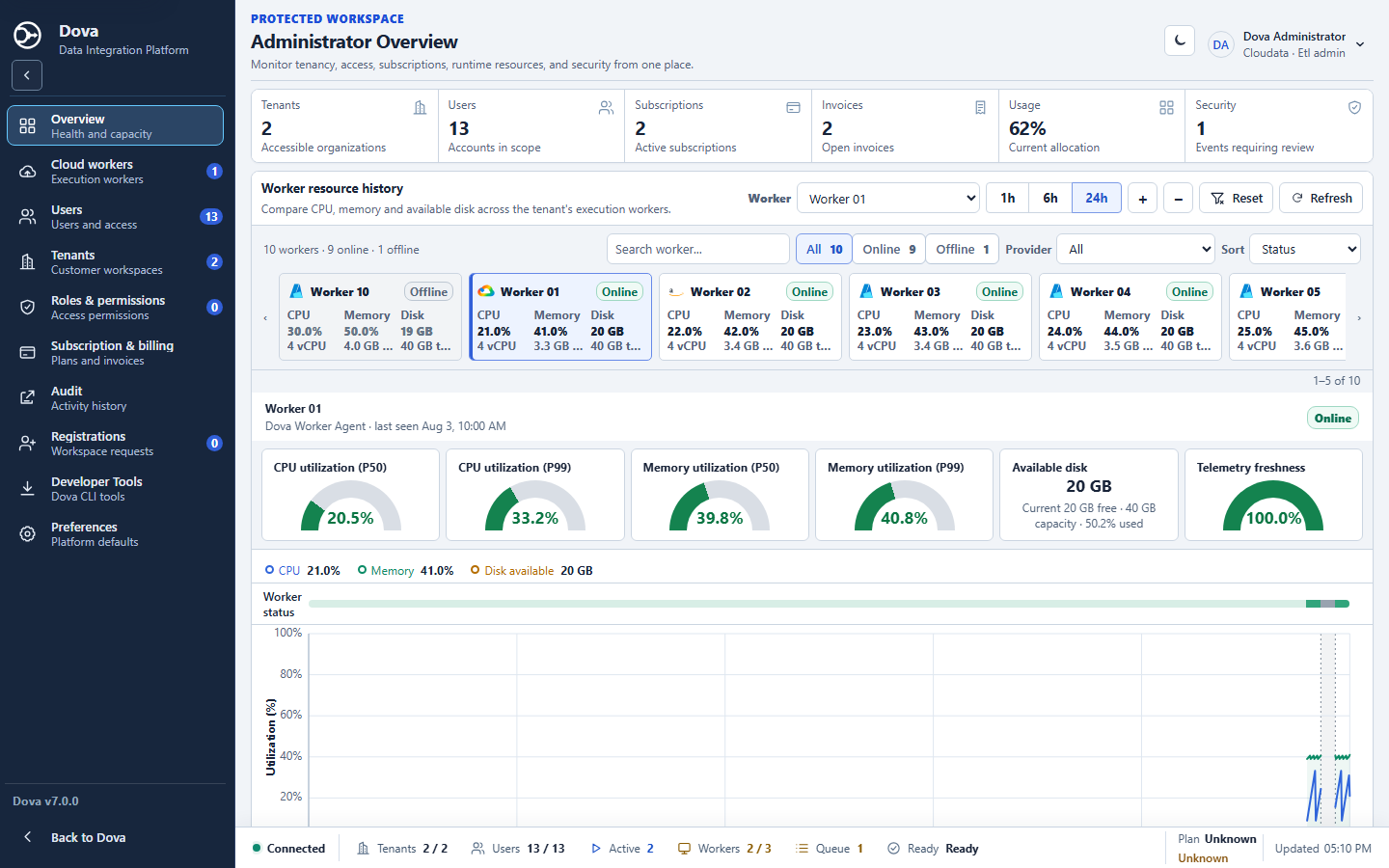
The summary cards show Tenants, Users, Subscriptions, Invoices, Usage and Security. Read their labels and supporting text together. A count describes the data available to the current view; it does not establish that a payment cleared, a user can sign in, or an execution succeeded.
Worker resource history compares worker CPU, memory and available disk. Select a worker from Worker, or use the worker comparison cards. Search worker..., provider, status and sort controls help locate a worker in a larger inventory. The time controls offer 1h, 6h and 24h. Zoom controls change the visible chart range; Reset restores it and Refresh requests current observations.
Other cards summarize Users by status, Invoices by status and Usage allocation. Quick access opens the corresponding administrative area when your role permits it. The operational footer provides connection and activity information while the main view is open.
Daily review procedure
- Open Administrator and confirm the account, workspace and active role.
- Select Overview and allow the view to finish loading. Distinguish a displayed zero from a loading error or missing measurements.
- Read the summary cards and note which category requires investigation.
- For a resource concern, select the affected worker and choose a comparable time range. Compare several samples, including the recorded coverage, rather than relying on one point.
- Open Users, Subscription & billing or Cloud workers according to the symptom. Use the destination screen to verify the underlying record.
- After any authorized corrective action, refresh the relevant view and confirm its resulting state.
Acceptance and recovery
A successful review identifies the workspace, affected record, observation period and next administrative action without exposing personal or sensitive information. For example, a laboratory memory increase should be checked against a synthetic execution in Dova before changing a worker profile.
If a card fails to load, retain the visible error message and retry after checking session and connectivity. If a shortcut is missing, review the active role; switching tenants does not resolve a permission denial. Old browser tabs may retain an earlier display until refreshed.
For execution outcomes, use Dova Monitor and the execution detail. For cloud infrastructure, continue with Cloud workers. For navigation, appearance and account options, read Preferences.