Account menu: choose the workspace, role and appearance
The account menu exposes your current identity and working context and provides personal actions such as Profile, Downloads, API Keys, Documentation and Sign out. Appearance controls include light/dark mode and available palettes. A visual preference is different from an administrative permission or tenant change.
Before saving, running or removing an object, confirm the workspace and active role. Only offered, authorized contexts may be selected. A role label is not a general permission to change every module.
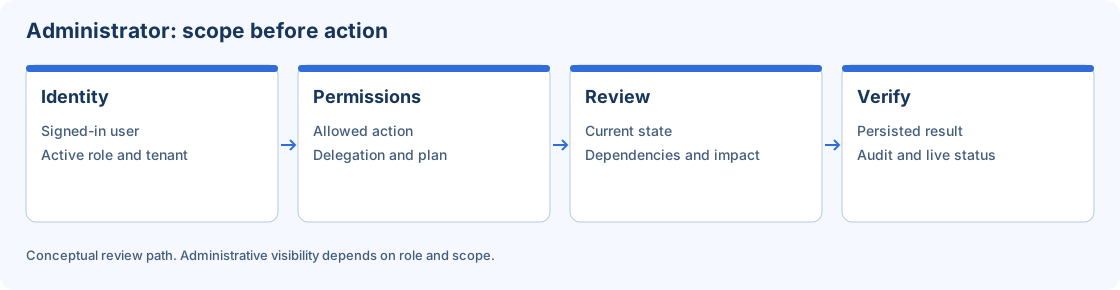
Context must be verified before an authorized action; appearance changes do not change permissions.
Step-by-step procedure
Open and inspect. Open the workspace account menu and read the signed-in identity, tenant/workspace and active role. Use keyboard navigation when desired and keep the menu open only long enough to confirm the context.
Review pending editors. Before switching context, inspect Open items for unsaved drafts. Save permitted changes or handle the discard prompt deliberately. A context switch should not be used to hide uncertainty about which tenant owns a draft.
Choose an offered workspace. Select only the authorized workspace offered by the menu. Wait for the accepted transition and read the new label. Reopen the relevant module and verify its tenant-scoped records before acting.
Choose a permitted role. If the interface offers a role/context choice, select the intended role and confirm the resulting actions. A hidden or disabled administrative action can be the expected result of the selected role.
Adjust appearance. Choose Light or Dark and the available palette for readability. Inspect text, focus outlines, status indicators and selected controls. Color alone should not be the only way you identify a status.
Open personal tools. Use Profile for timezone and personal security preferences, Downloads/Developer Tools for the CLI, API Keys for authorized personal automation and Documentation for this manual. These entries have different responsibilities.
Sign out when finished. Use Sign out at the end of a shared or temporary session. Follow the normal login and MFA flow when returning. Closing a browser tab is not the same as an explicit logout.
Verify the result
For a reversible exercise, inspect two authorized roles without changing data, compare the actions offered, then restore the original context. Try light and dark appearance and return to your preference. Confirm keyboard focus remains visible and the identity label remains correct in both themes.
Errors and recovery
If a switch fails, read the safe message and verify the current persisted context before retrying. If an object vanishes after switching, inspect tenant, location and filters rather than assuming deletion. Appearance does not grant privileges. Do not bypass MFA or tenancy checks to make a context switch succeed.
Continue
Repository · Mappings · Sessions · Workflows · Monitor · Configuration.