Preferences, appearance and limit policies
Find the correct scope
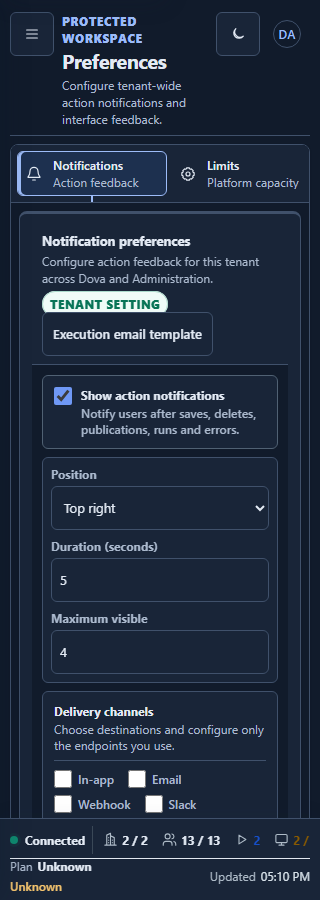
Preferences groups administrative settings while preserving the distinction between tenant settings and platform settings. The visible sections depend on your active role. Opening Preferences does not imply permission to edit authentication, email transport or every tenant's limits. Read the scope badge, selected tenant and enabled actions before changing a value.
The V7 application uses compact spacing, readable labels and consistent controls in day and night themes. On mobile, section navigation and toolbars remain available through wrapping or their local scrolling areas. Use the account menu for appearance and account options; use Preferences for the administrative policy concerned.
Account and appearance procedure
- Open the account trigger in the top bar and confirm the identity and workspace membership shown.
- Select another permitted membership or role only when it is the intended context for your work.
- Adjust theme and palette using the appearance controls. Check the resulting selected values and status feedback.
- Use Back to workspace, Downloads, API Keys or Documentation for the related destination when available.
- Close the menu with Escape to return focus to its trigger. Use Sign out to end the account session when your work is complete.
Review tenant limit defaults
- Open Preferences and select Limits.
- Choose Configuration scope. Platform defaults establishes inherited defaults; a tenant selection addresses that tenant's permitted overrides.
- Read the scope summary before editing. Distinguish inherited values from explicit overrides.
- Select Workers and capacity, Executions and objects, Retention, API and budget or Security and access.
- Read each limit's label, description, current value and unit. Workers, slots, memory, executions and retention periods are different resources.
- Edit only the authorized values, remaining within the displayed validation range. Where available, use the inheritance control to restore a tenant's inherited value.
- Select Save changes after the form records a real change. Reload the same scope and verify the saved policy.
The save control remains disabled when nothing changed. Reverting an edit to the loaded value should leave no pending update. If you change scope with unsaved edits, review Keep editing and Discard changes instead of assuming the previous values were saved.
Acceptance and recovery
For a synthetic tenant, change one permitted capacity value, save it and reload that tenant's policy. Verify the value, unit and inheritance state while confirming that platform defaults and another tenant's policy remain unchanged.
If a field is unavailable, inspect scope and permission before changing roles. If a save fails, retain the visible message and pending edit, refresh the relevant baseline when instructed, then retry the reviewed value. A limit change does not install infrastructure or guarantee that a workload is eligible to run.
Read Notifications and email, Authentication and Cleanup for those specific preference sections.