Open items: work safely across Mapping, Session and Workflow editors
Open items gives you access to the Mapping, Session and Workflow editors already open in the workspace. A tab represents an editor context, not a published version or a running job. Its name, type and pending-change indication help you navigate without losing track of drafts.
Before opening several similar objects, choose distinct laboratory names and confirm their tenant/location. Use Repository or the corresponding manager to verify identity when names are ambiguous. Keep pending edits visible before switching workspace or closing tabs.
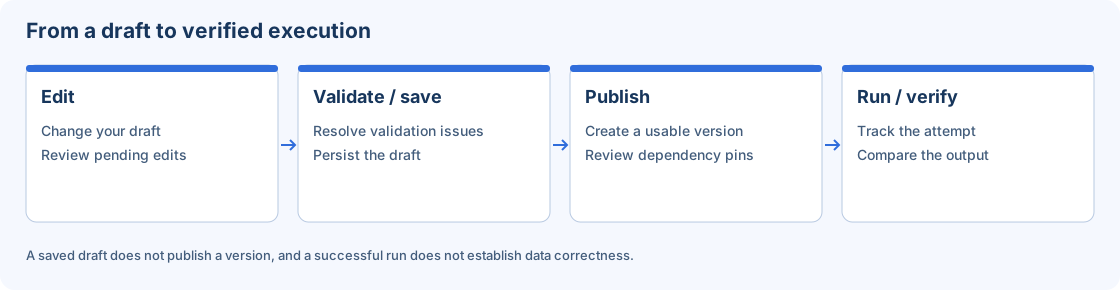
Editor drafts, saved definitions and published versions are distinct lifecycle stages.
Step-by-step procedure
Open a small related set. Open the Mapping, Session and Workflow for one laboratory process. Inspect each tab name and type so that you can distinguish transformation design from execution binding and orchestration.
Switch without assuming persistence. Select another tab or use the supported keyboard navigation. Returning to a tab lets you continue the draft, but merely switching tabs does not save or publish it.
Inspect pending-change state. After a reversible edit, look for the pending-change indication. Save with the editor action when intended, or revert the edit. Check the result message rather than assuming the marker will disappear on its own.
Use the context menu. Open the tab context menu for the available navigation and closing actions. Read whether an action applies to one item, several items or other tabs. Avoid bulk closing when an editor still contains needed changes.
Close a changed editor deliberately. When a prompt asks about pending edits, choose the intended save/discard/cancel behavior. Cancelling should preserve your editing context. Discarding a draft change is different from deleting the saved object.
Reopen and confirm. Reopen the object from its manager or Repository after closing. Confirm the saved identifier and content. A new published version is only established by the corresponding publication action, not by reopening a tab.
Review before leaving the workspace. Inspect remaining pending items before switching tenant, signing out or ending a session. Keep the saved and published state clear so that a scheduled Workflow is not mistaken for an unsaved editor draft.
Verify the result
For a reversible exercise, make a harmless description change in a laboratory Mapping, switch to its Session, return and cancel the close prompt. Confirm the draft is retained. Then revert or save the intended change, close and reopen the object, and inspect the expected persisted result.
Errors and recovery
If the visible editor differs from your expectation, check tab type, object identifier, tenant and version. A closed tab is not proof of deletion, and a pending draft is not proof of publication. Use keyboard focus to locate tabs and menus on compact screens; investigate layout or loading errors before repeating actions.
Continue
Repository · Mappings · Sessions · Workflows · Monitor · Configuration.