Profile: personal preferences, password and data requests
Profile contains personal account information, preferences, security controls and privacy requests. It is separate from Administrator → Users and does not grant roles or arbitrary tenant access. Open it from the account menu and confirm the displayed identity before editing.
Use a laboratory account for reversible preference checks. Password changes and deletion requests have meaningful effects; prepare your authentication factors and choose those actions only for their intended purpose.
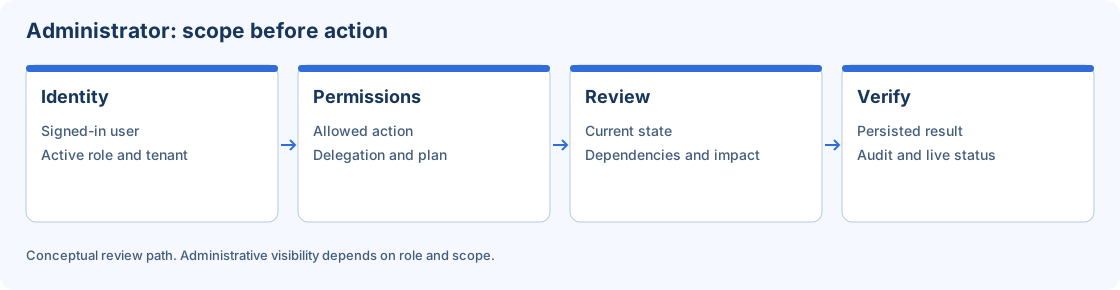
Profile actions apply to the signed-in identity and have their own validation and confirmation.
Step-by-step procedure
Inspect account context. Open Profile and review name, email, tenant and role. If the identity is unexpected, close the dialog and resolve the context before editing personal information.
Set presentation timezone. Choose a supported Timezone such as America/Lima, then Save preferences. Reopen Profile and confirm the saved value. This affects supported account date/time presentation; it is not a change to the Workflow schedule timezone.
Update a laboratory photo. Use Change photo with PNG, JPEG or WebP. The current flow accepts an input up to 10 MB, center-crops it to a square 256-pixel image and optimizes it before sending. Wait for accepted processing and saving.
Remove a photo deliberately. Use Remove photo when desired and confirm the accepted result. A processing error does not prove that a new image was saved or that the old one was removed.
Change a password only when intended. Provide Current password, New password and Confirm new password. The UI validates a new password length of 12–128 characters; the server can apply additional rules. Prepare normal login and MFA before submitting.
Understand session effects. The dialog states that a password change signs out browser sessions and trusted devices. Authenticate again through the authorized flow. Do not use password changes as a routine check on a shared operational account.
Export or request deletion. Download profile export only to an authorized location. Distinguish Request profile data deletion from Request account deletion. Read the email confirmation and Submit request action. Acceptance acknowledges a review request, not immediate deletion of shared tenant objects or retained audit records.
Verify the result
For acceptance, record the original timezone, change it in a laboratory account, save and reopen to confirm persistence, then restore it. A privacy-dialog inspection can be cancelled without submitting. A submitted request must be tracked as a request until the supported process confirms its outcome.
Errors and recovery
If saving fails, inspect the safe message and persisted value before retrying. If the session ends after a password change, use normal authentication rather than assuming object loss. Photo format/size failures should be corrected with another permitted image. Treat profile exports as personal information and keep them out of screenshots and shared logs.
Continue
Repository · Mappings · Sessions · Workflows · Monitor · Configuration.