Repository: organize Domains, Folders and objects
Repository gives Mappings, Sessions, Workflows and Connections a navigable location. Domains and Folders organize the workspace, while the explorer helps you distinguish object types, shared items and their dependencies. A location is part of the object context, not an independent authorization boundary that grants access by itself.
Prepare a simple laboratory structure such as Domain Training with Folder CustomerDemo. Use the role allowed to create or edit that structure. Keep names recognizable and avoid placing customer information or secrets in descriptions.
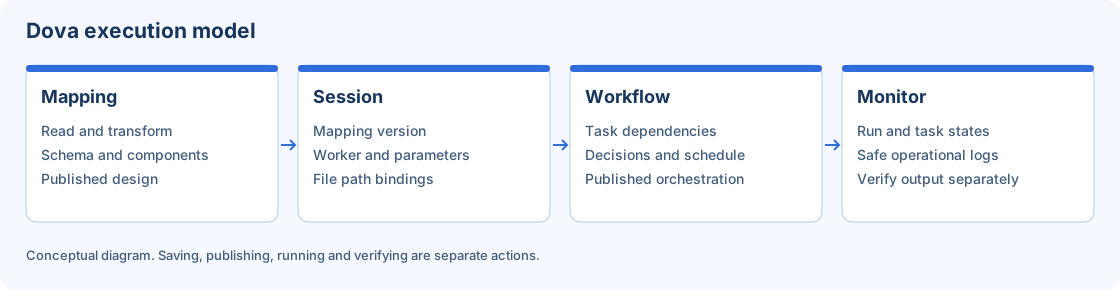
Repository organizes the designs and execution definitions shown in this conceptual diagram.
Step-by-step procedure
Inspect the existing tree. Open Repository and review the Domains and Folders already present. Select the intended Domain before creating anything. Search for a similarly named laboratory Folder to avoid duplicating an existing exercise.
Create a laboratory Domain. Use the creation action available to your role. Enter a clear name and description, review the scope and save. Confirm the new Domain appears in the tree before creating its Folder.
Create and select a Folder. Create
CustomerDemounderTraining. Select it and check the breadcrumb or location shown by the explorer. A Folder with the same name under another Domain is a different destination.Browse by object type. Switch between All, Mappings, Sessions, Workflows, Connections and Shared where available. Use the search and grid controls to locate an object; check its type and identifier before opening it.
Place an object deliberately. When an editor asks for Domain and Folder, select the laboratory location. Save and return to Repository to confirm the object is listed there. Opening another Folder does not move an object automatically.
Review dependencies before removal. Inspect the objects and references involved before choosing a delete or move action. Read any blocking dependency message. Resolve the intended references through supported editors instead of changing stored records manually.
Verify the result
For acceptance, create one laboratory Folder, save one synthetic Mapping to it, and reopen that Mapping from Repository. Confirm the same identifier, name and location. Use the Shared view only to verify sharing already authorized within the tenant; it is not evidence of cross-tenant visibility.
Errors and recovery
If an object seems missing, check the selected Folder, object-type filter, search term, tenant and permissions. If deletion is blocked, preserve the object and inspect its references. A Folder containing no visible rows may still have dependencies outside your current filter. Refresh after an accepted save before repeating it.
Continue
Mappings · Sessions · Workflows · Monitor · Configuration.