Overview: understand the active workspace
Overview is the starting point for understanding the operational state of the workspace you are currently using. It summarizes objects, execution activity and runtime health; it does not report business revenue or prove the quality of a transformation result. Use it to decide which module to inspect next.
Before interpreting a counter, open the account menu and confirm the tenant and active role. A change of workspace changes the scope of the information you are reading. A missing action can be correct when your role or subscription does not include it.
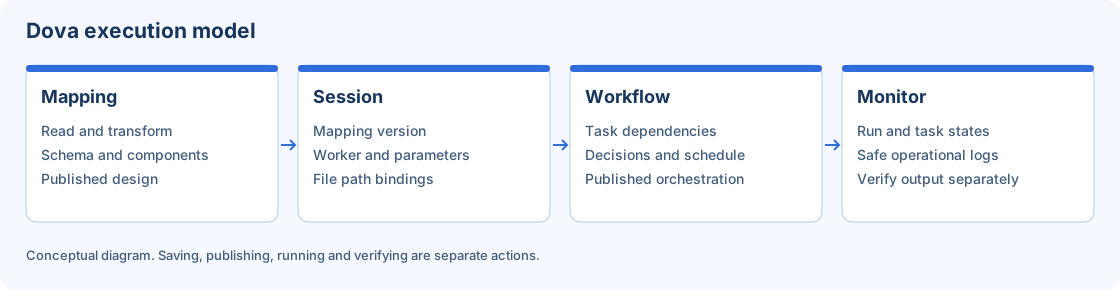
Conceptual diagram of the responsibilities behind Overview links.
Step-by-step procedure
Confirm context. Read the workspace and active role in the account menu. Close the menu and open Overview. For a laboratory, use an authorized synthetic workspace rather than switching to a customer tenant just to populate the cards.
Read the object summaries. Review the counts and links for available repository objects. Treat these as operational summaries. Follow a card to its underlying module to inspect names, status and the current filters before drawing a conclusion from the total.
Inspect recent activity. Review the execution activity presented by the page. Identify the relevant attempt and continue in Monitor for task-level state and safe logs. An earlier successful run does not establish the health of a later attempt.
Inspect runtime health. Review the displayed runtime and capacity indicators. If a worker is offline or ineligible, open Workers or Configuration to inspect heartbeat, capabilities and the selected policy. Do not change the default worker based only on a summary card.
Open the next module. Use Repository for location and ownership, Mappings for transformation design, Sessions for bindings, Workflows for orchestration, and Monitor for execution evidence. Keep the object identifier when names alone are ambiguous.
Return and reconcile. After an authorized change, revisit Overview and compare the summary with the underlying module. If a summary appears stale, refresh and inspect the affected record before repeating a save or run request.
Verify the result
Success means you can explain which workspace each indicator belongs to and trace it to an underlying object or run. For a controlled exercise, read the cards, inspect a synthetic Workflow in its module, then inspect its last run in Monitor. No mutation is needed to learn this path.
Errors and recovery
A zero count may reflect an empty workspace, filters or permissions. An error banner is different from an empty collection. Preserve the safe message and inspect the affected module; avoid interpreting an unavailable backend as a valid zero. If the tenant label is wrong, stop and choose the intended context before acting.
Continue
Repository · Mappings · Sessions · Workflows · Monitor · Configuration.